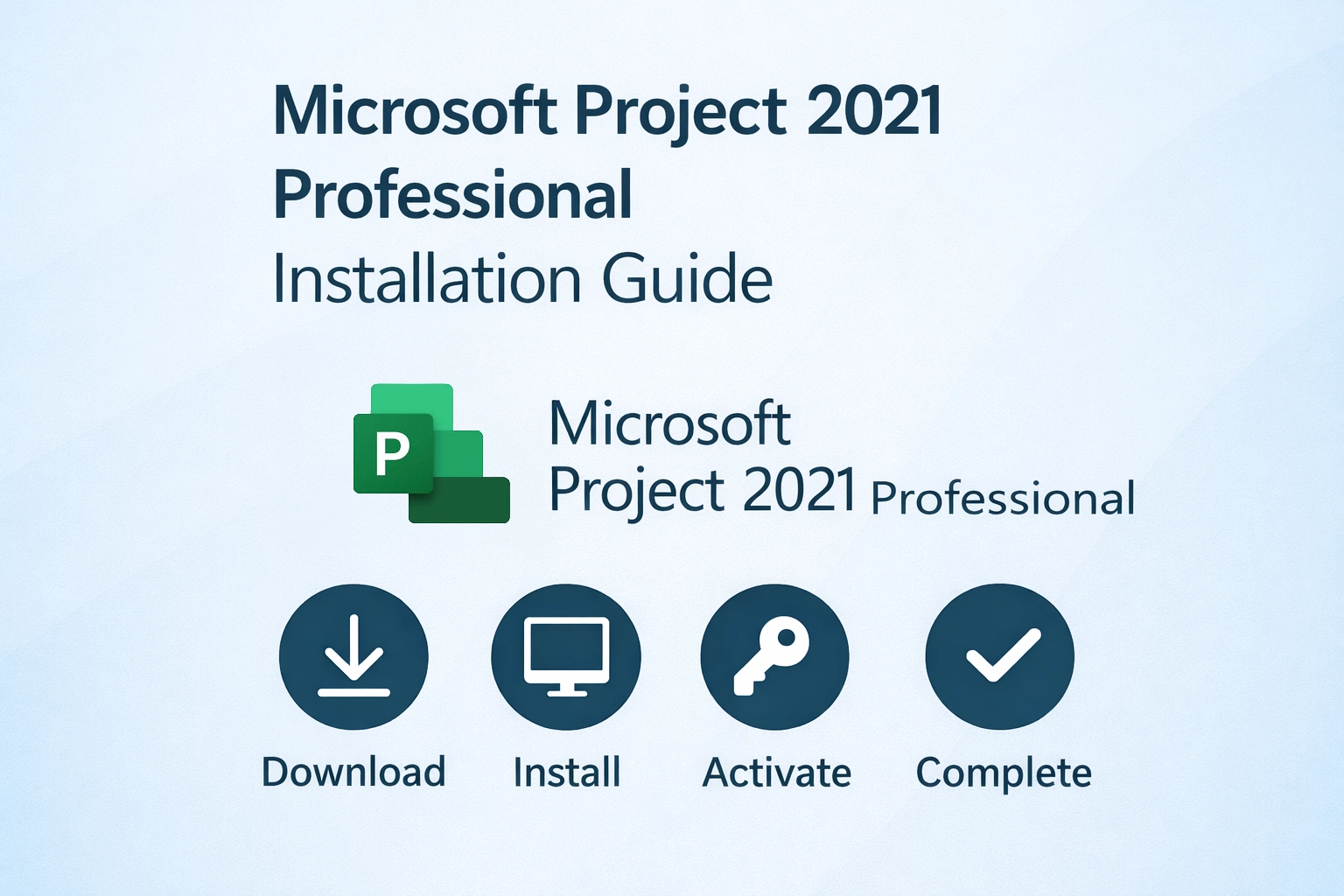
Microsoft Project 2021 Professional – Installation Guide

Microsoft Project 2021 Professional – Installation Guide

This guide explains two safe and supported ways to install Microsoft Project 2021 Professional:

  1. Using our ready-made ISO (recommended for simplicity)
  2. Using Microsoft’s official download (Office Deployment Tool) for customers who prefer manual setup

Both methods install the same genuine Microsoft Project 2021 Professional Volume edition.


Option 1: Install Using the Provided ISO

The ISO already includes:

  • Microsoft Office Deployment Tool (ODT)
  • Pre-configured configuration.xml
  • An automatic admin-enabled installer script

Step 1: Download the ISO

  • Download the Project 2021 Professional ISO from the link provided with your order.

Step 2: Mount the ISO

  • Right-click the downloaded ISO file
  • Select Mount
  • A new virtual drive will appear (e.g. D:)

Step 3: Start Installation

  • Open the mounted drive
  • Right‑click start.cmd → Run as administrator
  • Approve the Windows User Account Control (UAC) prompt

The installer will:

  • Request admin privileges automatically
  • Launch Microsoft setup using the pre-defined configuration
  • Download Project files directly from Microsoft servers

Step 4: Wait for Completion

  • Installation progress window will appear
  • Please do not close the window
  • Installation may take 5–15 minutes depending on internet speed

Once completed, Microsoft Project 2021 Professional will be installed.


Option 2: Install Directly from Microsoft (Manual Method)

Use this method if you prefer not to run the ISO and want to download everything directly from Microsoft.

Step 1: Download Office Deployment Tool (ODT)

  1. Visit the official Microsoft page:
    https://www.microsoft.com/en-us/download/details.aspx?id=49117
  2. Download Office Deployment Tool
  3. Run the downloaded file
  4. Extract files to a folder (example: C:\Project2021)

You should see:

  • setup.exe
  • (You will create configuration.xml manually)

Step 2: Create the Configuration File

  1. Open Notepad
  2. Paste the following configuration exactly:
<Configuration>
  <Add OfficeClientEdition="64">
    <Product ID="ProjectPro2021Volume">
      <Language ID="en-us" />
    </Product>
  </Add>
  <Updates Enabled="TRUE" />
  <Display Level="Full" AcceptEULA="TRUE" />
</Configuration>
  1. Click File → Save As
  2. File name: configuration.xml
  3. Save type: All Files
  4. Save it in the same folder as setup.exe

Step 3: Run Installation via Command Line

  1. Open the folder containing setup.exe
  2. Hold Shift + Right‑click inside the folder
  3. Select Open Command Prompt here (or Open in Terminal)
  4. Run the following command:
setup.exe /configure configuration.xml
  1. Press Enter
  2. Allow the UAC prompt if asked

The installer will now download Project directly from Microsoft and install it.


Activation

  • After installation, open Microsoft Project 2021
  • Enter the product key provided with your order
  • Activation requires an active internet connection

Notes & Recommendations

  • Windows 10 or Windows 11 (64‑bit) is required
  • Always run installation as Administrator
  • Temporarily disable third‑party antivirus if it blocks setup
  • Installation files are downloaded directly from Microsoft servers in both methods

Which Method Should I Choose?

Situation Method
Want fastest & easiest setup ISO method
Prefer full manual control Microsoft ODT method
Corporate / restricted systems ODT method

Both methods install the same genuine Microsoft Project 2021 Professional edition.


If you need help during installation or activation, contact our support team with a screenshot of the error (if any).

Language »