How to Download | Install | Activate Office 2019 Standard [Complete Guide]
Looking for a stable, lightweight, one-time-purchase version of Microsoft Office for work or home?
Office 2019 Standard is ideal for professionals, businesses, and power users who need classic Office apps without a subscription.
In this guide, you’ll learn exactly how to download, install, and activate Office 2019 Standard using the official Office Customization Tool (OCT) and the Office Deployment Tool (ODT).
- One-time purchase — lifetime activation
- No Microsoft 365 subscription required
- Includes Word, Excel, PowerPoint, Outlook, Publisher & OneNote
- Designed for Windows 10 & Windows 11 (64-bit)
Important: If you already have
Microsoft 365 or Office Click-to-Run installed,
please uninstall it before installing
Office 2019 Standard.
These versions cannot run together.
Uninstall Microsoft 365 from a PC
Note: This installation guide is for Windows 10 & Windows 11 (64-bit).
Step 1: Download Office 2019 Standard
There are two ways you can install Office 2019 Standard:
Option 1: Download Full Installer
If you prefer the simple method, download the complete Office 2019 Standard setup from our Download Center.
This package includes:
- Office Deployment Tool (ODT)
- Pre-configured Office 2019 installer
- Ready-to-use configuration file (no manual XML editing)
No technical steps required.
Just mount/extract the ISO and run Start.cmd to begin installation with the correct Office 2019 settings.
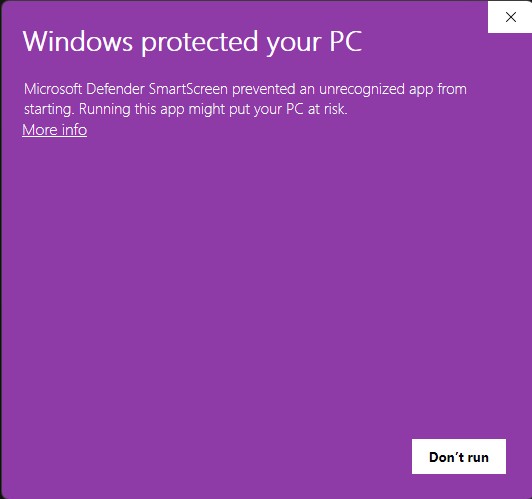
If you see a “Windows protected your PC” message when launching Start.cmd:
- Click More info
- Click Run anyway
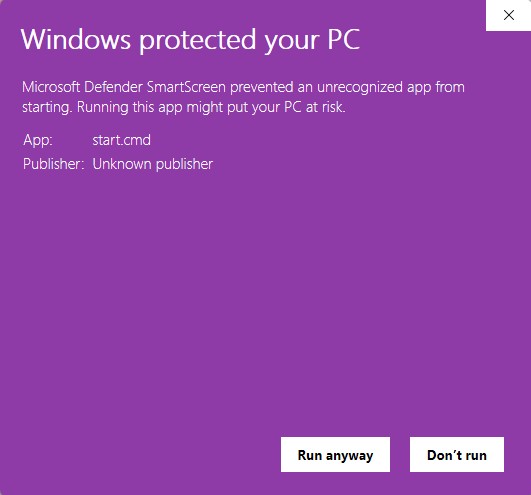
How to Stay Safe When Running Script Files
- Right-click the file (e.g.,
Start.cmd) → select Edit to review the contents.
- Confirm the script only installs Office — no suspicious commands.
- If unsure, upload the file to ChatGPT and ask:
“Please check this .cmd file for safety.”
Option 2: Manual Installation Using the Office Customization Tool (OCT)
If you want to build your own installation setup:
- Open the Office Customization Tool
- Under Product and release, select: Office Standard 2019 — Volume License
- Architecture: 64-bit recommended
- Channel: PerpetualVL2019
- Select your preferred apps
- Click Export to save
configuration.xml
- Download the Office Deployment Tool (ODT)
- Extract it into a folder (e.g.,
C:\Office2019\)
- Move your exported
configuration.xml into the same folder as setup.exe
- Run the Office installation
Open Command Prompt inside that folder and run:
setup.exe /download configuration.xml
setup.exe /configure configuration.xml
Step 2: Activate Office 2019 Standard
Once installed, activate Office using your product key.
Activate via Office Application (Recommended)
- Open Word or Excel
- Click File → Account
- Select Change Product Key
- Enter your 25-character Office 2019 Standard key
Need a Genuine License?
Get an authentic Office 2019 Standard product key with instant delivery.
Buy Office 2019 Standard Now
Instant delivery • Lifetime activation • 24/7 support