
If you’ve purchased Office 2024 Standard for Mac from Keys Experts, follow this clear installation guide to set it up properly on your Mac.
Before installing Office 2024 Standard, it’s strongly recommended to uninstall any existing Microsoft Office versions to avoid conflicts — including:
Full Step-by-Step Uninstall Guide:
How to Uninstall Microsoft Office on Mac (Clean Removal)
Following this guide ensures a smooth and conflict-free installation of your new Office 2024 Standard.
For additional instructions, you can also visit the official Microsoft guide: Microsoft: Uninstall Office for Mac
Make sure you:
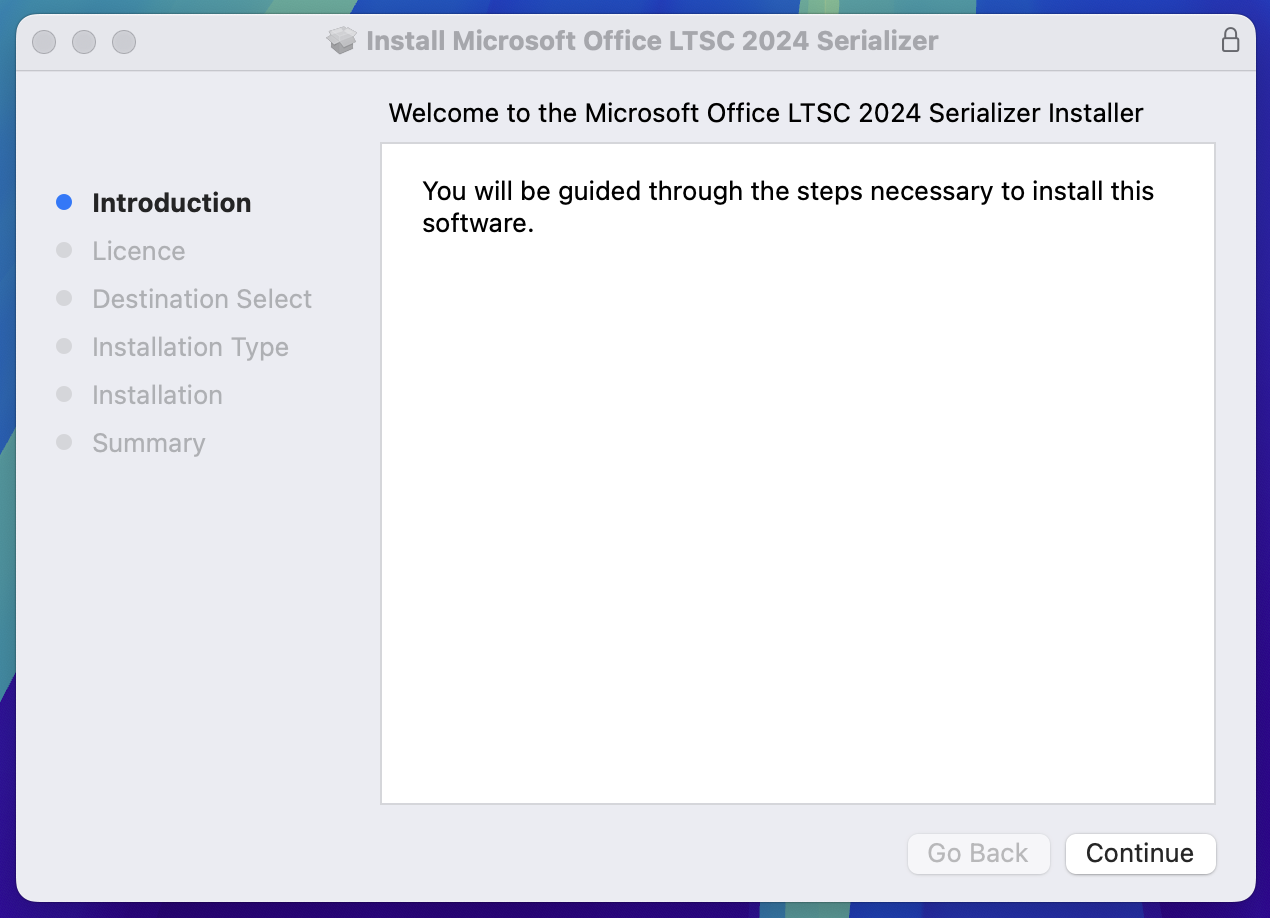
Locate the .pkg file you downloaded and double-click it to launch the Office installer.
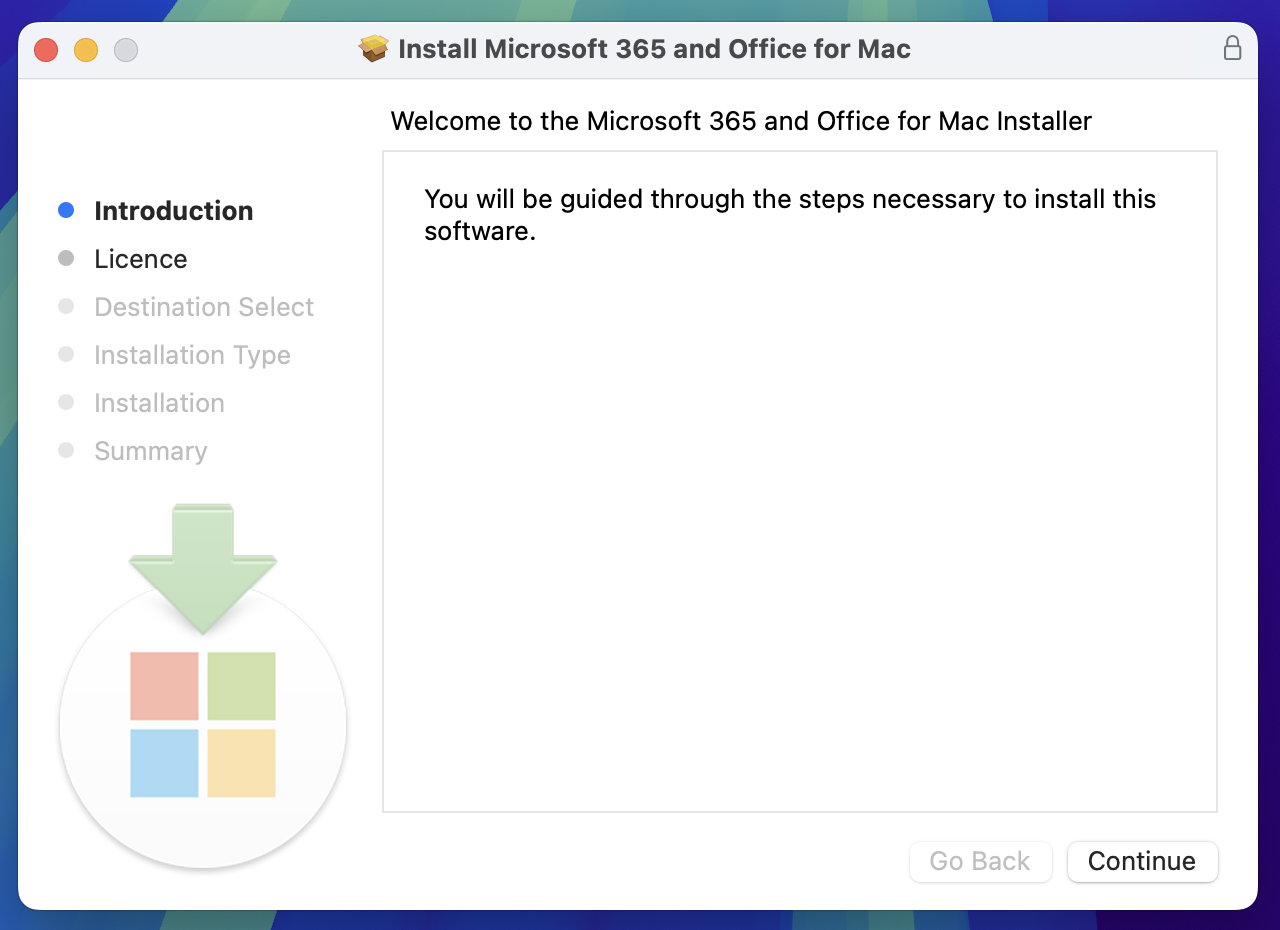
Click Continue.
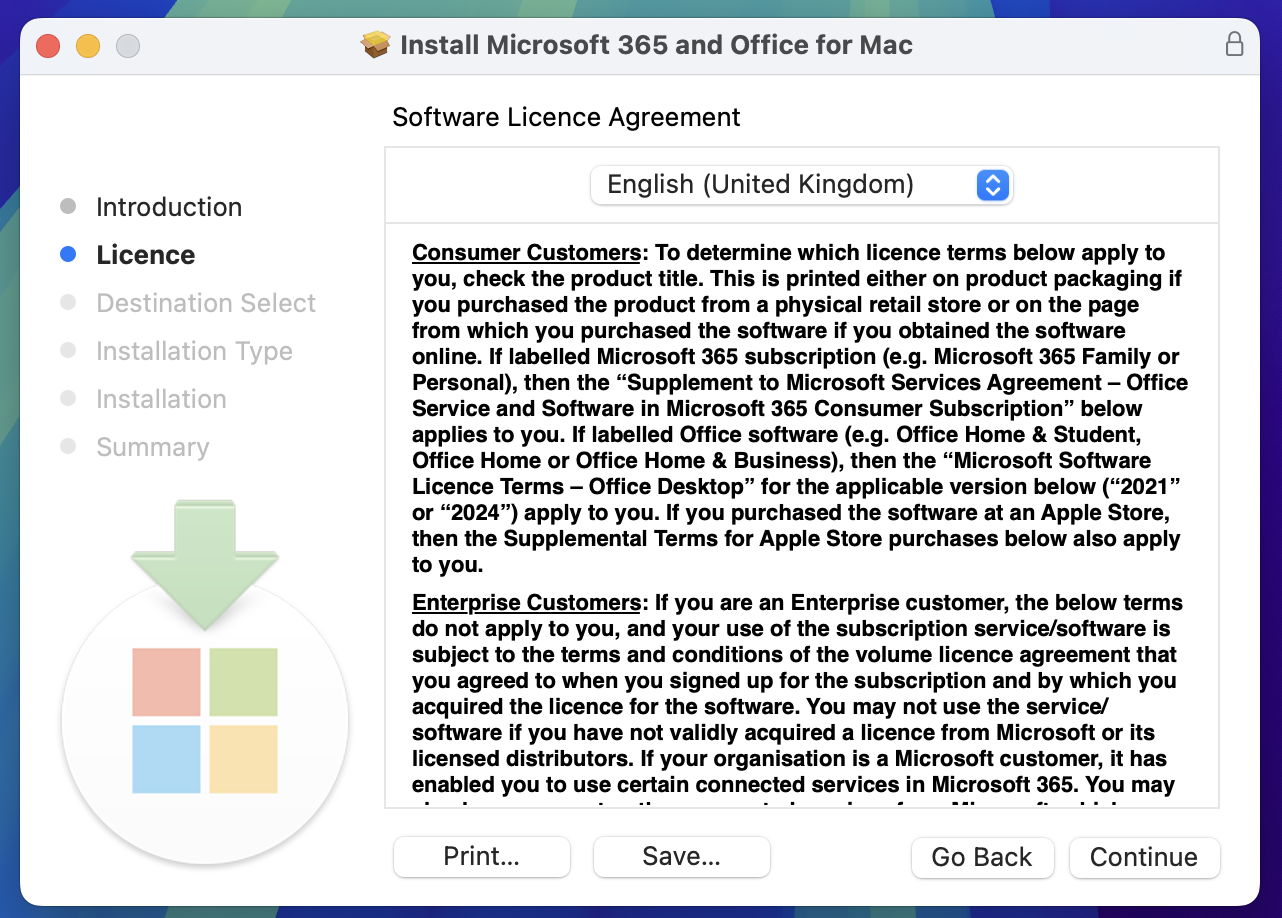
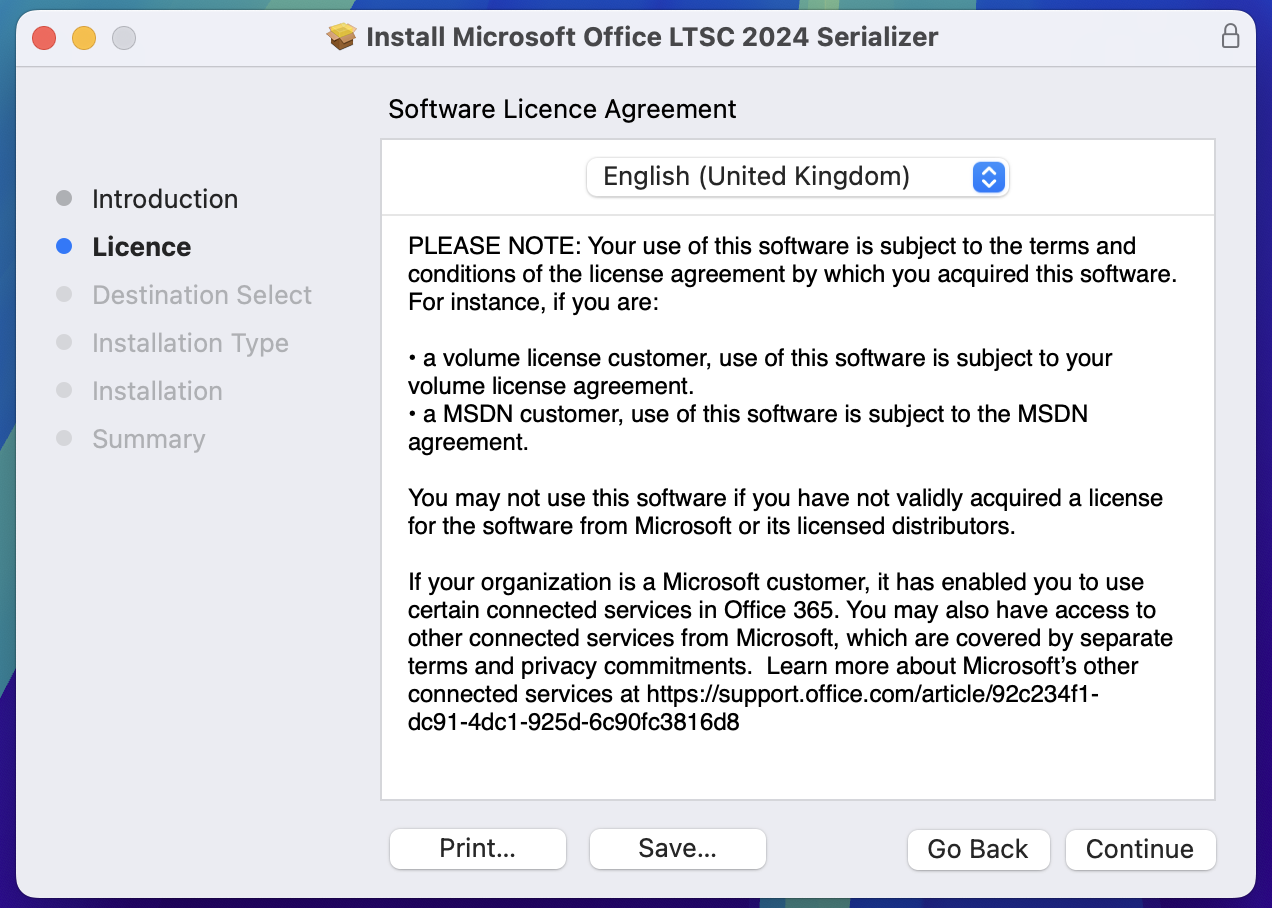
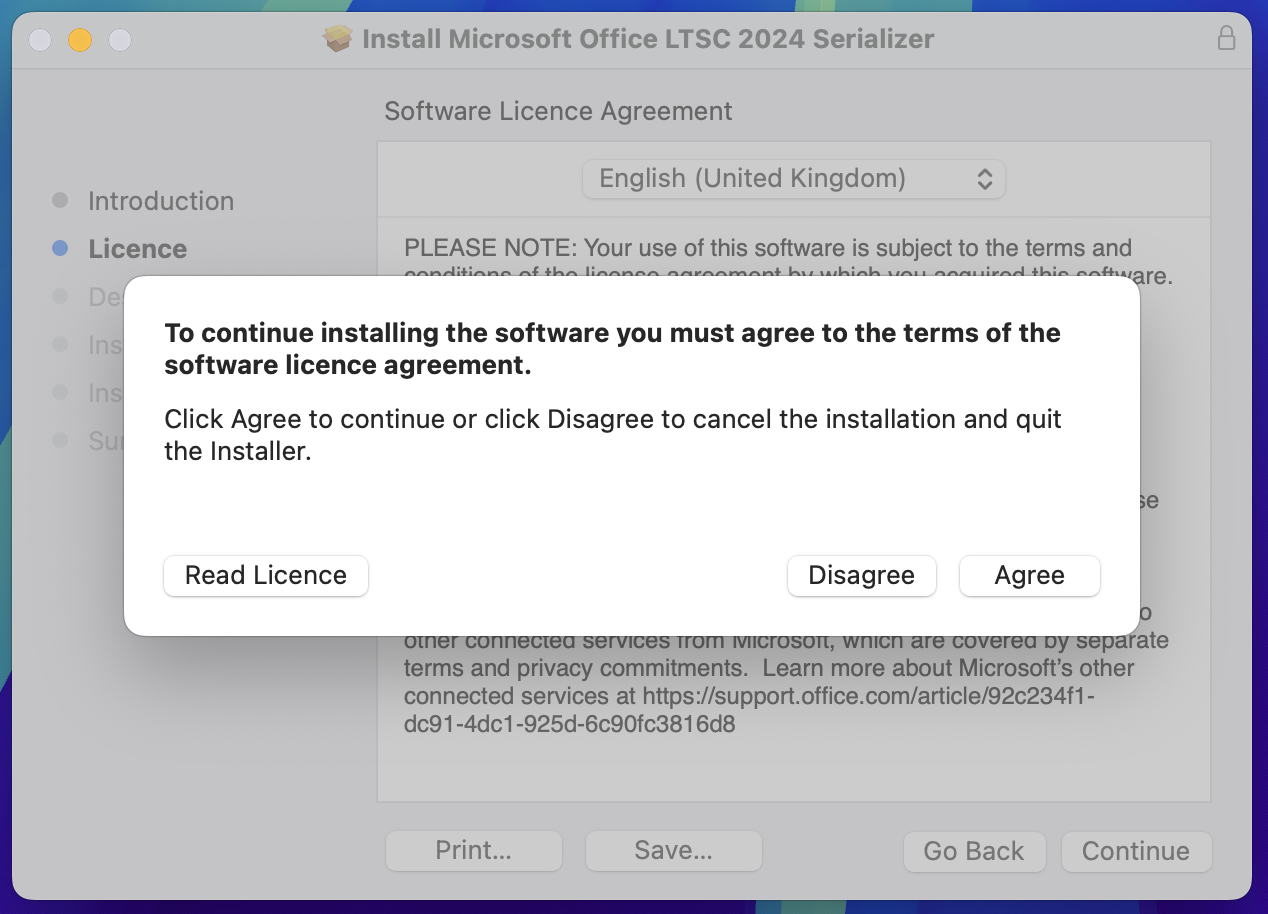
Review the license terms and click Continue, then click Agree to proceed.
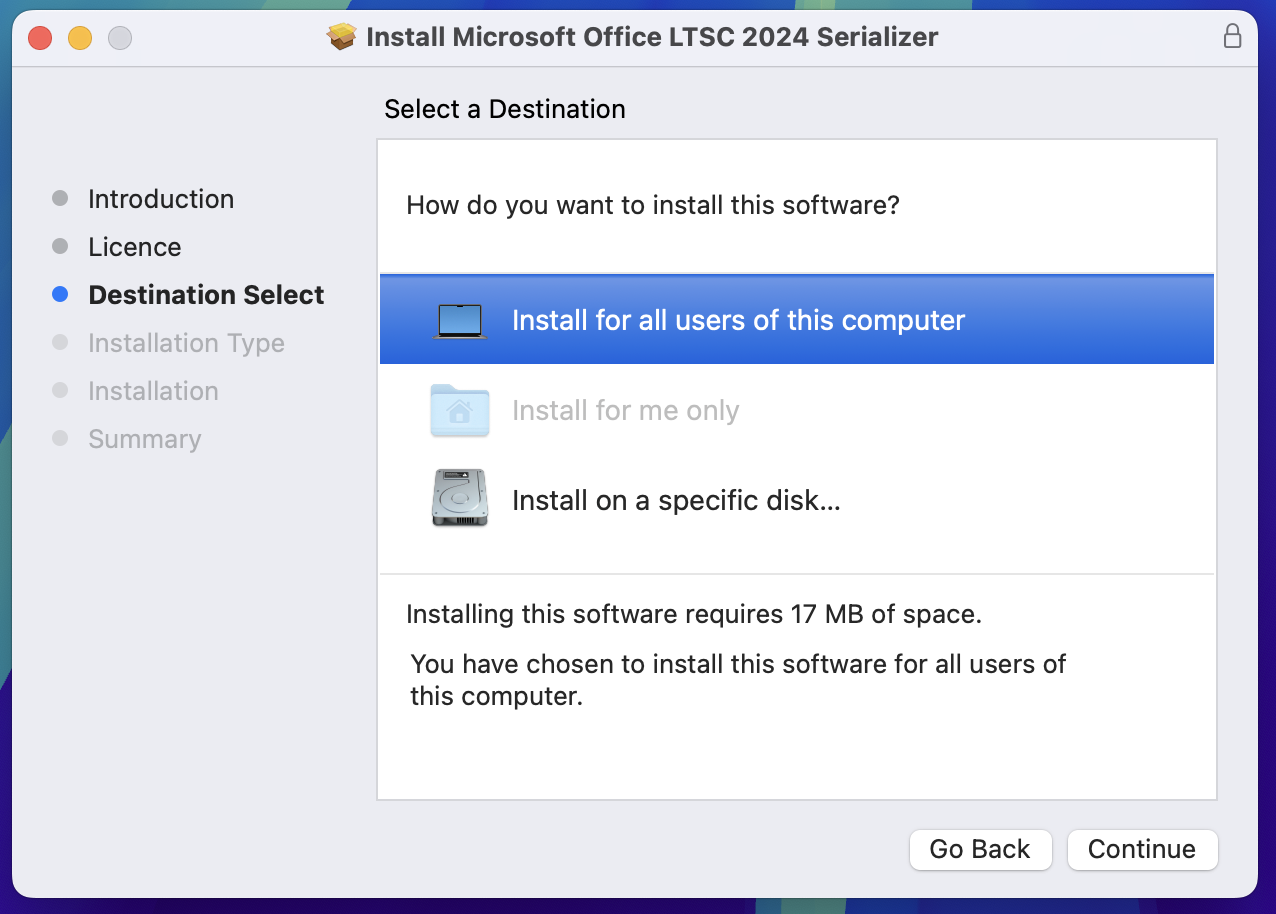
Select the installation destination. Default is recommended.
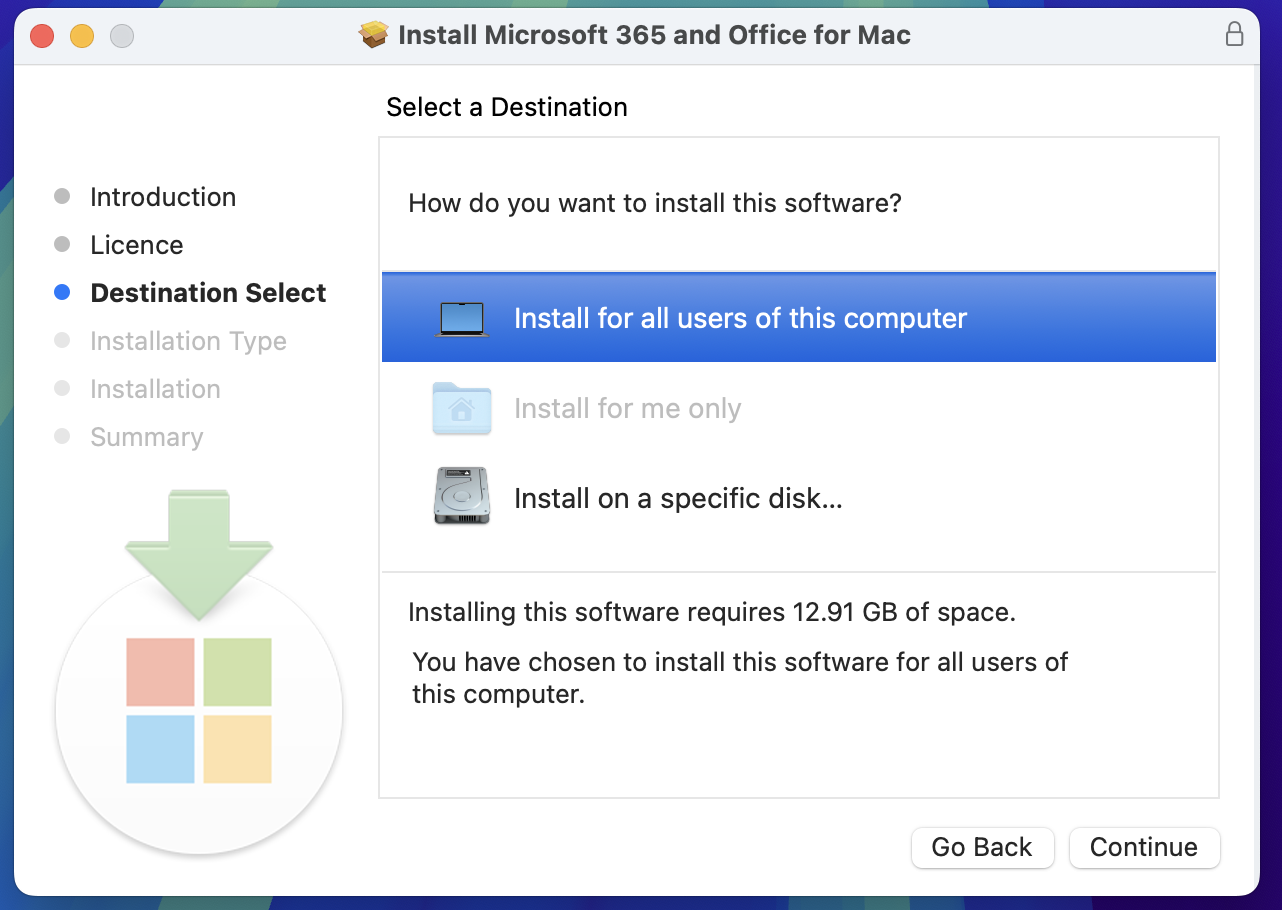
Click Continue.
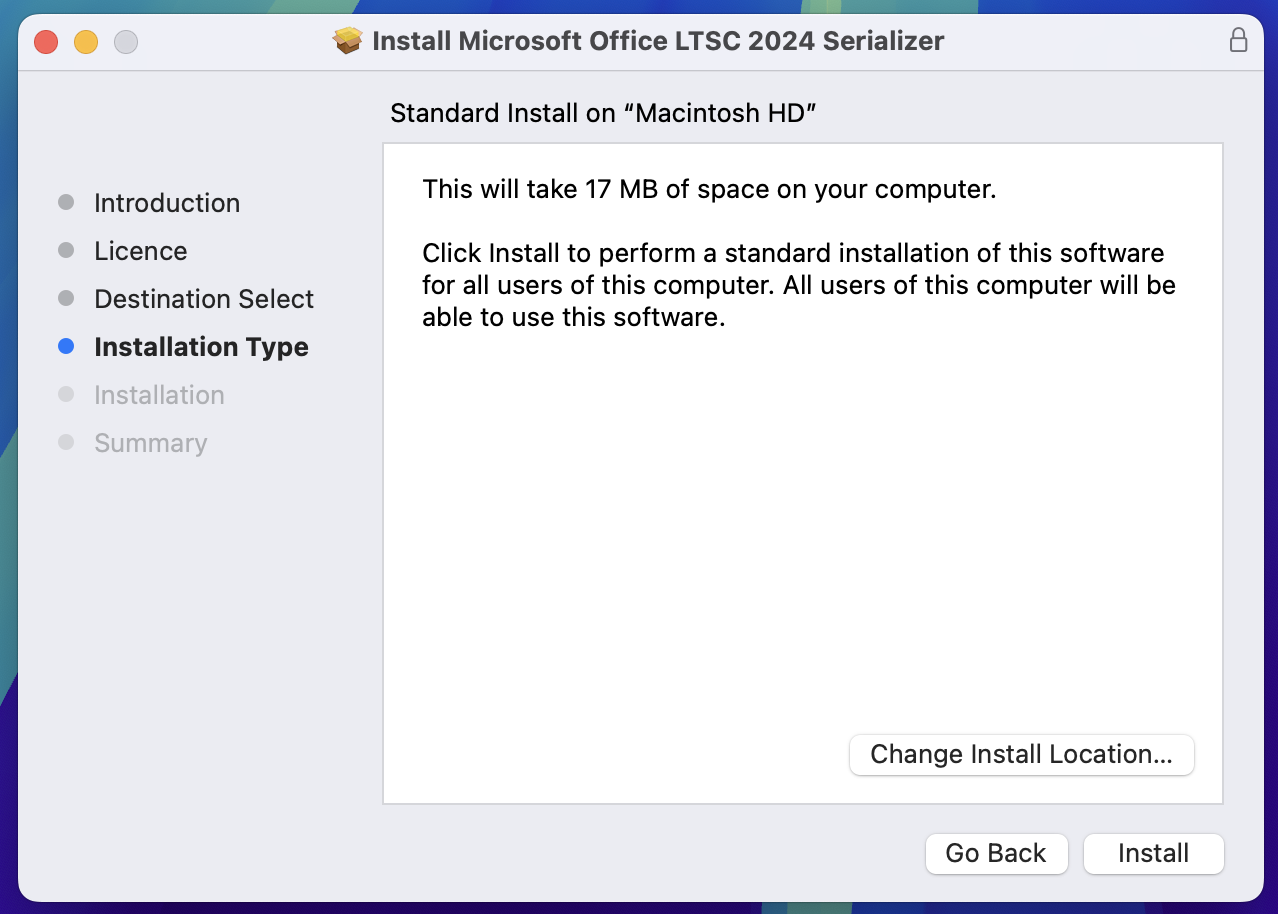
Click Install to proceed with default app selection.

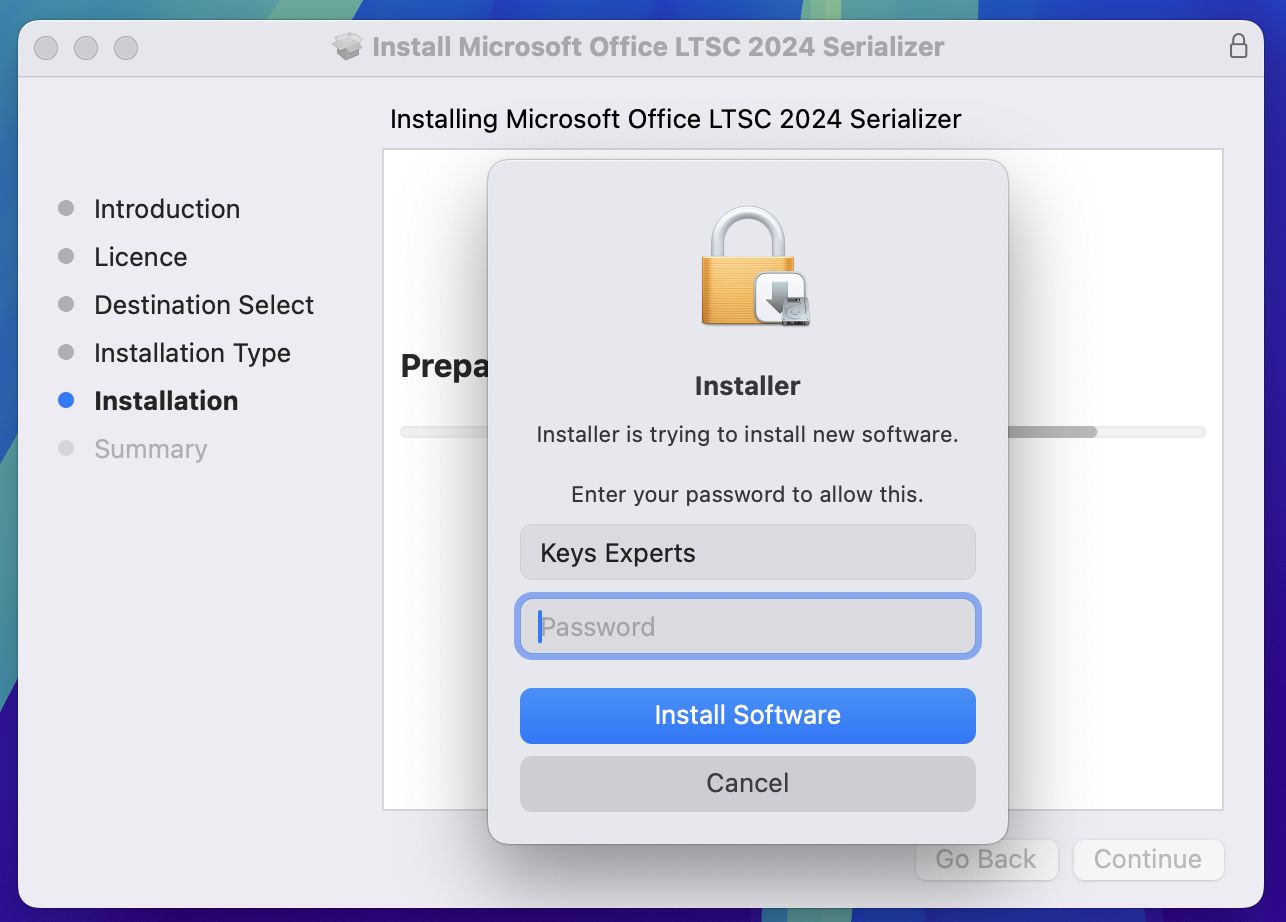
Enter your Mac admin password or use Touch ID to authorize the installation.
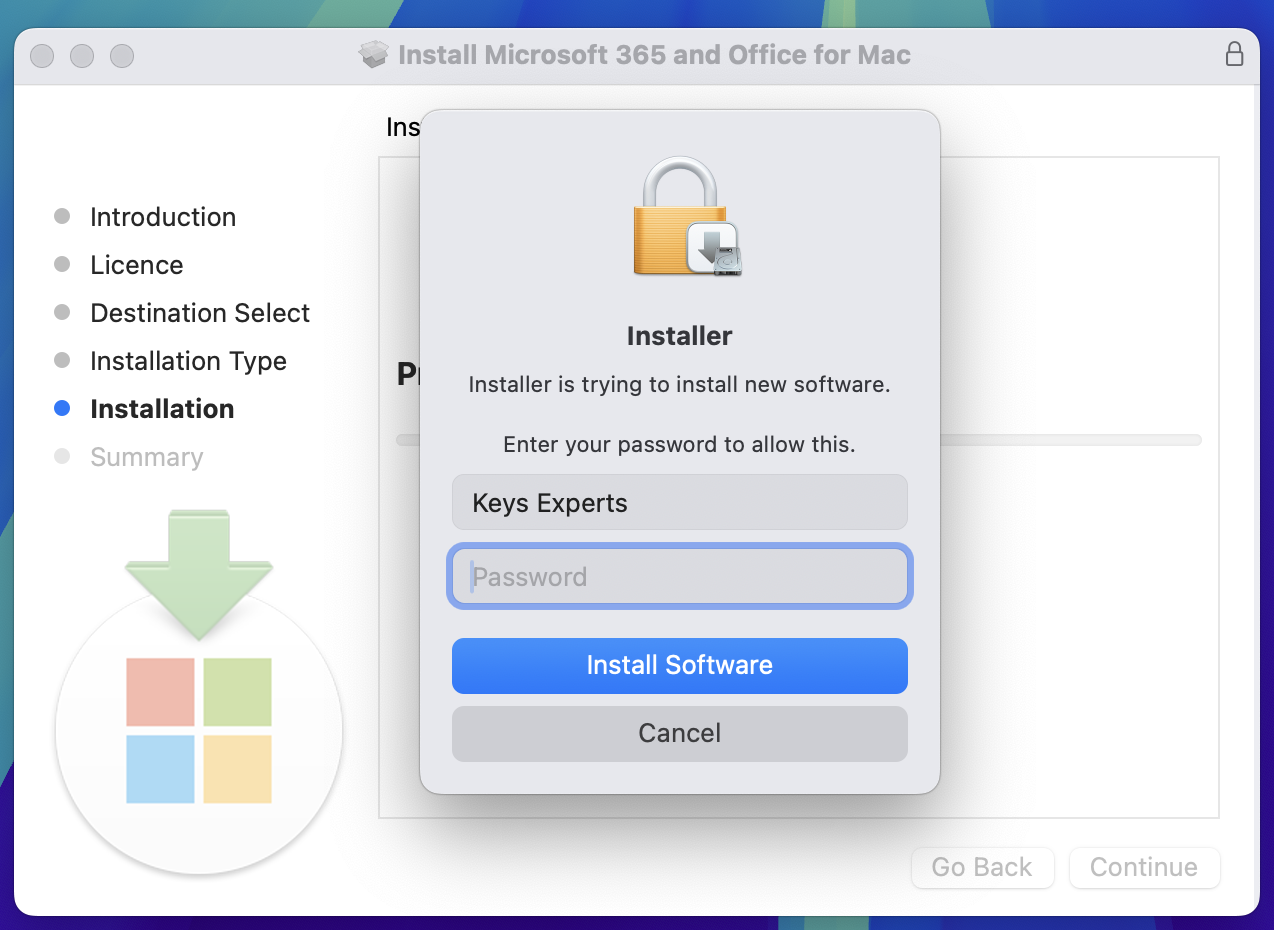
The installer will now validate packages and run scripts automatically.
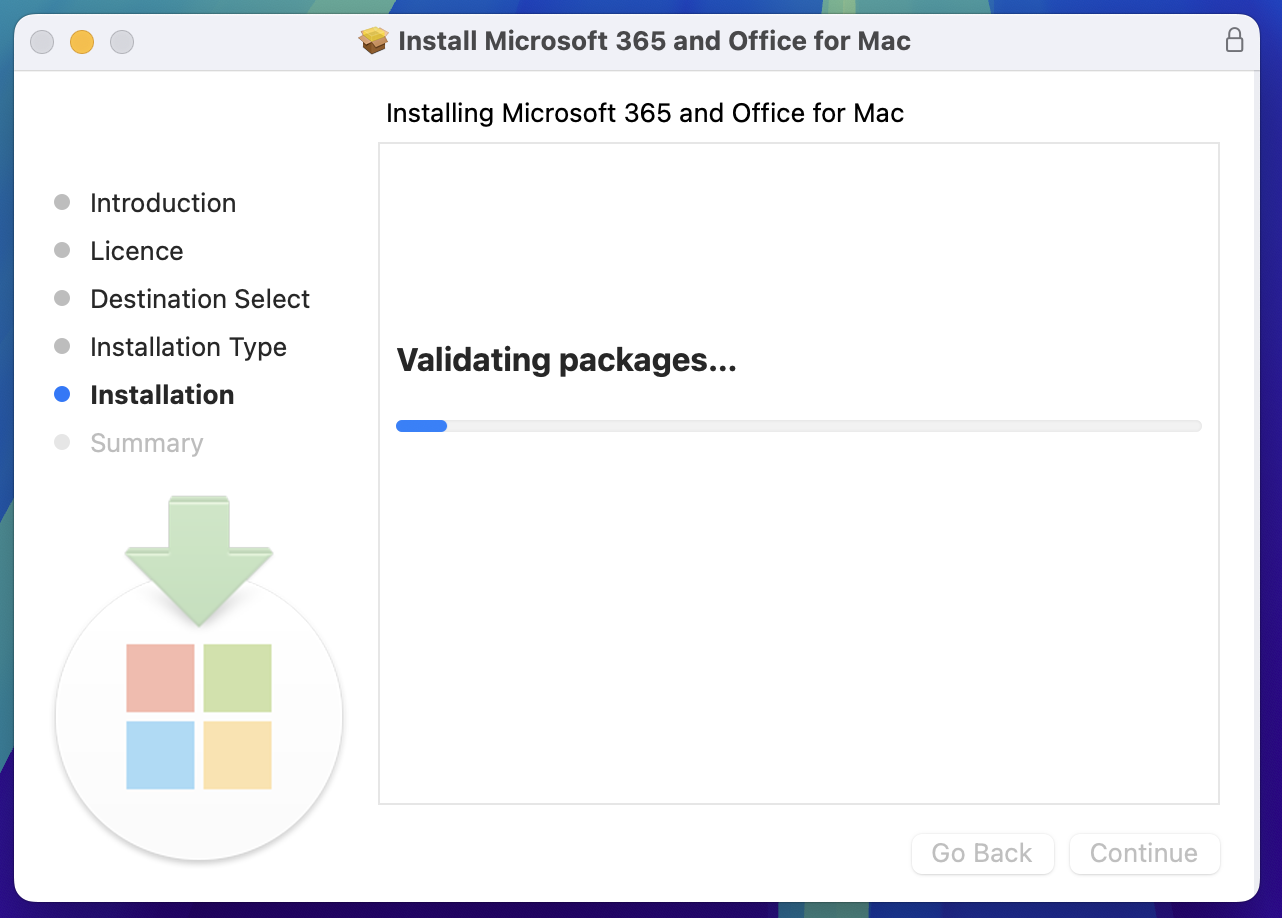
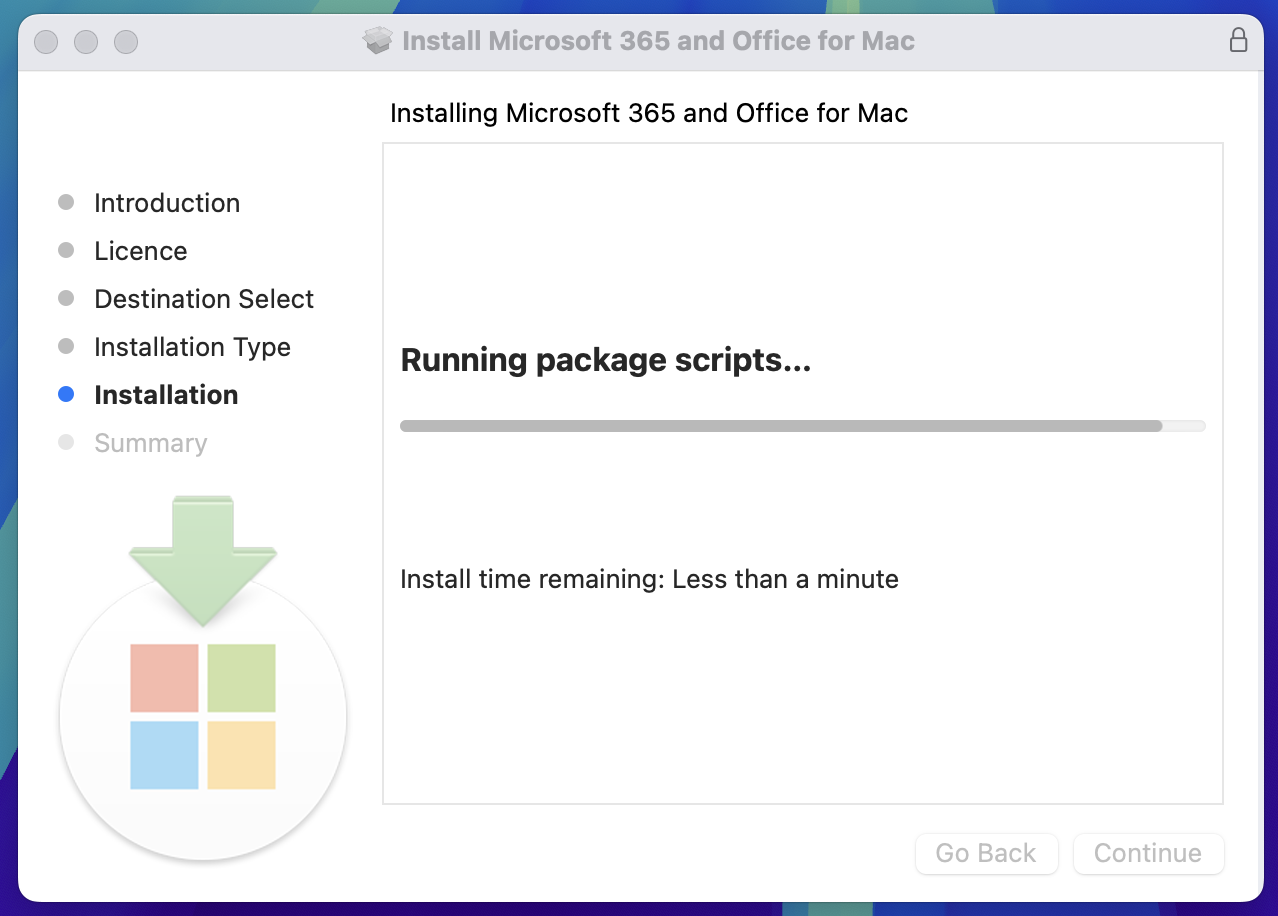
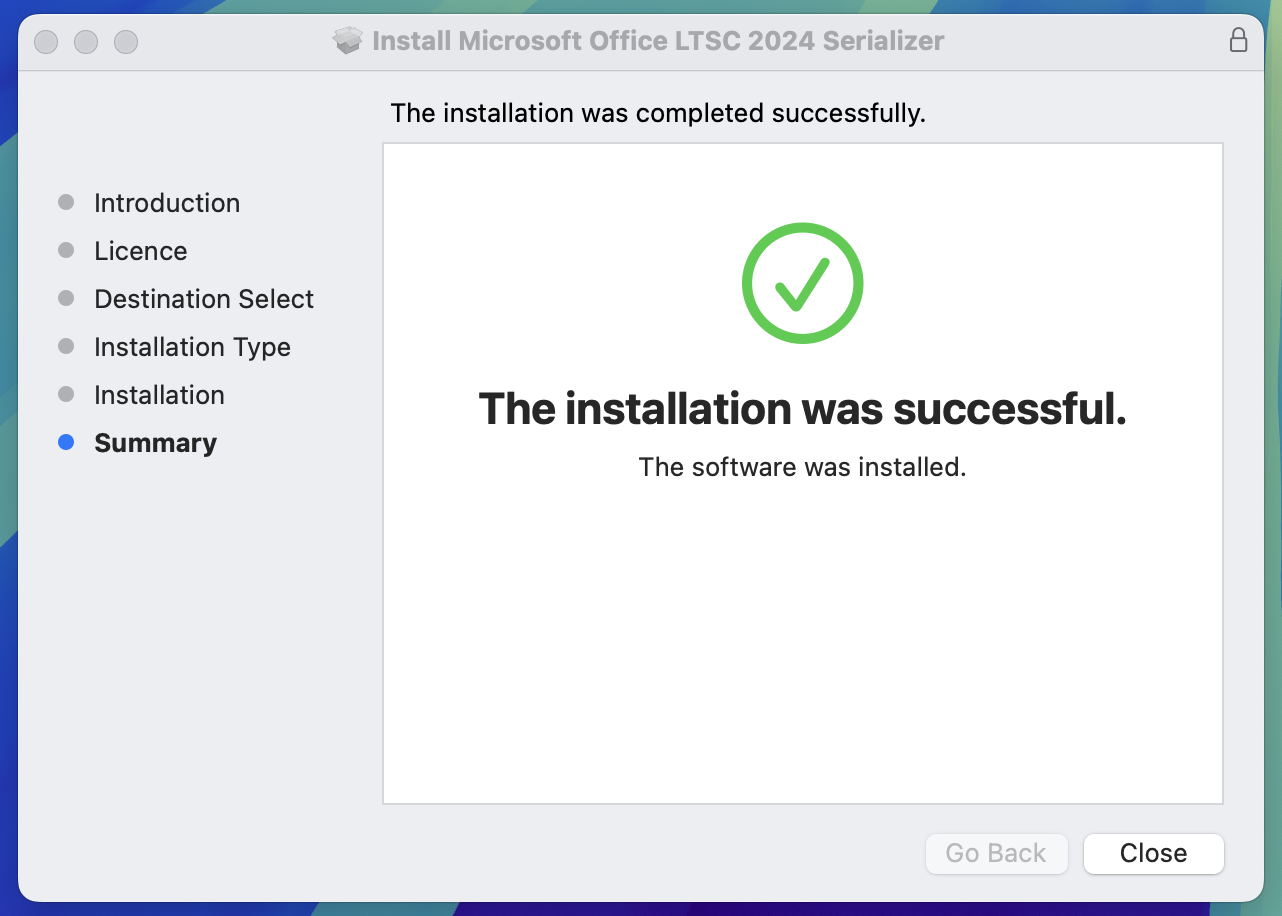
Once the process is complete, you’ll see a confirmation screen.
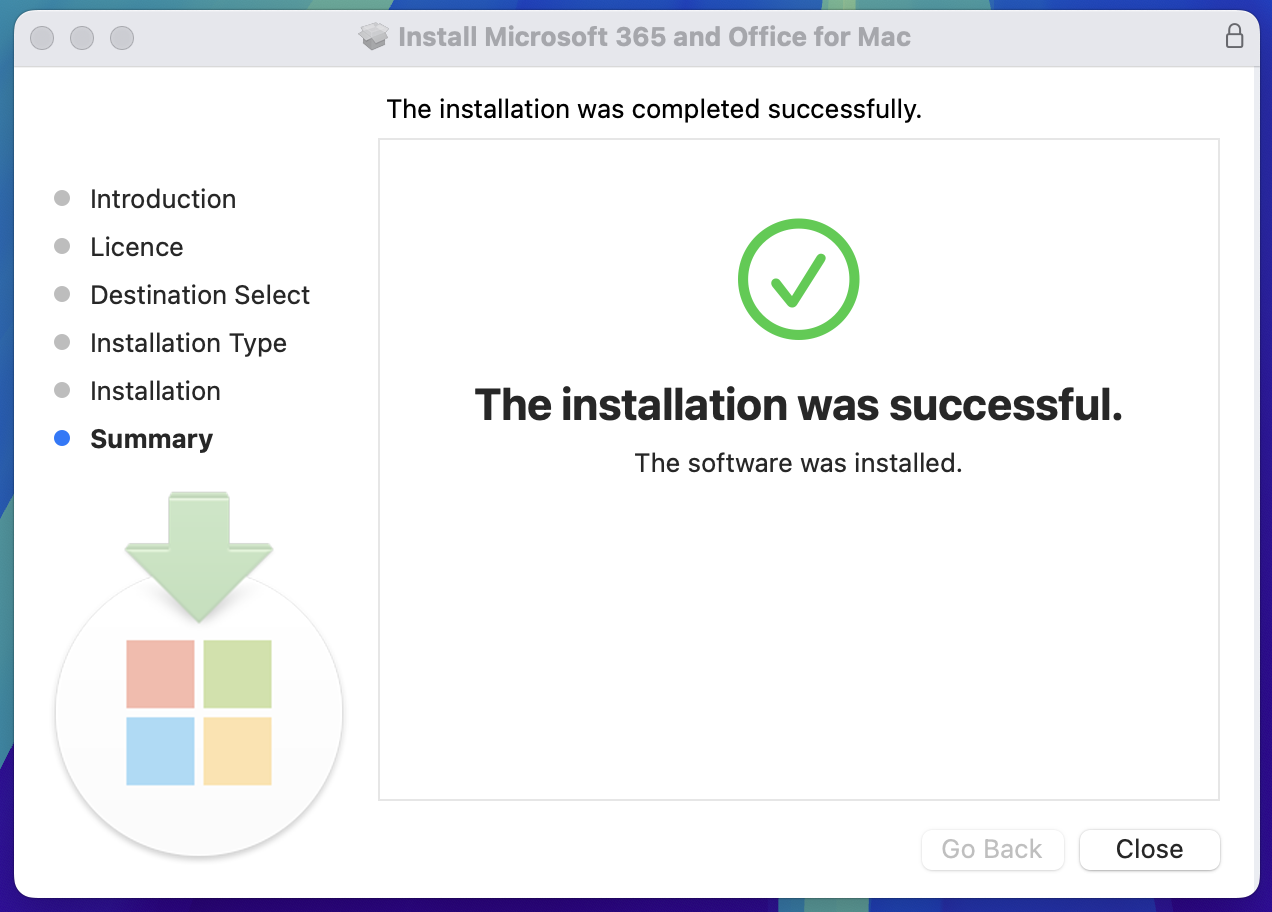
Click Close to exit the installer.

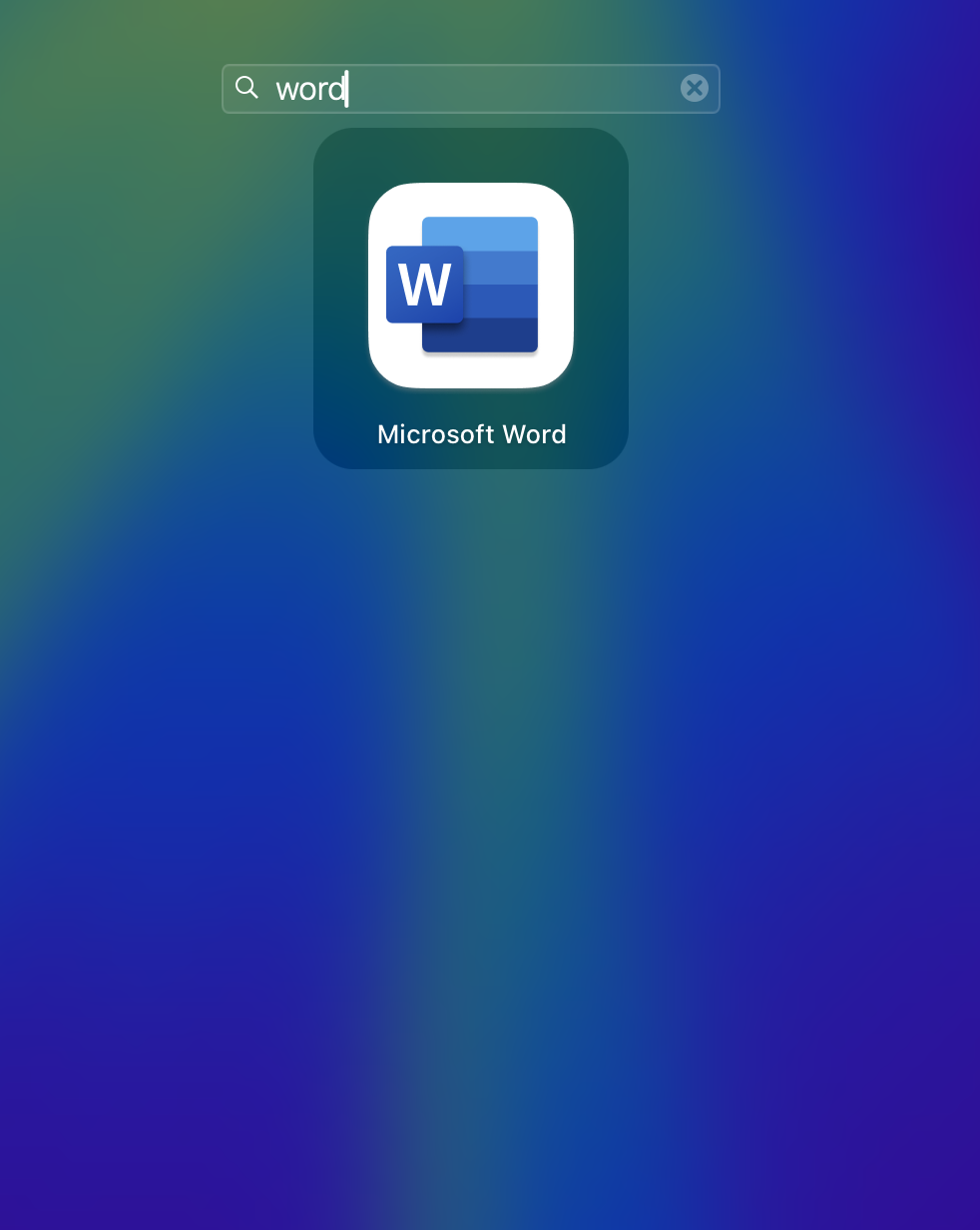
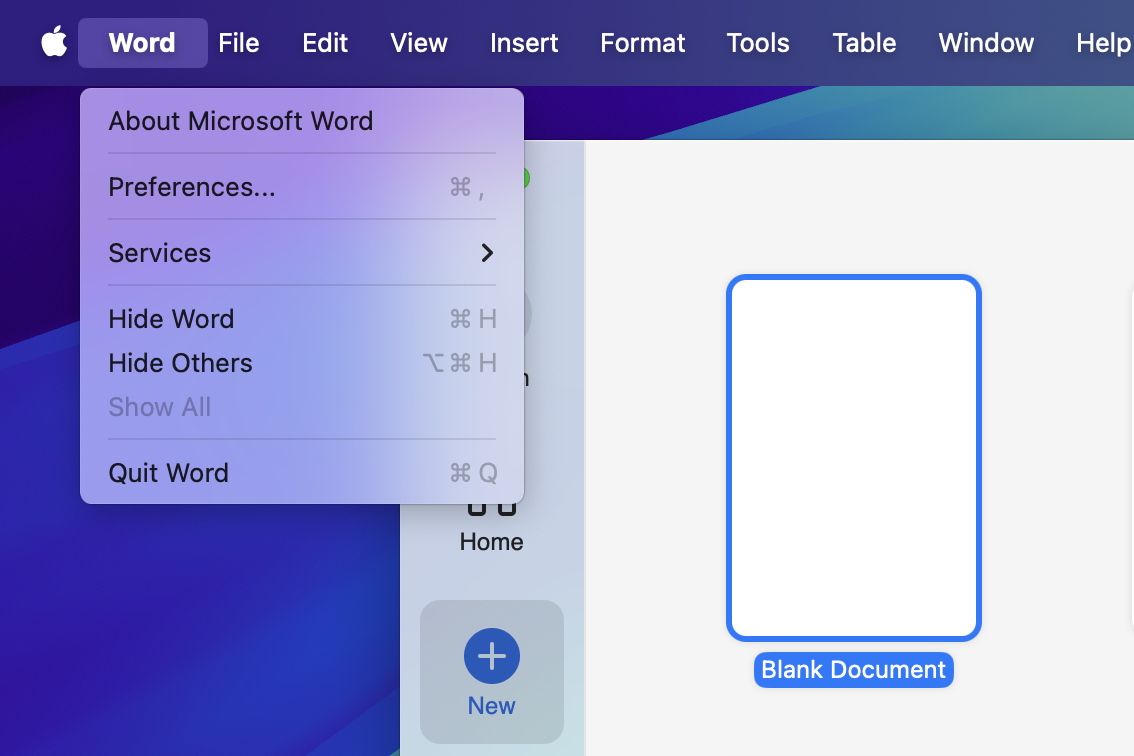
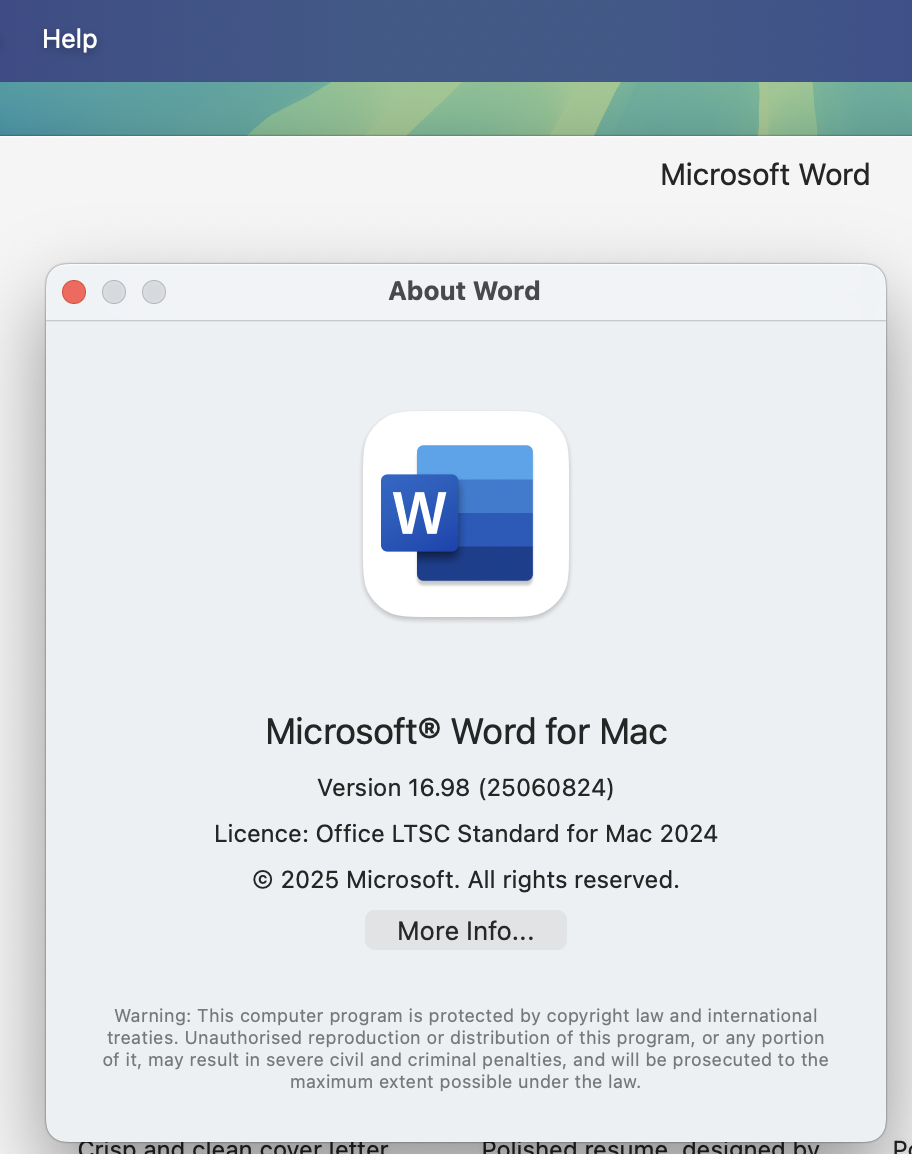
After launching Word, go to the top menu and click Word > About Microsoft Word to confirm that the software is activated.
Get your genuine Office 2024 Standard for Mac license from KeysExperts:
Buy Office 2024 Standard for Mac Now