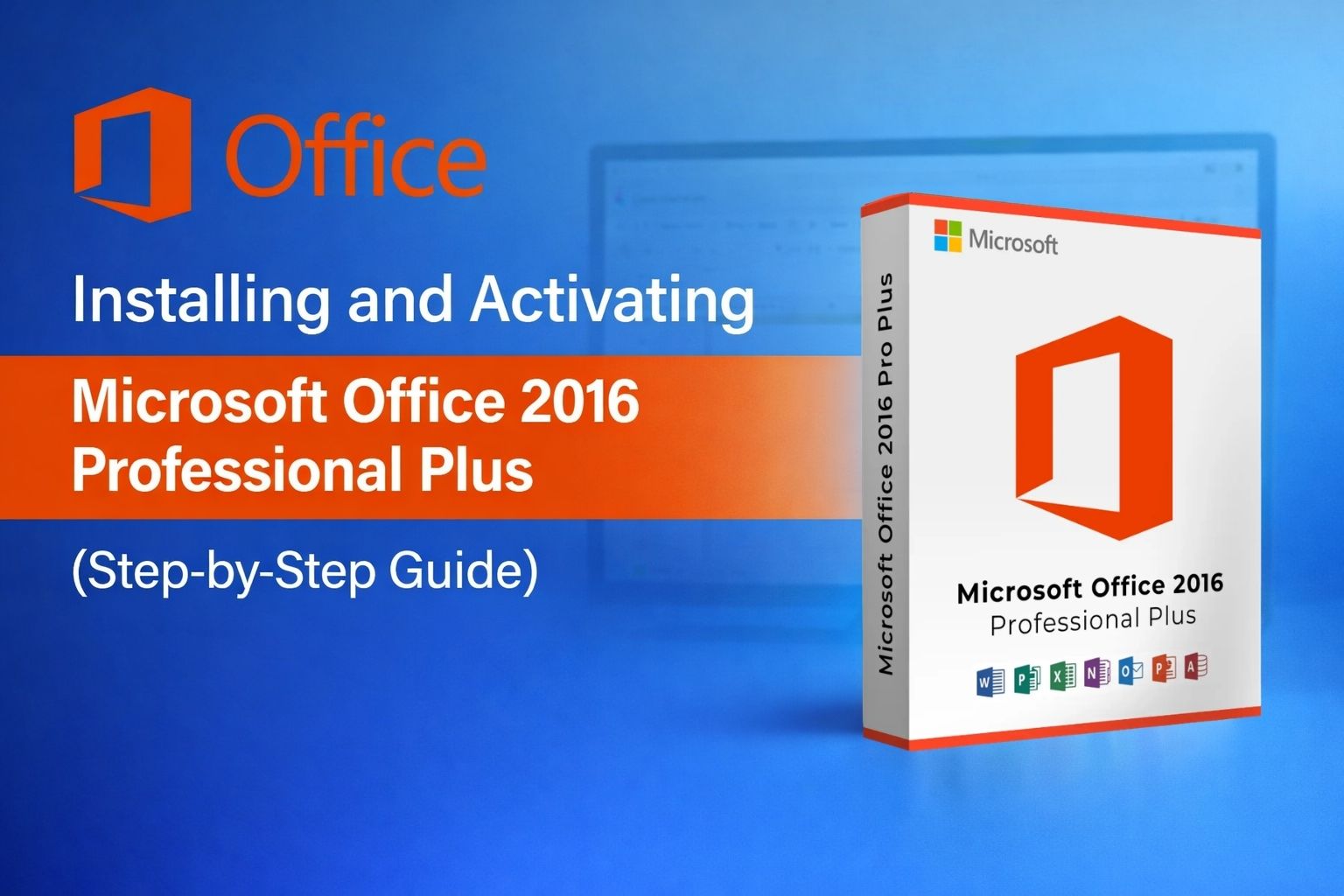

Microsoft Office 2016 Standard is a powerful productivity suite that includes Word, Excel, PowerPoint, Outlook, and Publisher.
This guide explains how to install Microsoft Office 2016 Standard from an ISO file and activate it using a valid product key.
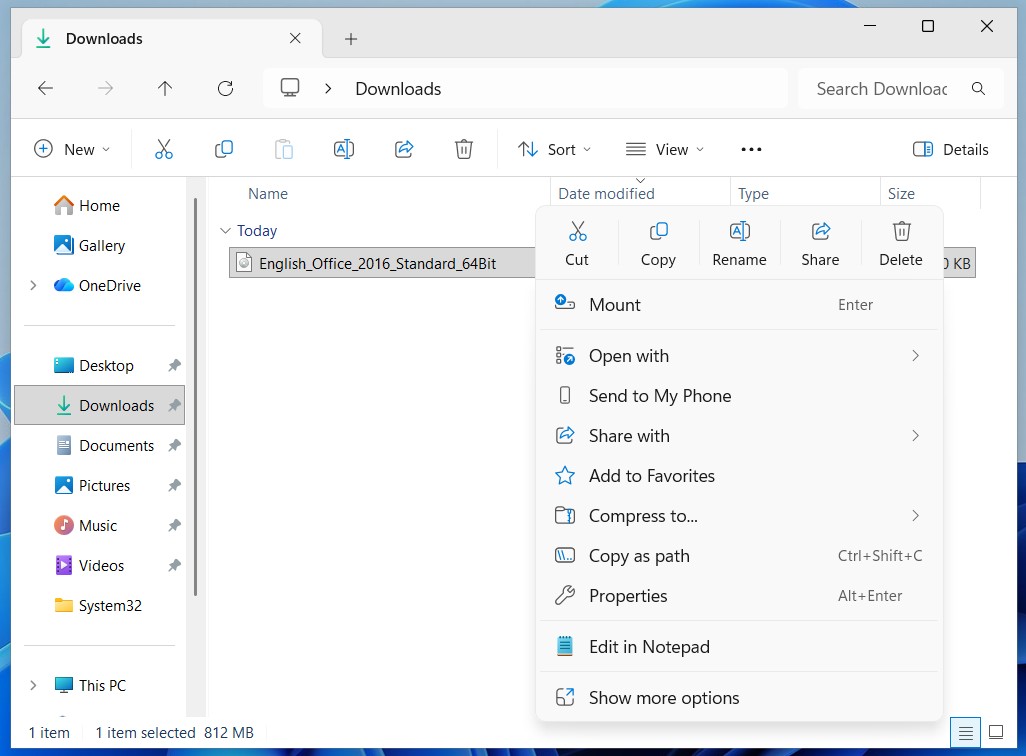
Locate the downloaded Office 2016 ISO file on your computer.
Right-click the ISO file and select Mount. Windows will create a virtual DVD drive containing the installation files.
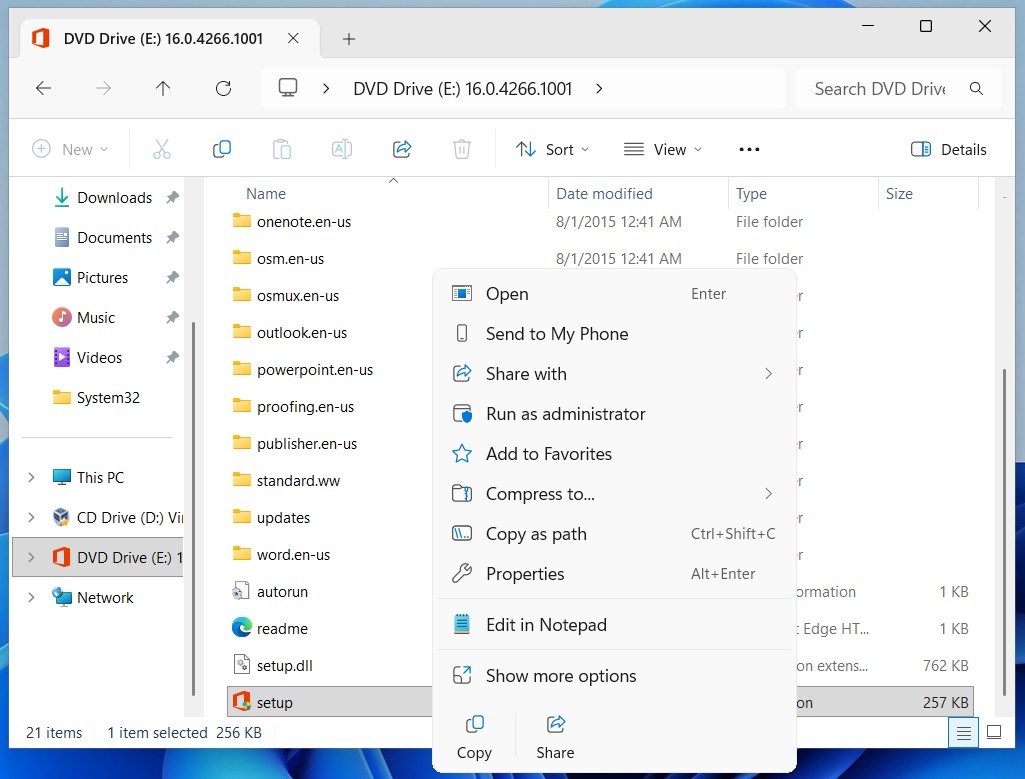
Open the newly mounted DVD drive.
Locate the setup file inside the folder.
Right-click the file and select Run as administrator.
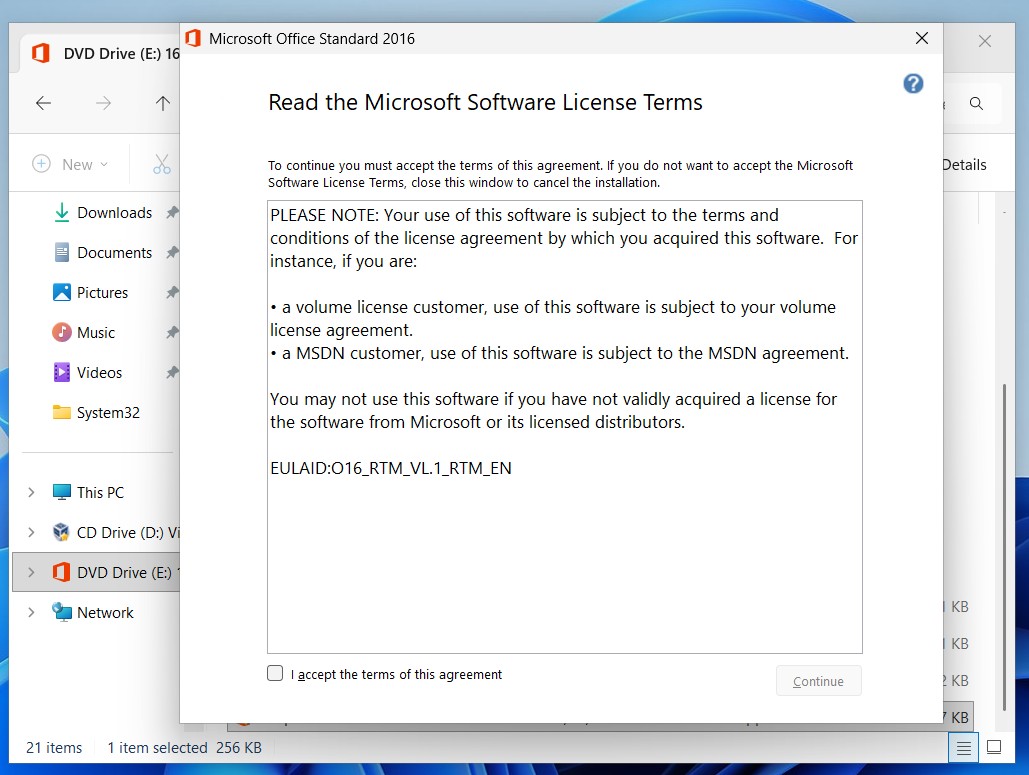
The Microsoft Software License Terms window will appear.
Check the box I accept the terms of this agreement and click Continue.
You will now see the installation options.
Click Install Now to begin installing Microsoft Office 2016 Standard.

Office will now begin installing.
This process may take several minutes depending on your system performance.
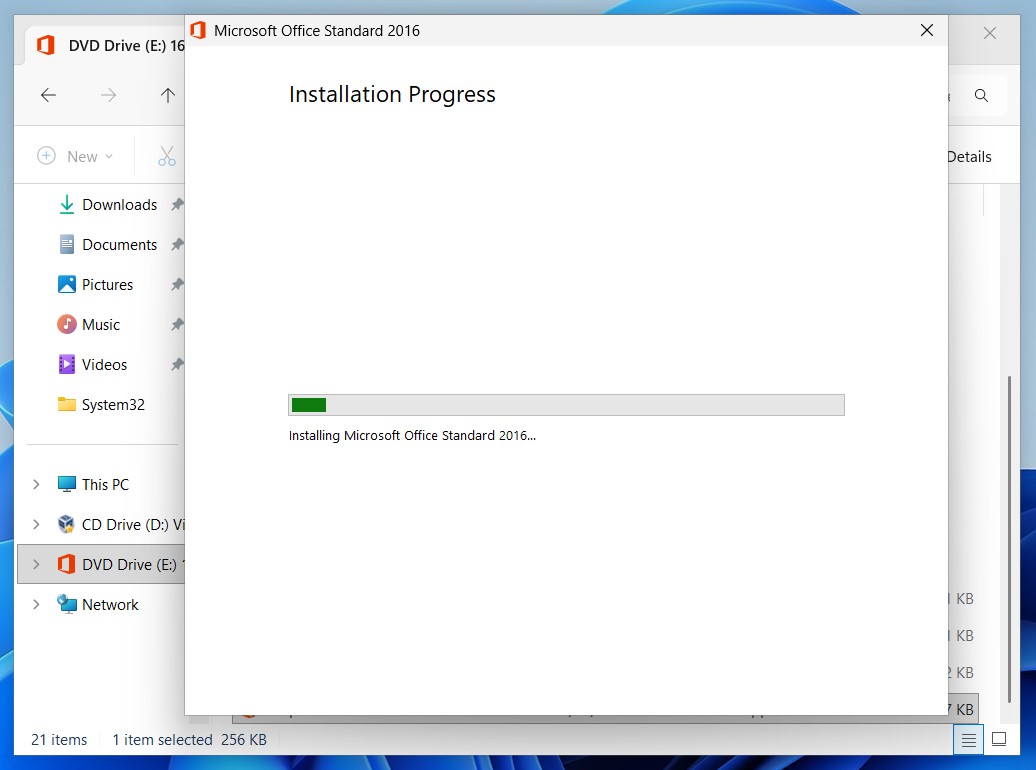
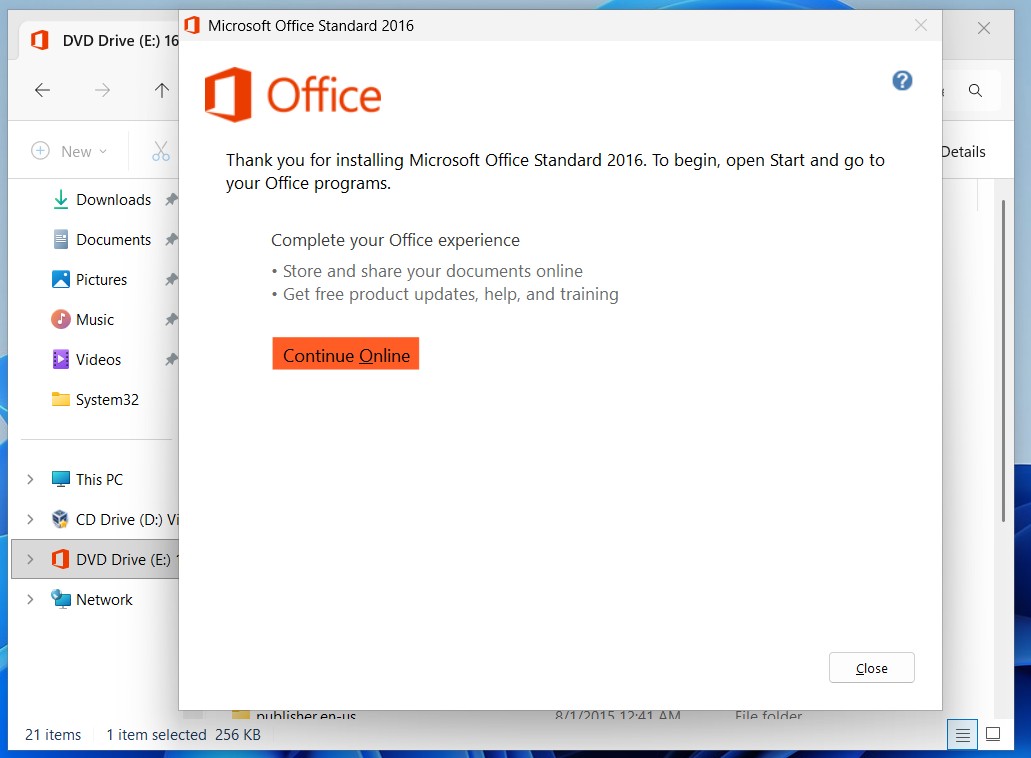
Once the installation finishes, you will see a confirmation screen.
Click Close to finish the setup.
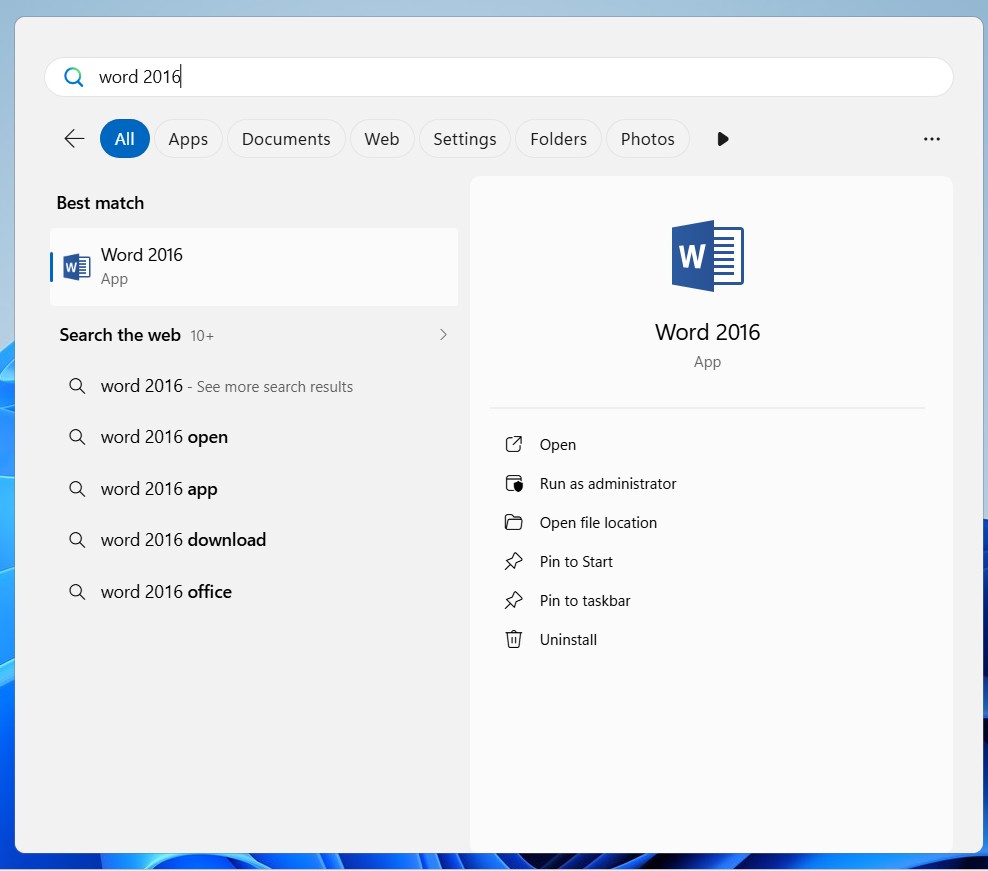
Open the Start menu and search for Word 2016.
Launch the application to begin the activation process.
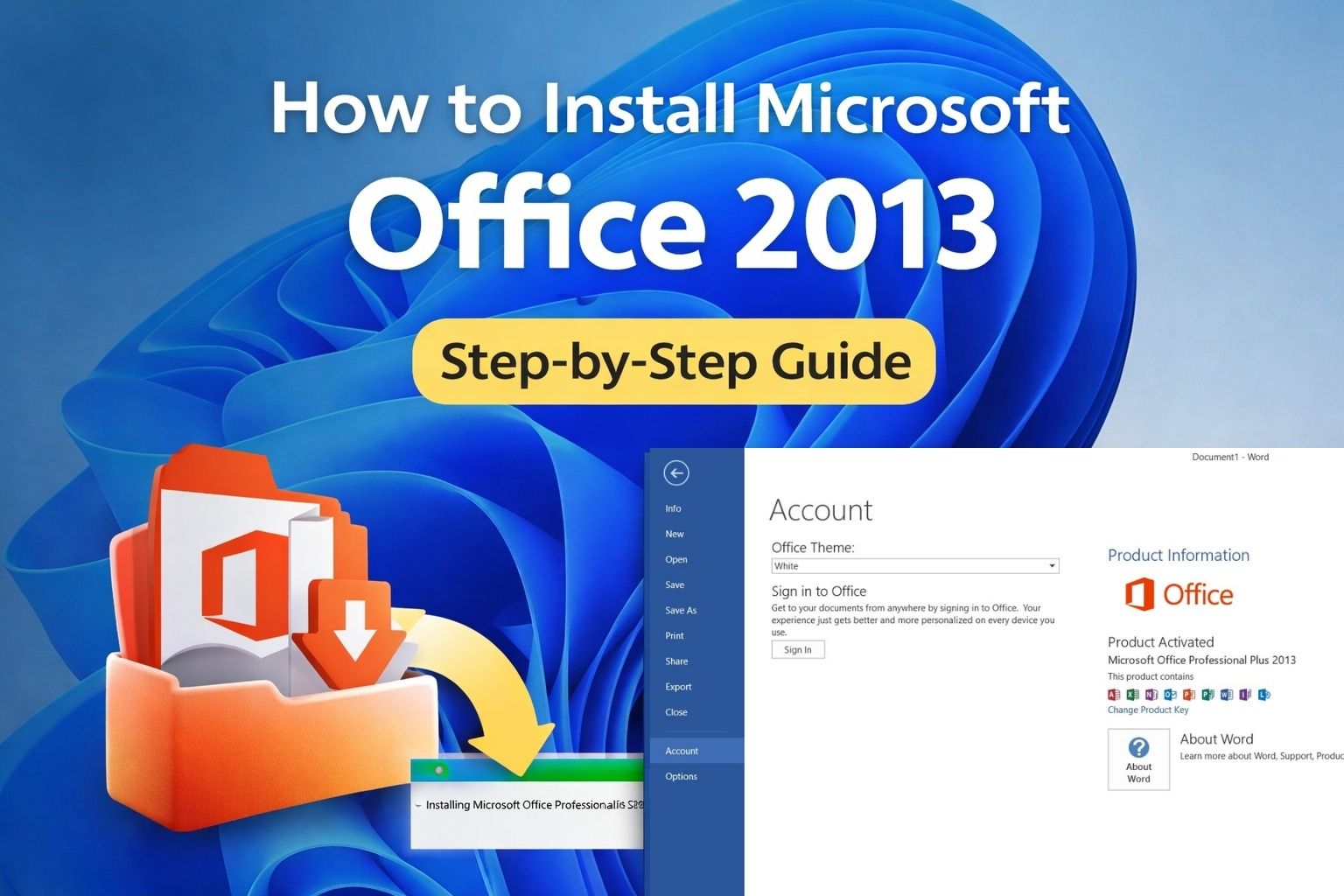
Inside Word, click File in the top left corner.
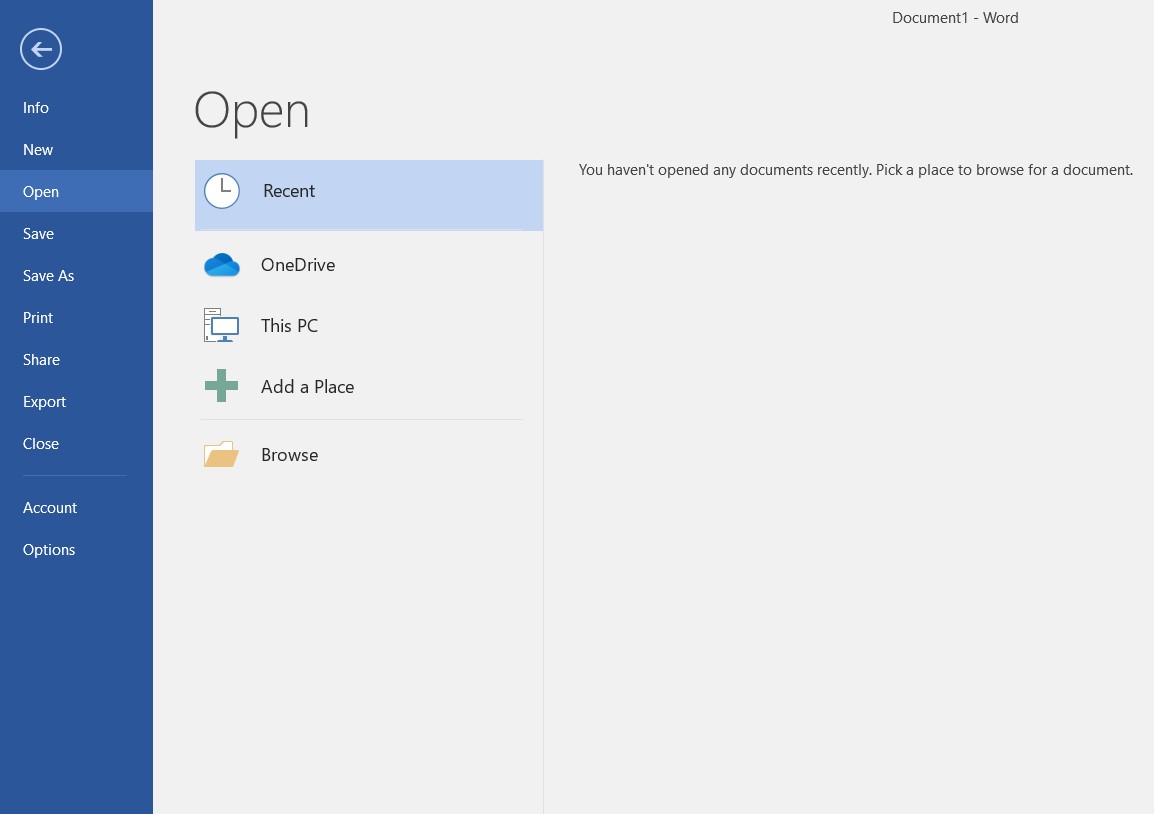
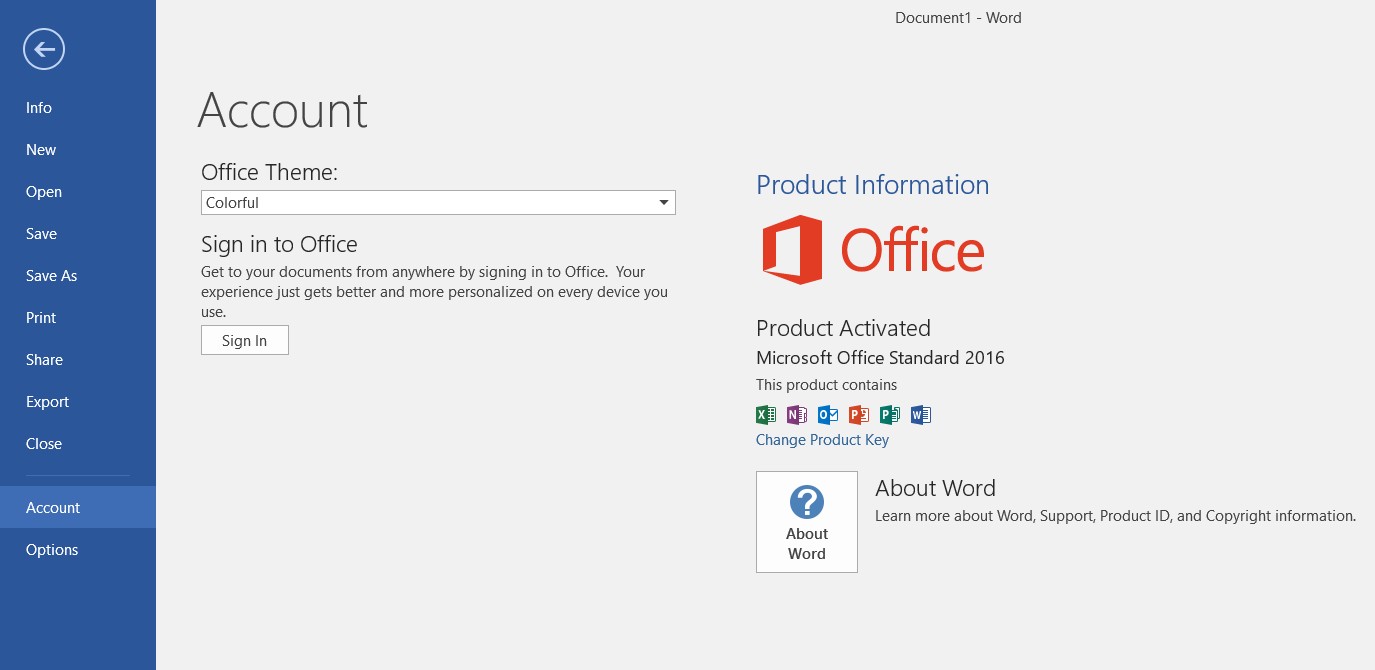
From the left menu, click Account.
This page shows the activation status of Microsoft Office.
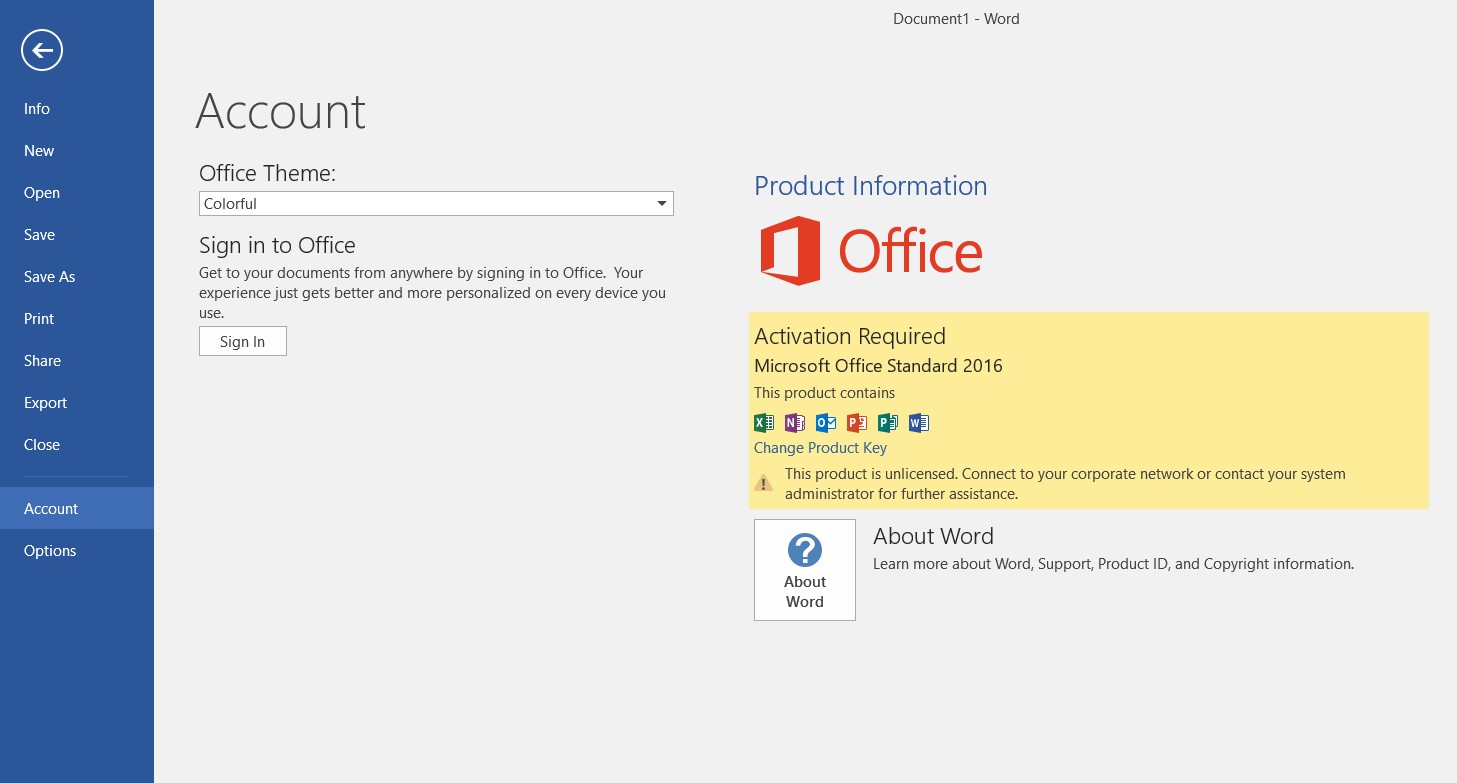
If Office is not activated, click Change Product Key.
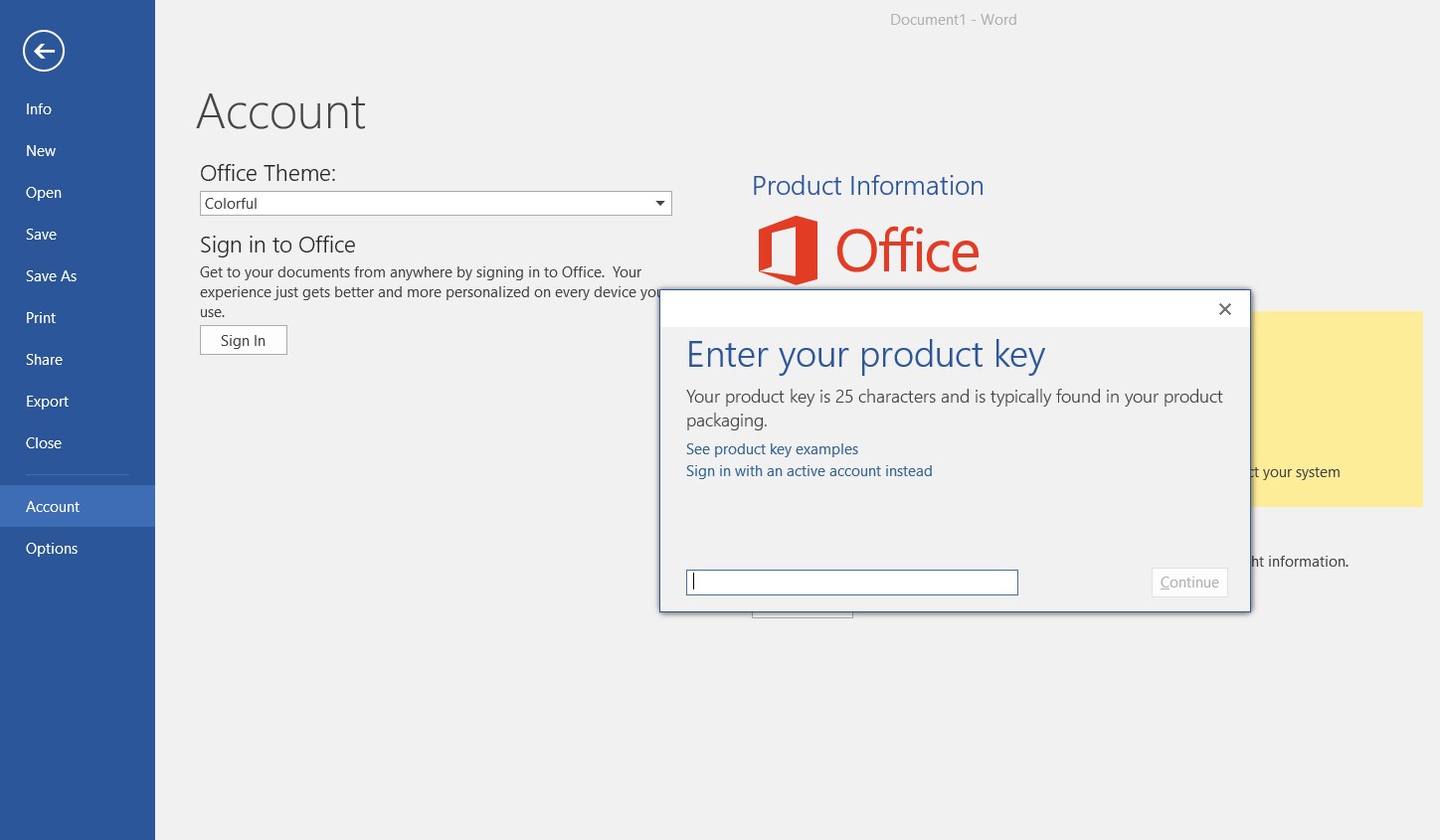
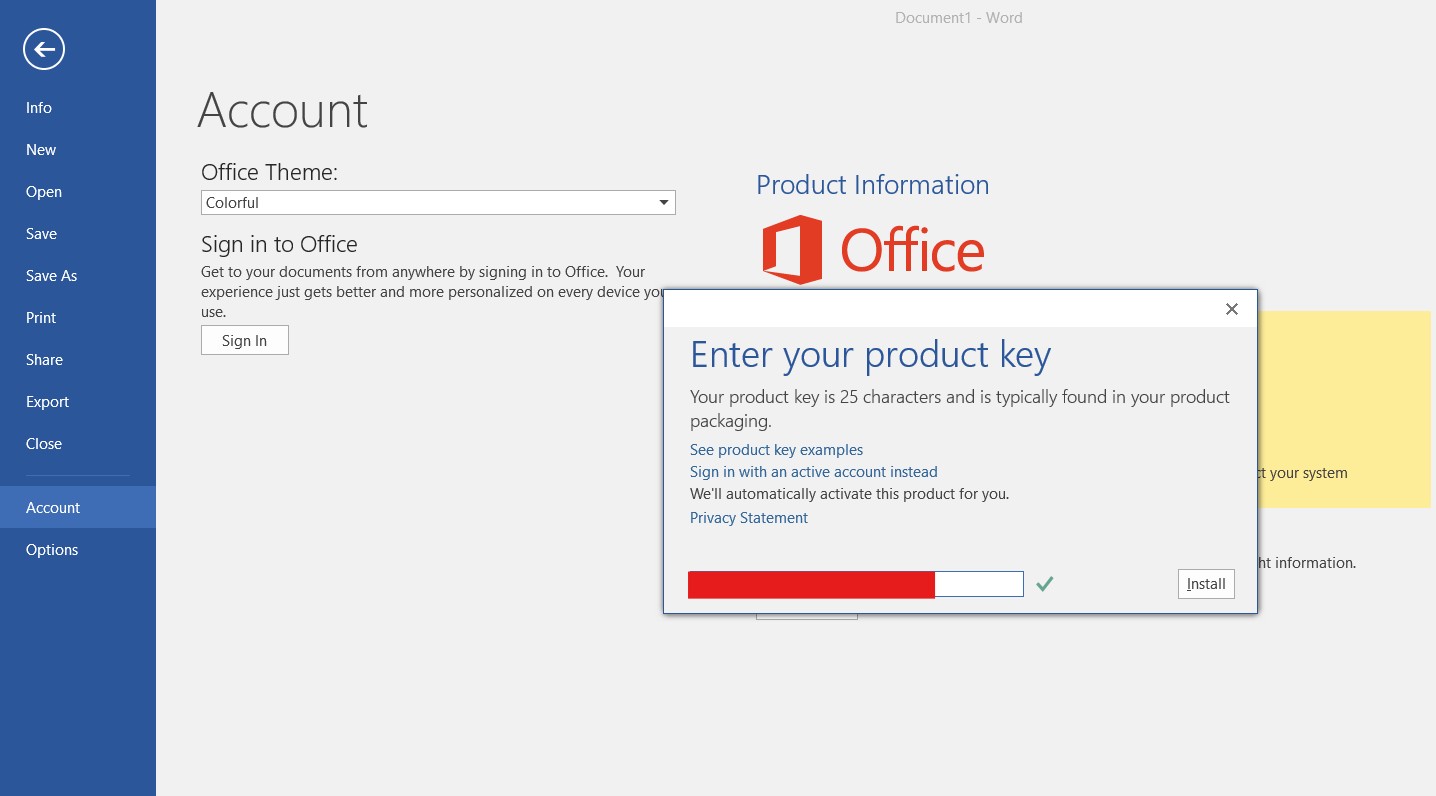
Enter your 25-character Microsoft Office 2016 product key and click Install.
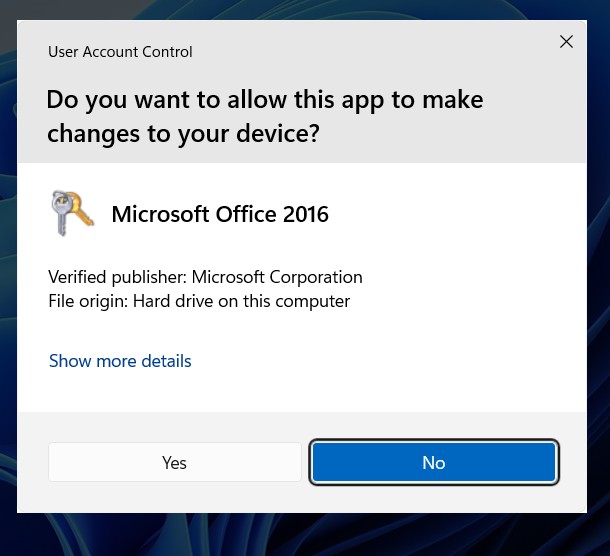
Windows may display a User Account Control (UAC) prompt.
Click Yes to allow Microsoft Office to activate.
Restart Word and return to the Account section.
You should now see the message Product Activated.
If you need a genuine activation key, you can purchase one from our store: