How to Download | Install | Activate Office 2021 Professional Plus LTSC [Complete Guide]
Looking for a stable, subscription-free version of Microsoft Office?
Office 2021 Professional Plus LTSC is ideal for businesses and professionals who need long-term support, powerful desktop applications, and offline functionality without recurring monthly costs.
In this guide, you’ll learn exactly how to download, install, and activate Office 2021 Professional Plus LTSC step by step. Whether you prefer an easy pre-configured installer or a manual deployment method, we’ve covered both options clearly.
- One-time purchase
- No subscription required
- No cloud dependency
- Includes Word, Excel, PowerPoint, Outlook, Access, Publisher
- Designed for Windows 10 & 11 (64-bit)
Let’s begin.
Important: If you already have
Microsoft 365 installed on your PC, please uninstall it before installing
Office 2021 LTSC.
These versions cannot run together on the same system.
Follow Microsoft’s official uninstall guide here:
Uninstall Microsoft 365 from a PC
Step 1: Download Office 2021 Professional Plus LTSC
You have two options:
Option 1: Download Full Setup from Our Download Center
If you prefer a simple and automated installation:
Download the ready-to-use installation package from our Download Center.
- Includes Office Deployment Tool (ODT)
- Pre-configured installation files
- Ready configuration for Office 2021 Professional Plus LTSC
After downloading:
Open the folder and double-click Start.cmd or Start.bat to begin installation automatically.
No XML editing or manual commands required.
If Windows displays “Windows protected your PC”:
- Click More info
- Select Run anyway
This appears because the script is locally generated and not digitally signed. It simply runs Microsoft’s official Office installer with a preset configuration.
Option 2: Manual Installation Using Office Deployment Tool
Custom Installation with Office Deployment Tool (ODT)
- Go to the
Office Customization Tool
- Under Product and Release, select:
Office LTSC Professional Plus 2021
- Adjust language and apps if required
- Click Export to download your
configuration.xml
- Download the
Office Deployment Tool (ODT)
- Extract files into a folder
- Copy your exported
configuration.xml into the same folder
- Open Command Prompt inside the folder and run:
setup.exe /configure configuration.xml
This installs Office 2021 Professional Plus LTSC based on your selected configuration.
Step 2: Activate Office 2021 Professional Plus LTSC
After installation, activate Office using your license key.
Activation via Office Application (GUI Method)
- Open Word or Excel
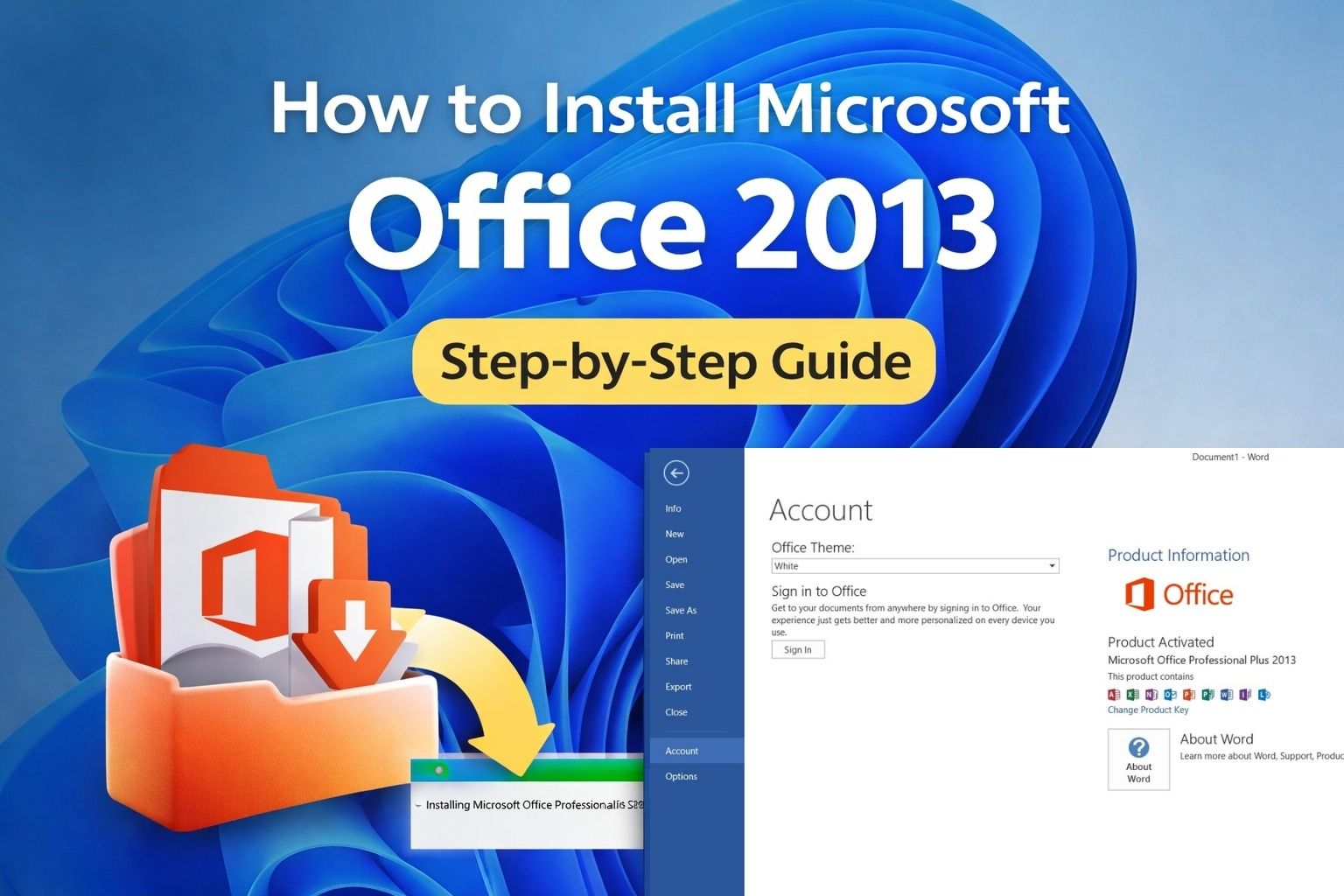
- Go to File → Account
- Click Change Product Key
- Enter your 25-character Office 2021 LTSC key
- Click Activate
Once activation completes, Office will confirm that the product is activated.
Don’t Have a License Yet?
Get your genuine Office 2021 Professional Plus LTSC license key from our store.
Buy Office 2021 Professional Plus Now
Instant digital delivery
Lifetime activation