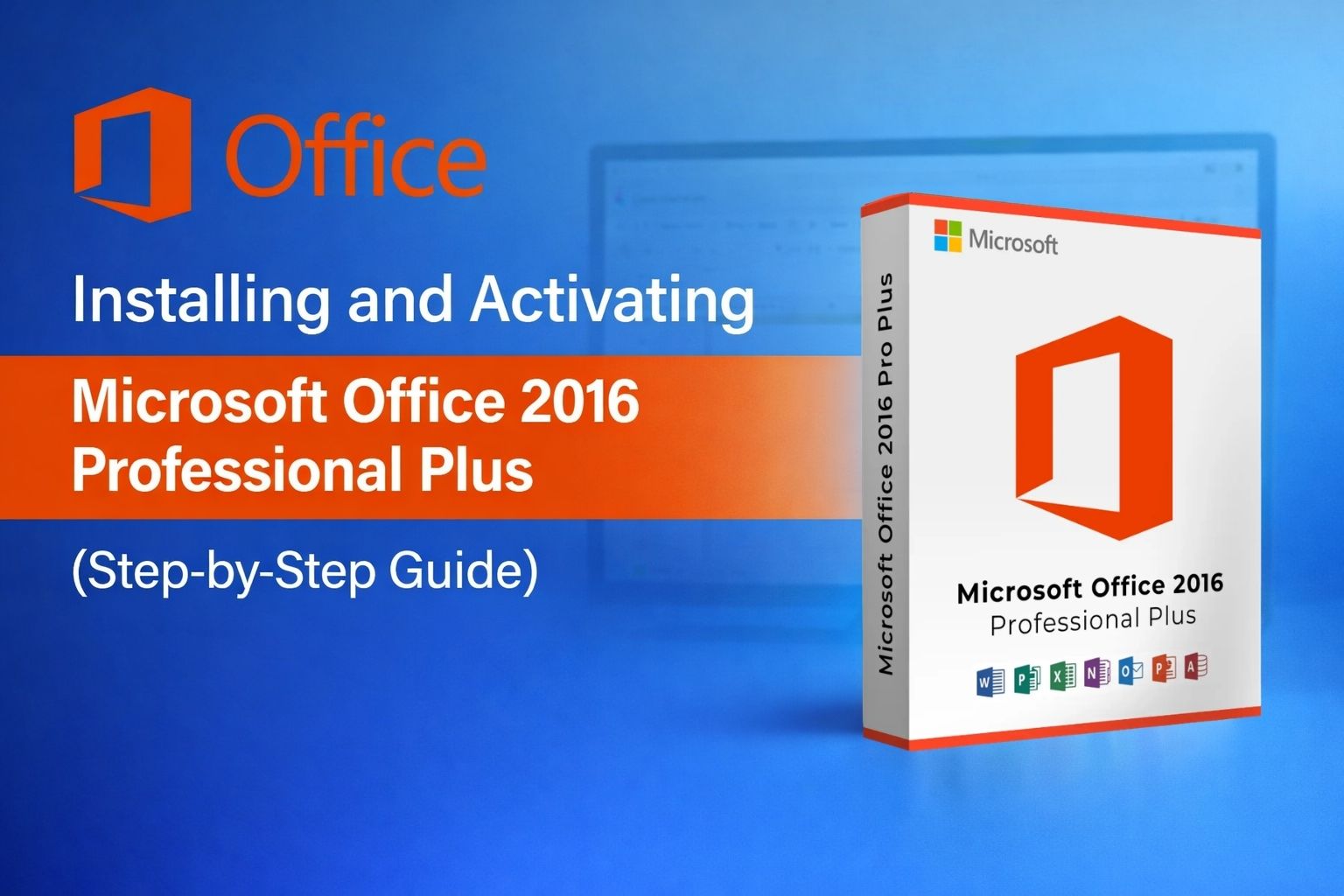

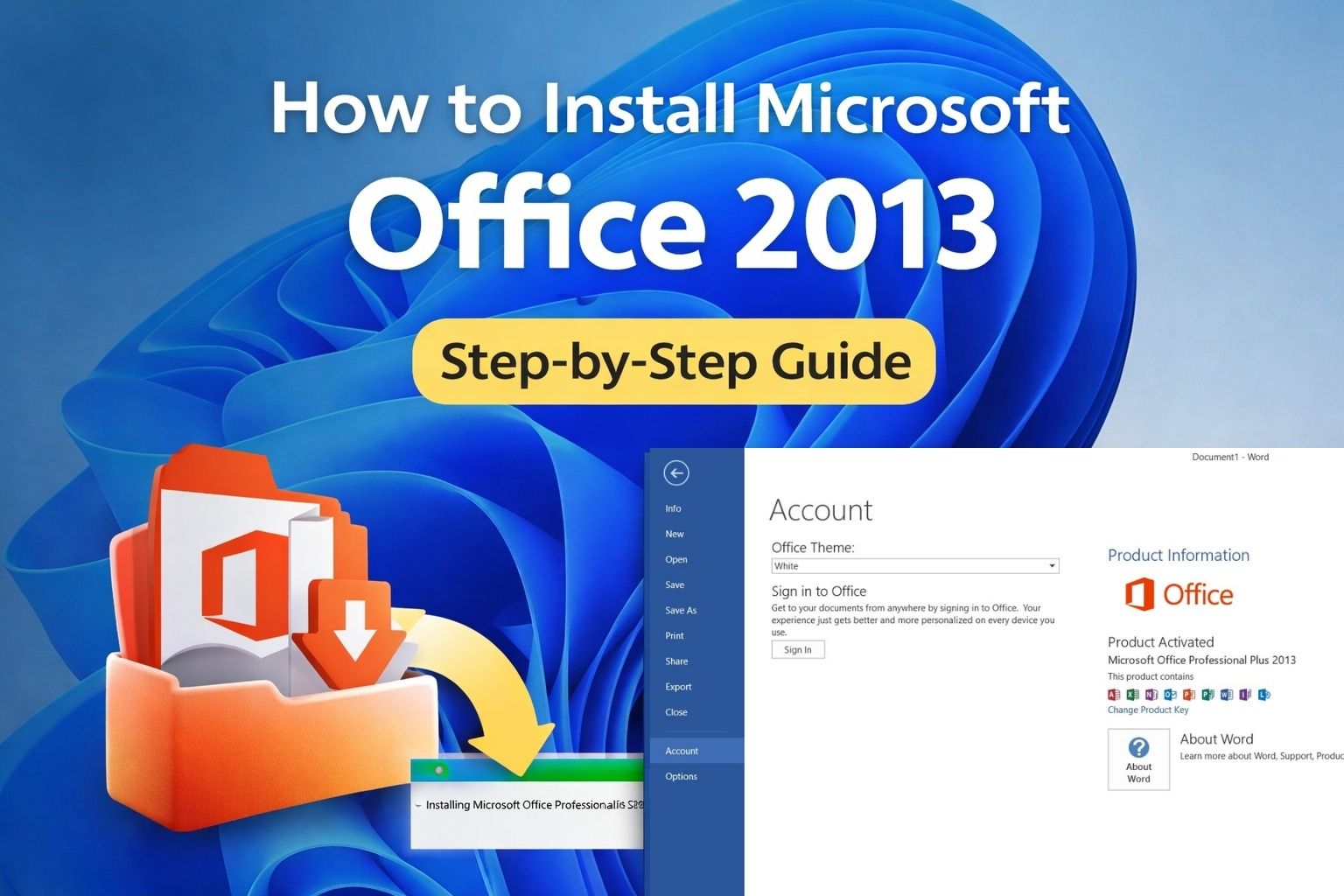
Microsoft Office 2013 Professional Plus is a powerful productivity suite that includes Word, Excel, PowerPoint, Outlook, Access, Publisher, and OneNote.
This step-by-step guide explains how to install Office 2013 Professional Plus from the ISO installer and activate it using a valid product key.
This tutorial includes screenshots for every step, making it easy to install Office 2013 even if you are installing it for the first time.
Before starting the installation, you need the official Microsoft Office 2013 Professional Plus installation files.
You can download the Office 2013 ISO installer using the link below and then follow the installation steps in this guide.
Download Microsoft Office 2013 Professional Plus ISO
Important: After downloading the ISO file, right-click it and select Mount to begin the installation process described in Step 1.
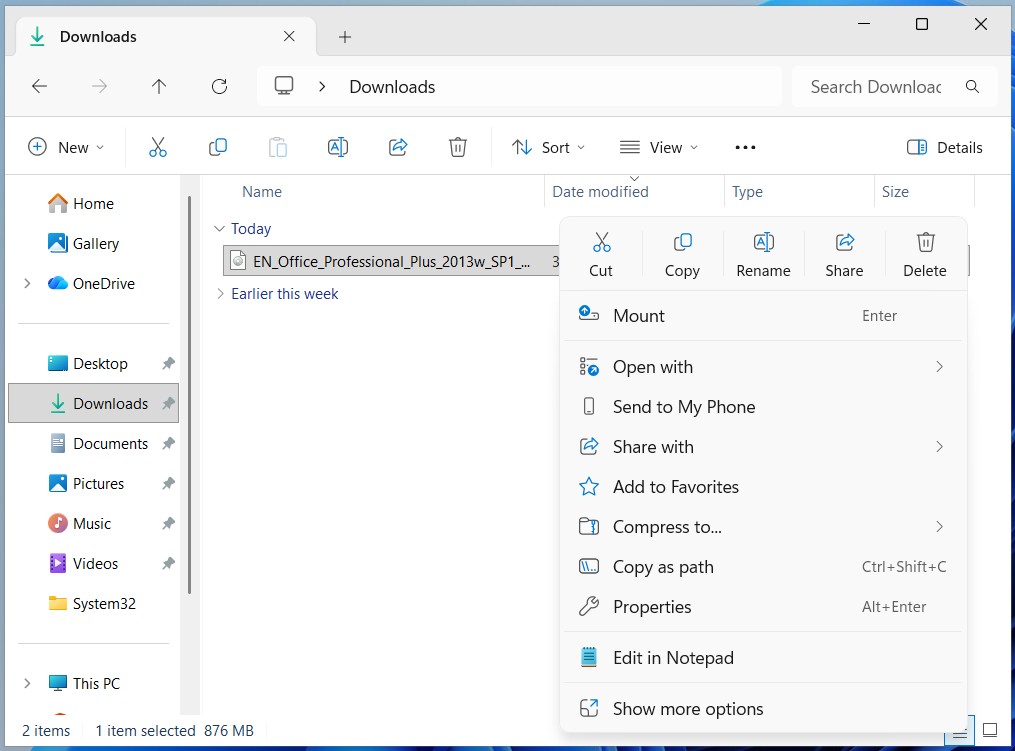
Locate the downloaded Office ISO file, right-click it, and choose Mount. Windows will create a virtual DVD drive containing the Office installation files.
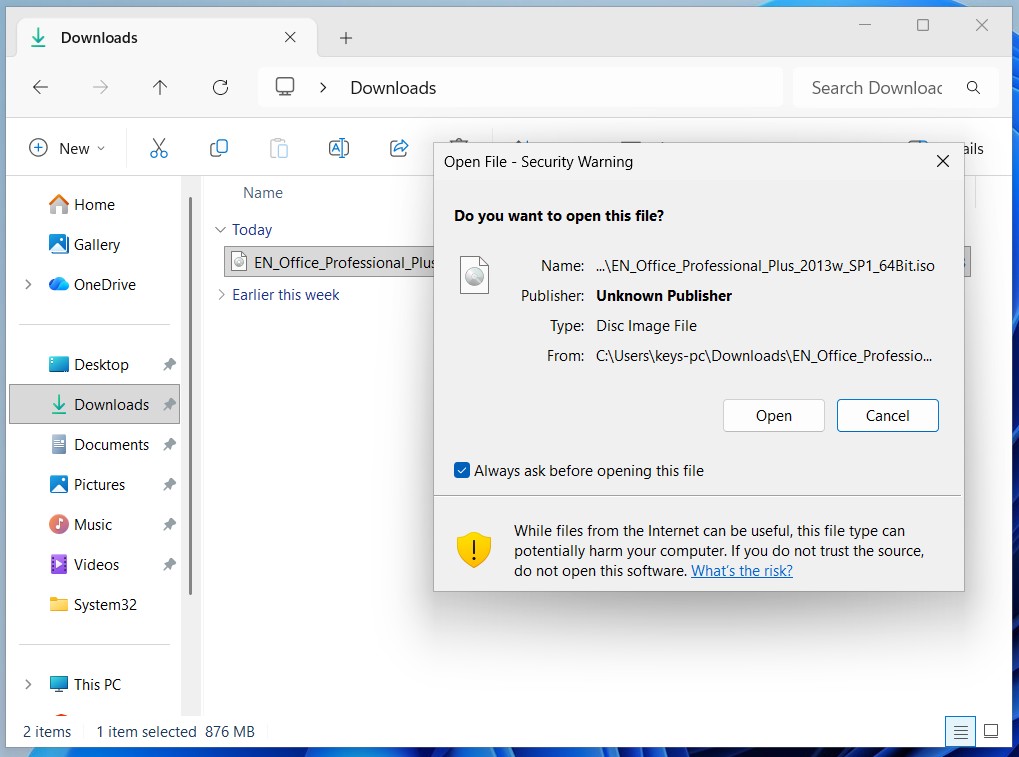
If Windows displays a security warning, click Open to continue.
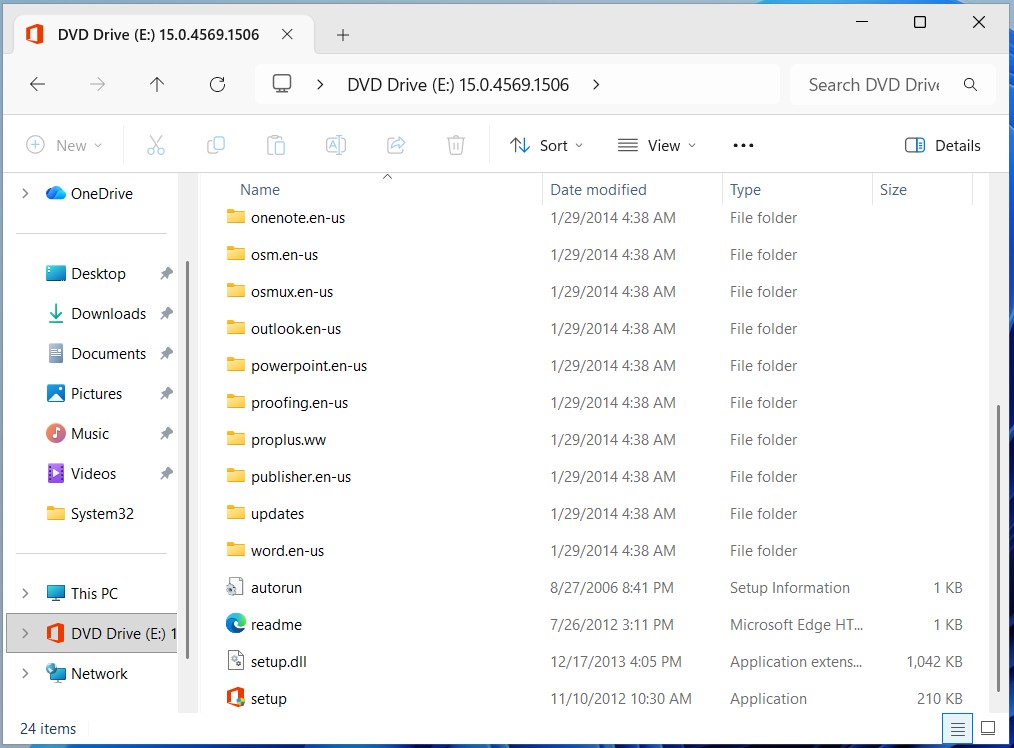
Open the mounted DVD drive and double-click setup.exe to start the installation.
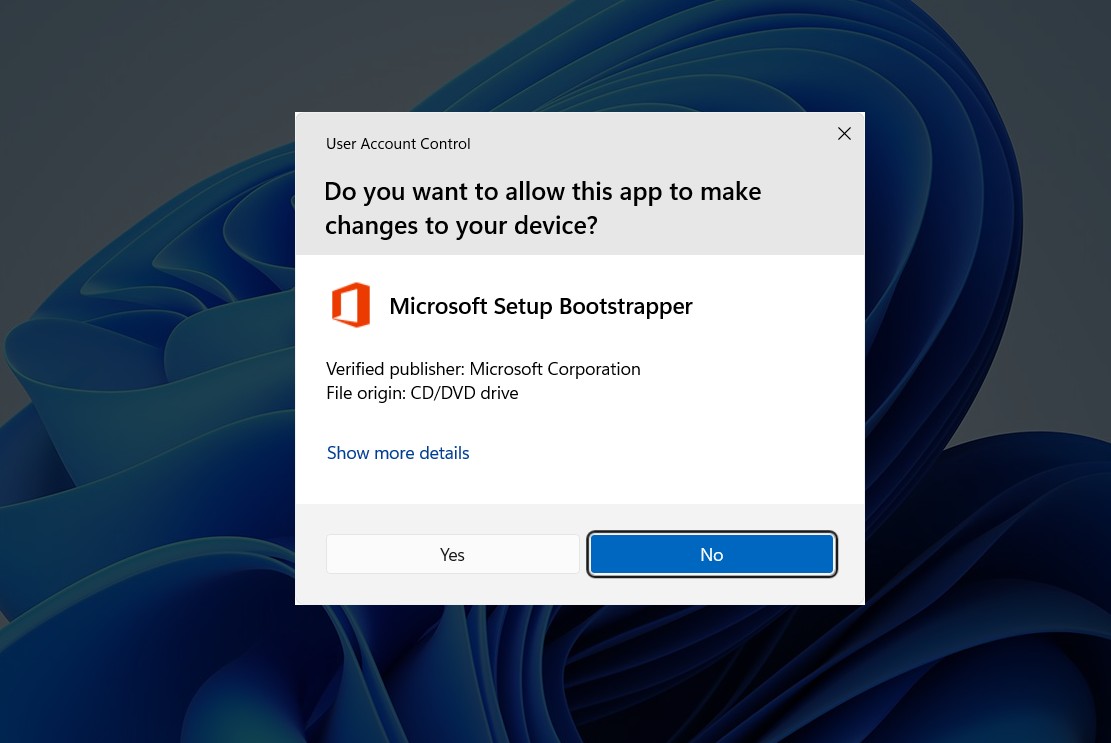
Windows will ask permission to allow the installer to make changes to your device. Click Yes.
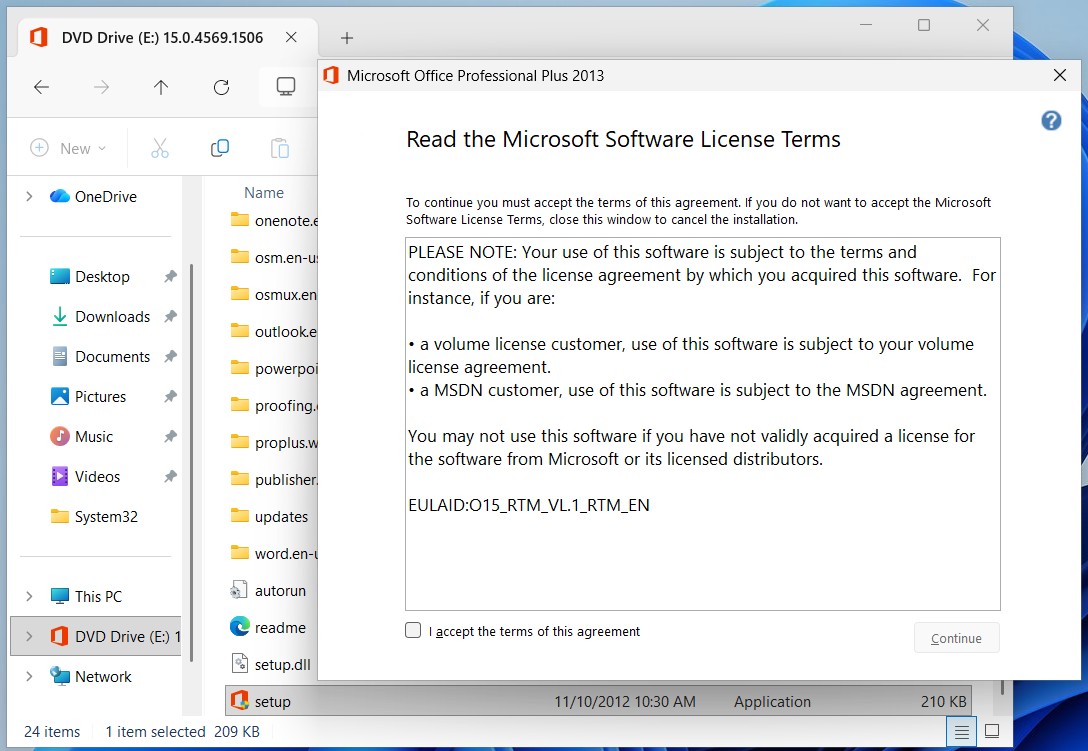
Check I accept the terms of this agreement and click Continue.
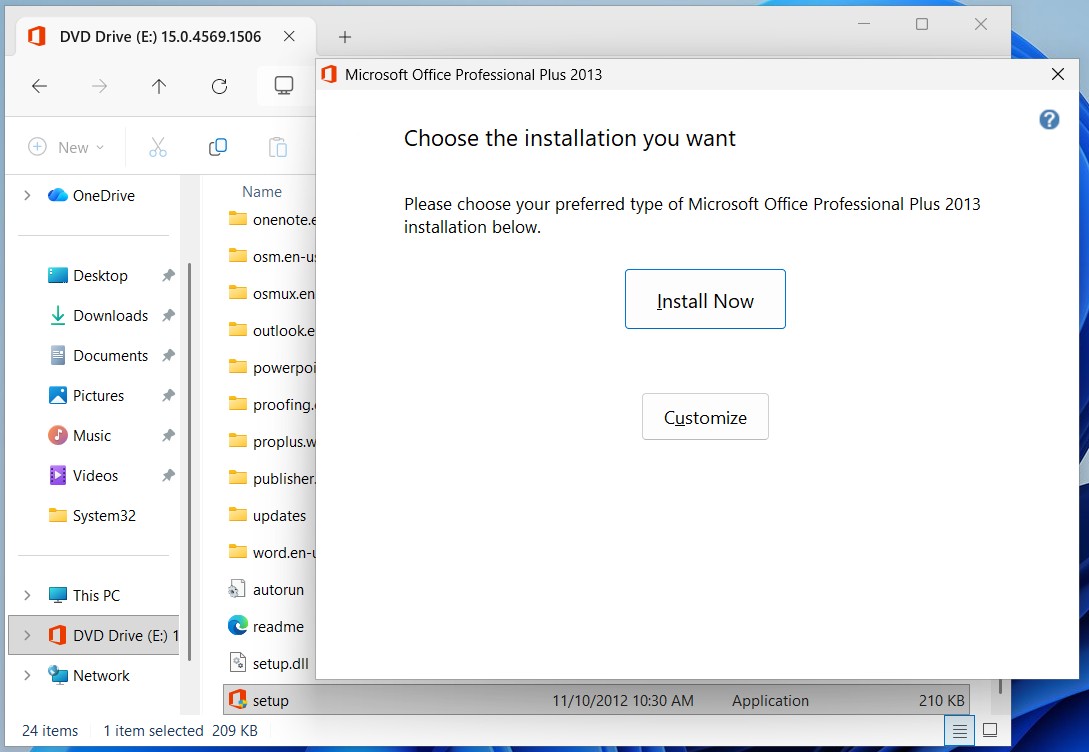
You will see two options:
Click Install Now to proceed.
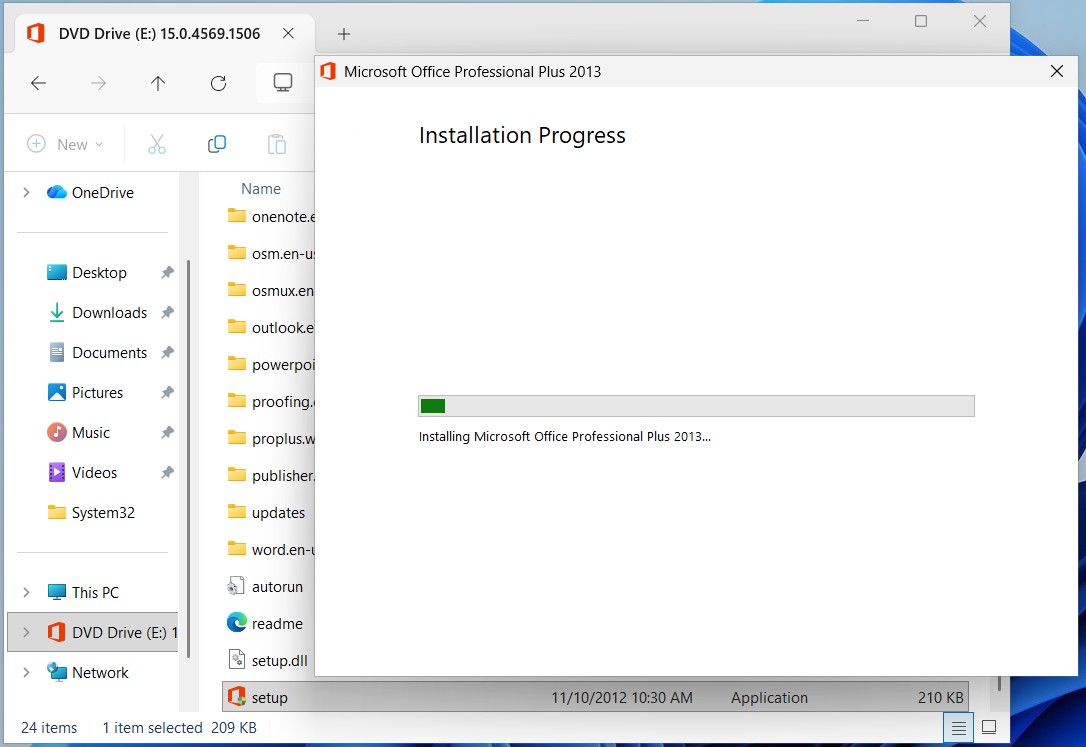
The Office installer will begin copying files and installing the applications.
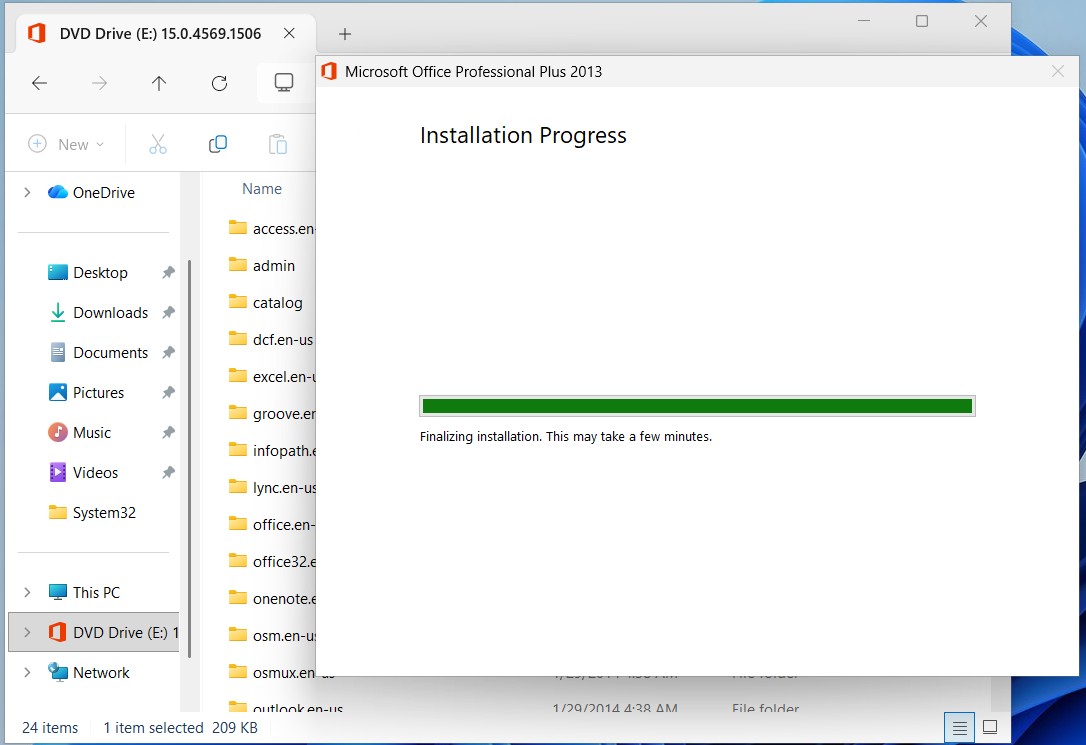
The setup will complete the installation process automatically.
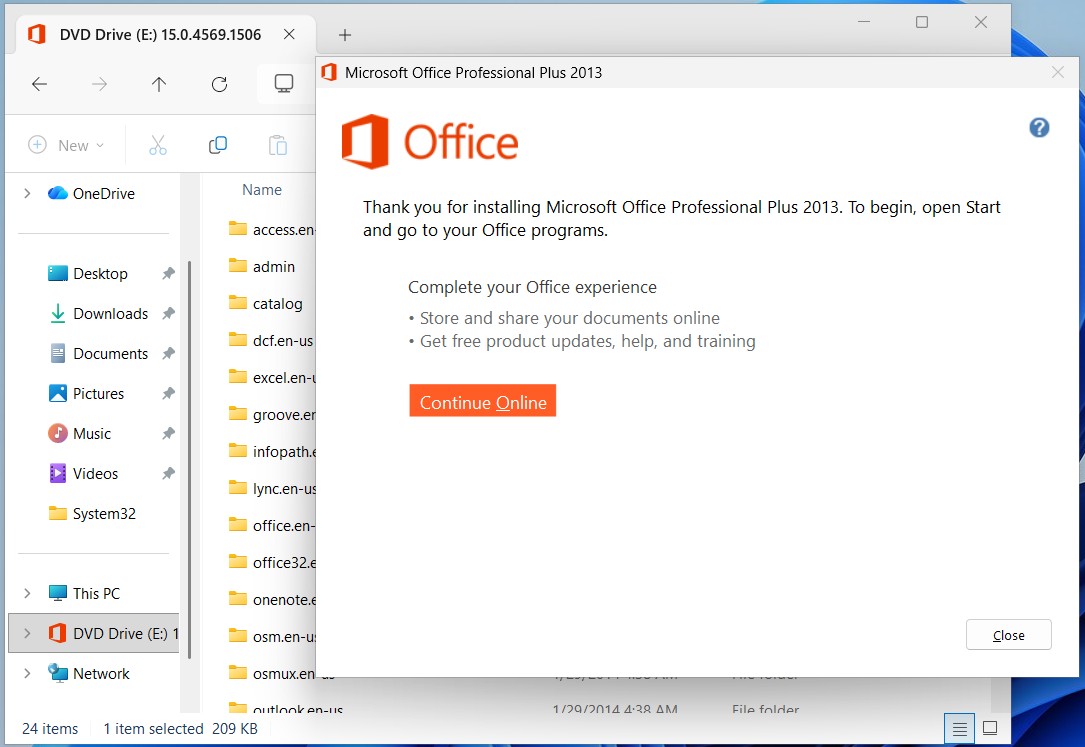
Once the installation is complete, click Close.
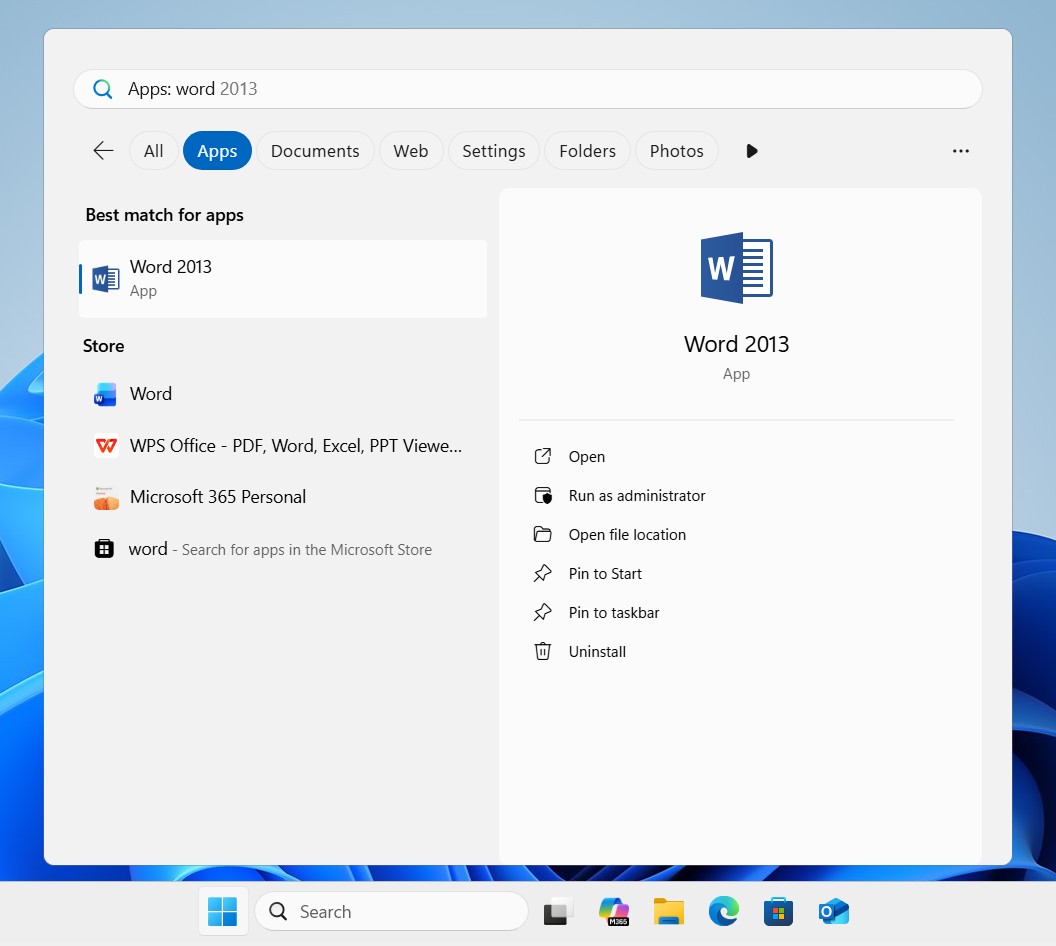
Open Microsoft Word 2013 from the Start menu to begin the first-time setup.
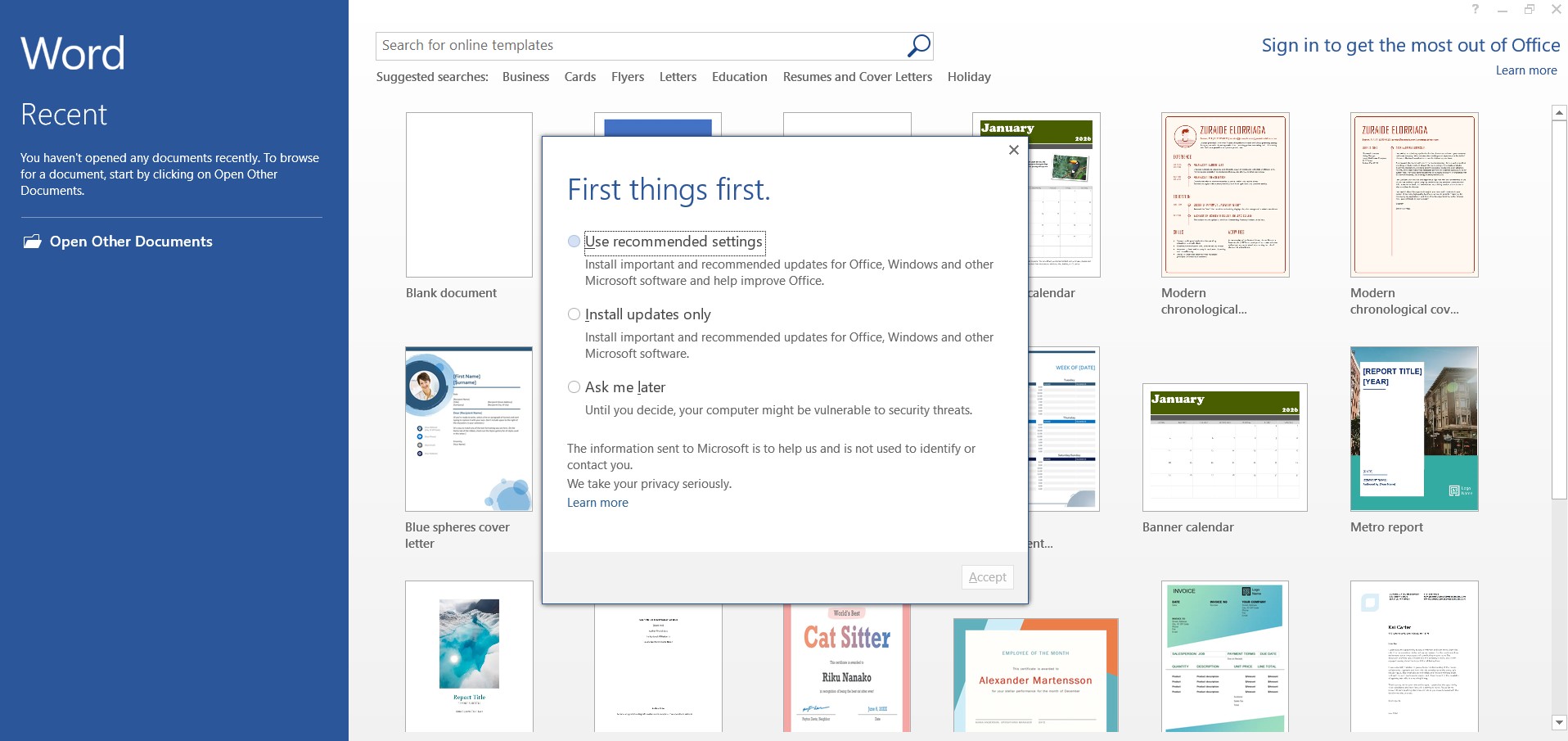
Select Use recommended settings and click Accept.
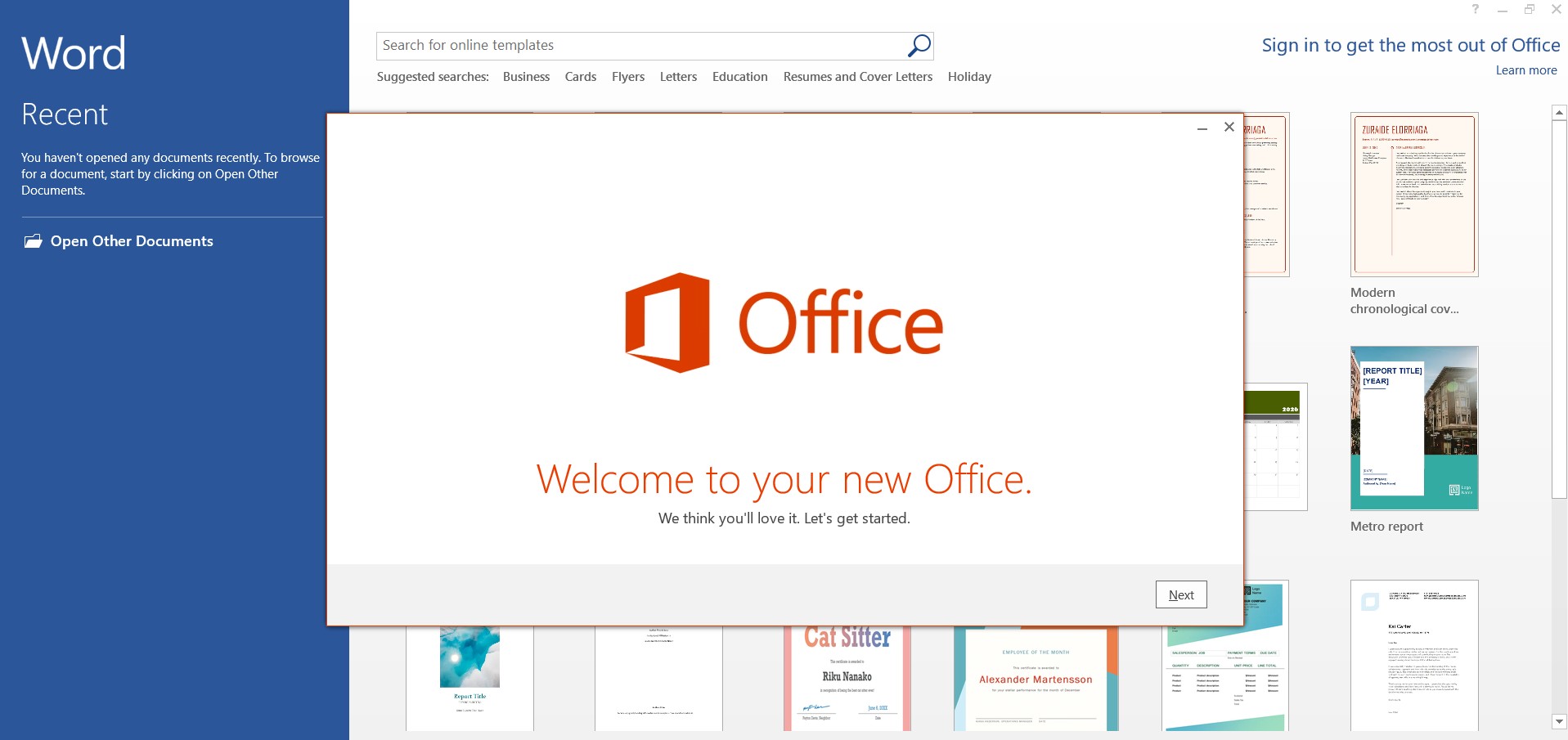
The welcome screen confirms that Office has been installed successfully.
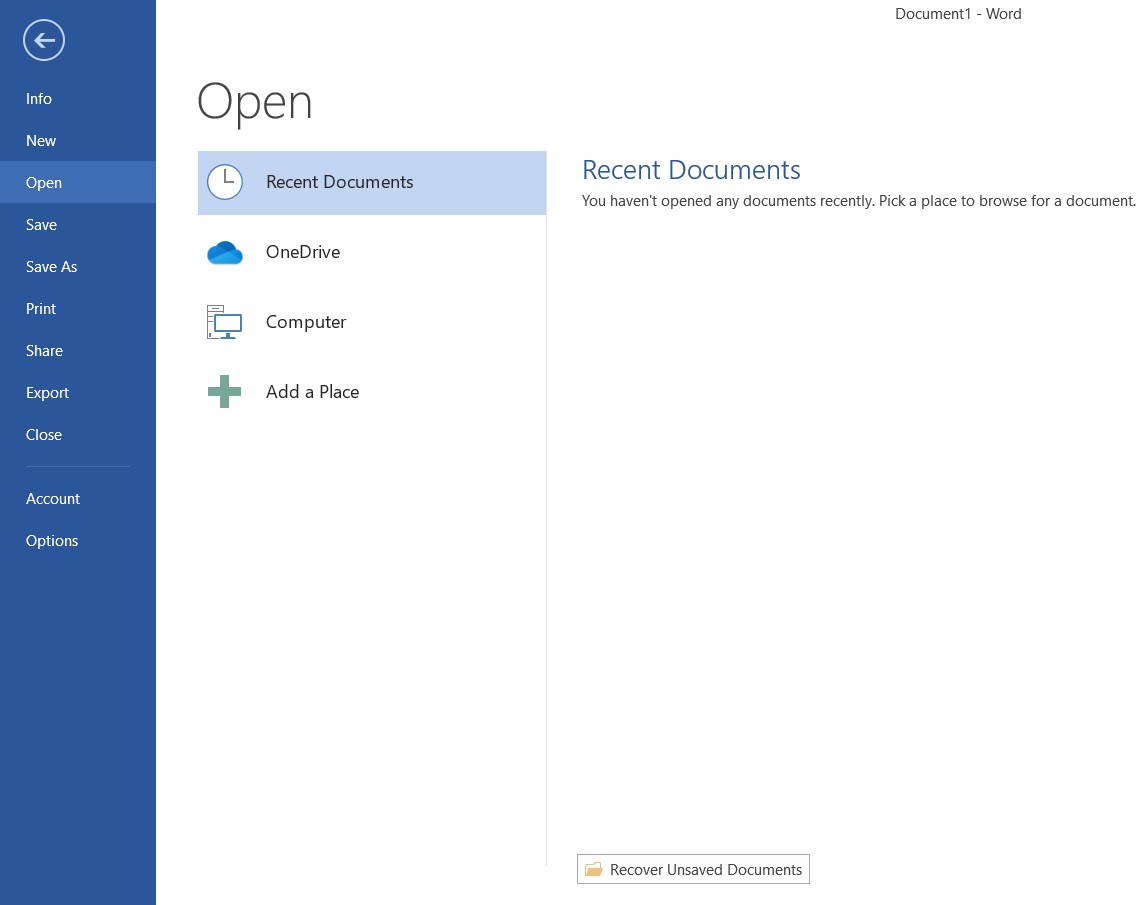
Click File in the top menu.
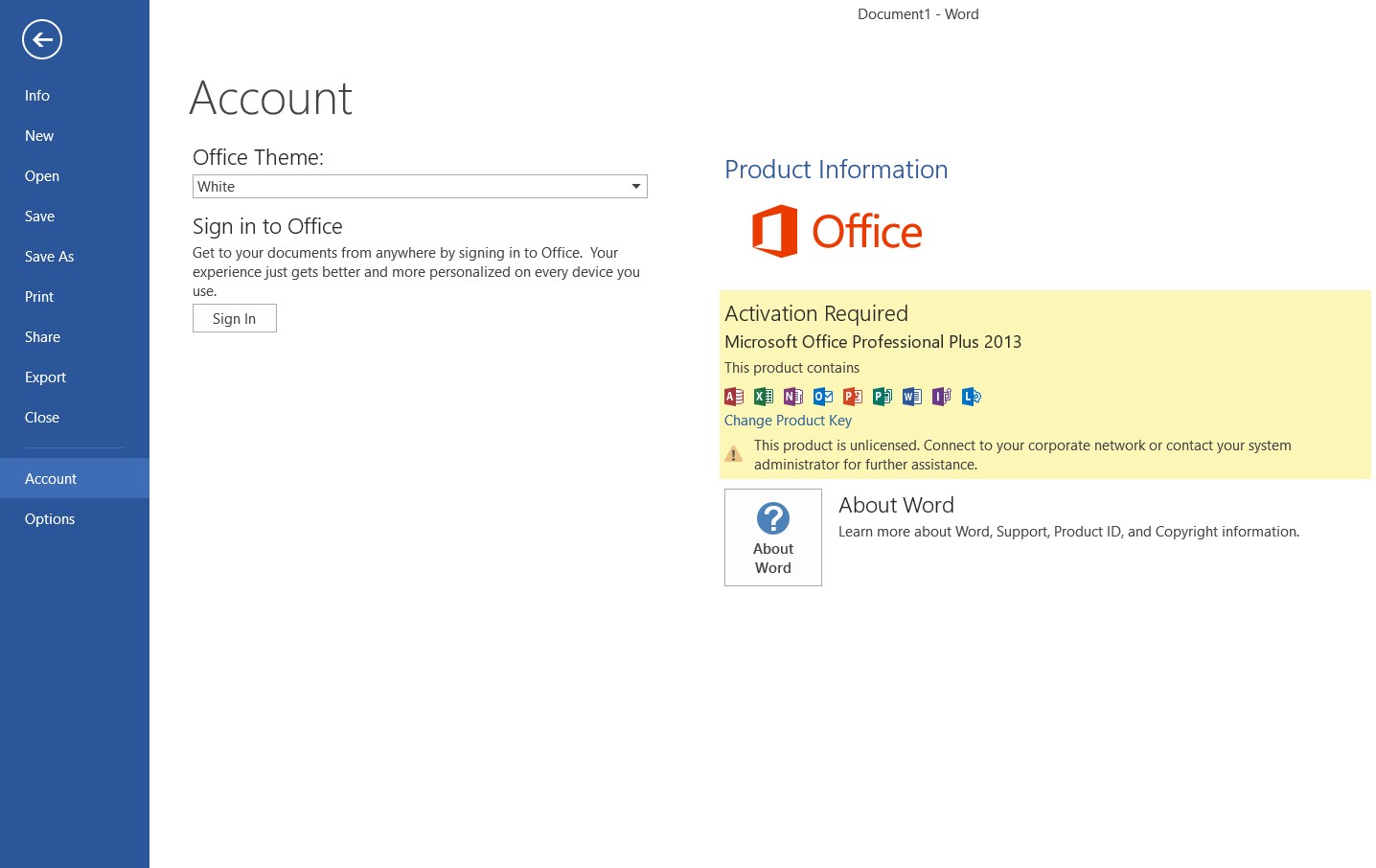
Go to the Account section where activation status is displayed.
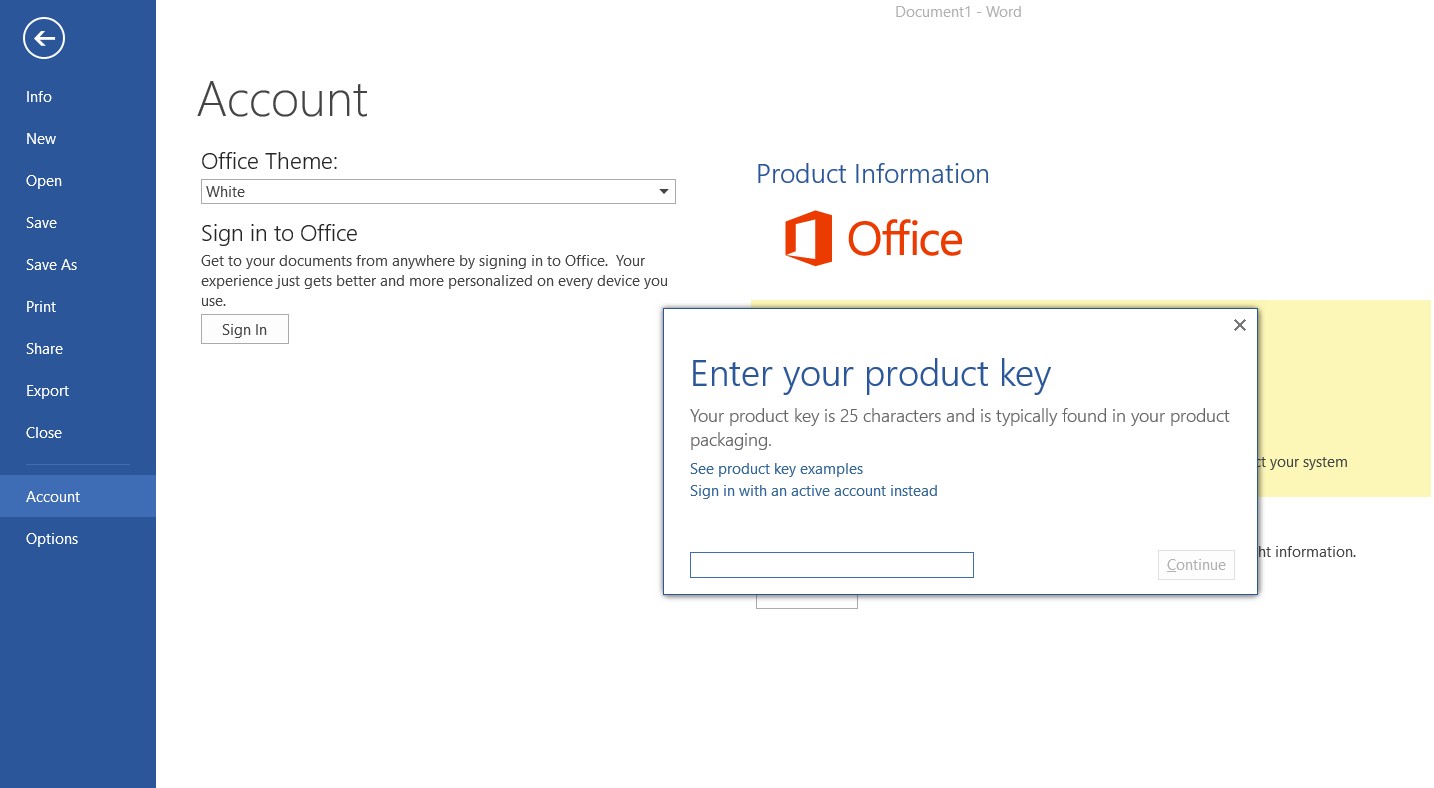
Click Change Product Key and enter your 25-character Office license key.
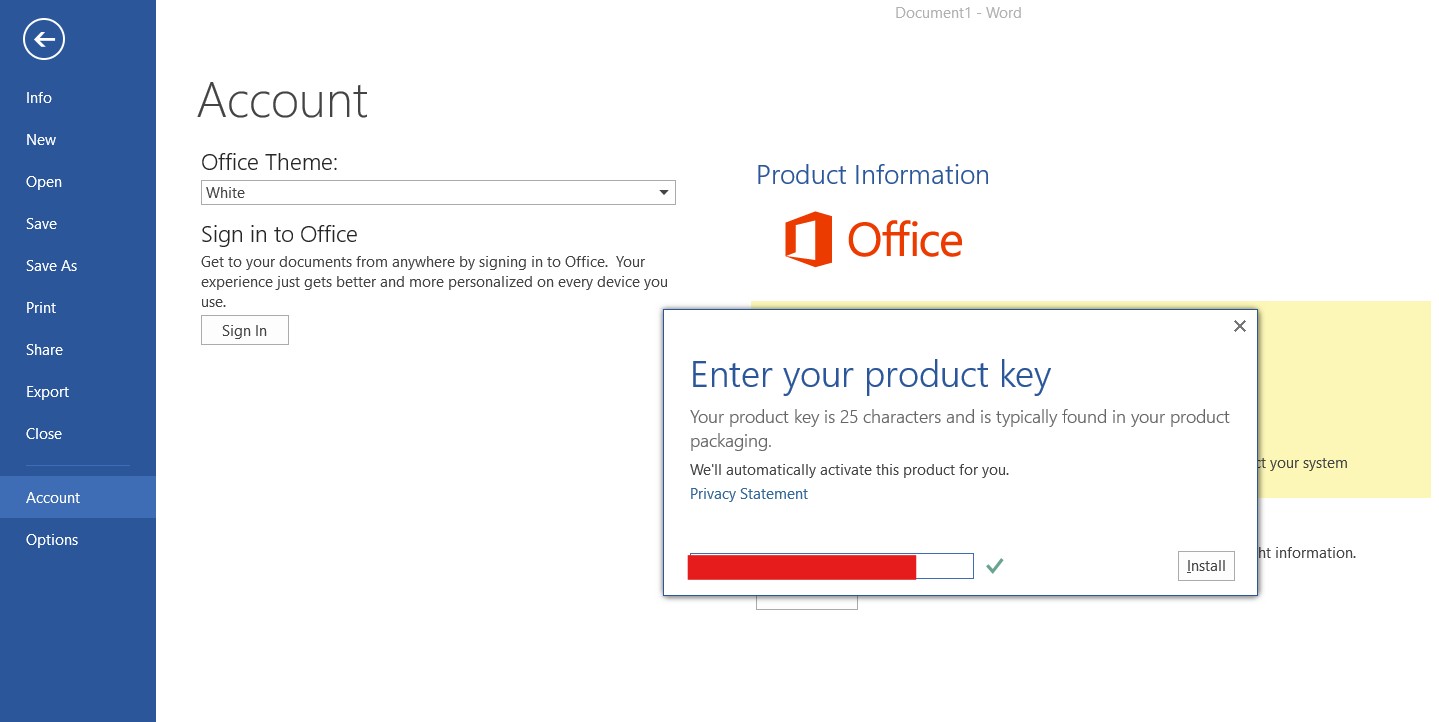
Office will validate the product key and begin activation.
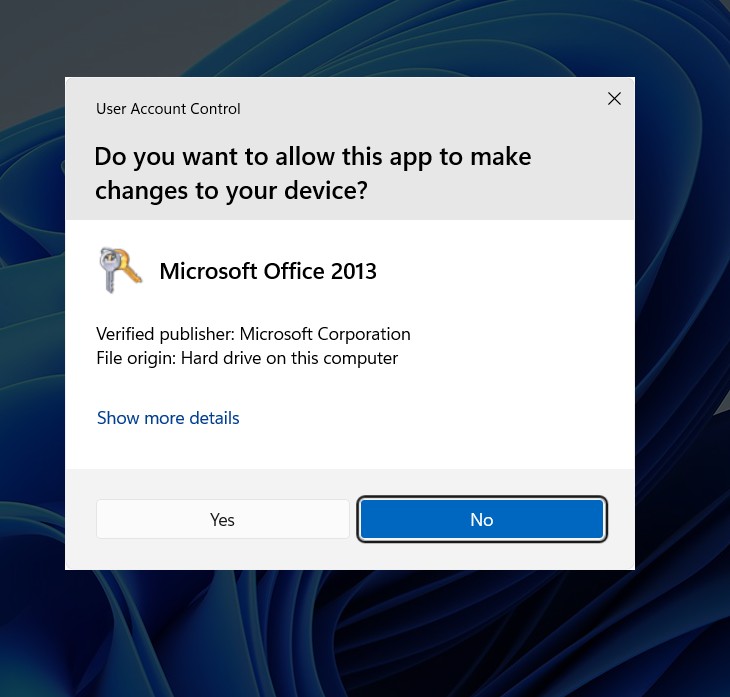
Click Yes if Windows asks for permission.
After entering the product key, Microsoft Office will activate the license automatically.
If the activation status does not update immediately, close Microsoft Word and open it again.
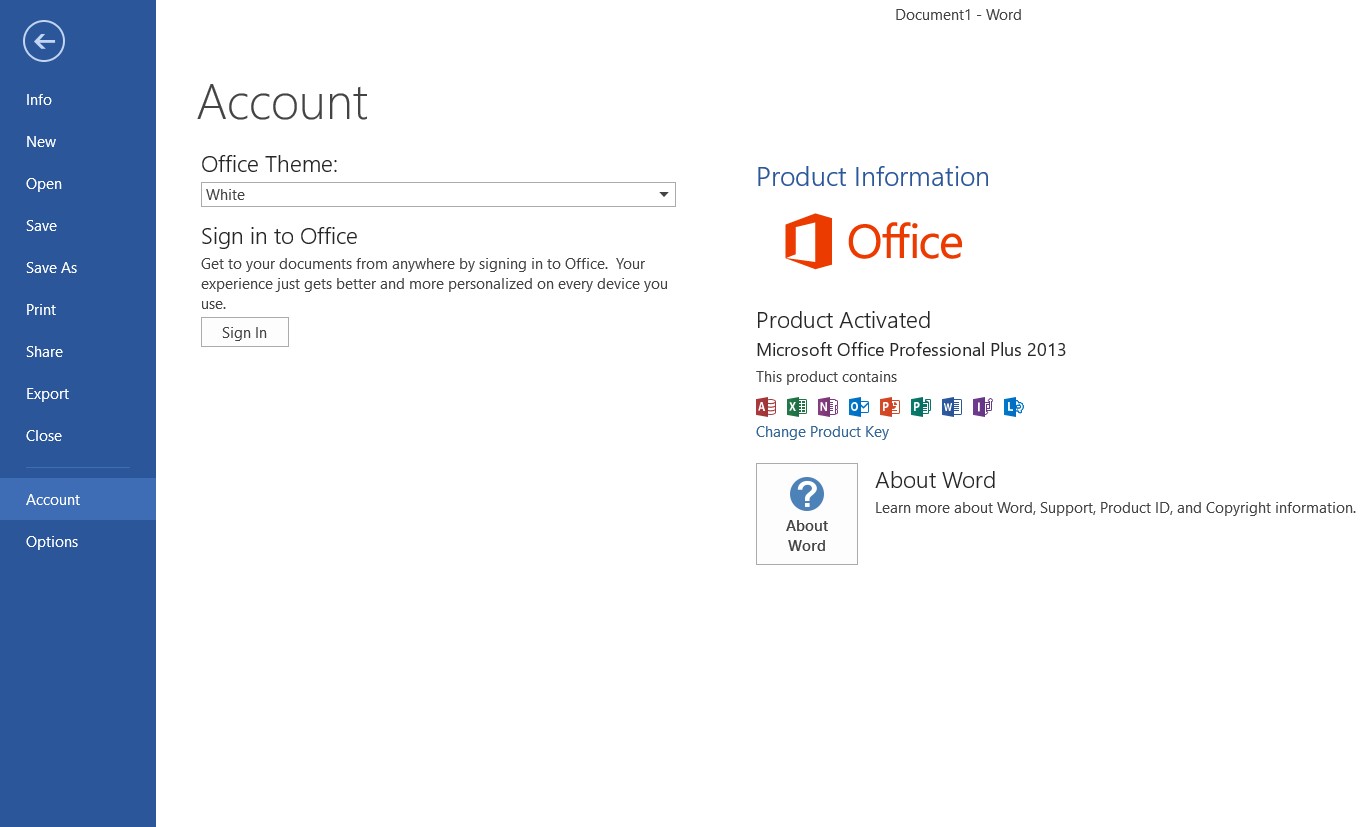
If activation was successful, the status will display Product Activated.
If you need a genuine license key, you can purchase
Microsoft Office 2013 Professional Plus
with instant digital delivery from Keys Experts.
Yes. Microsoft Office 2013 works on Windows 10 and Windows 11 and can be installed using the same setup process shown in this guide.
The Office product key is a 25-character code provided when you purchase the software. Digital licenses are usually delivered via email.
Open an Office application, click File → Account, then select Change Product Key and enter your valid key.
Yes. An internet connection is normally required for online activation.
Yes. Office can be reinstalled using the same installation files and product key depending on the license type.
Installing Microsoft Office 2013 Professional Plus is straightforward when using the official ISO installer. After installation, enter your valid product key to activate the software and unlock all Office applications.