
How to Install and Activate Microsoft Office 2016 Professional Plus (Step-by-Step Guide)

install office 2016 step 1 mount iso win

How to Install and Activate Microsoft Office 2016 Professional Plus (Step-by-Step Guide)

Microsoft Office 2016 Professional Plus is a powerful productivity suite that includes Word, Excel, PowerPoint, Outlook, Access, Publisher, and OneNote.

This guide will show you how to install and activate Office 2016 Professional Plus using a valid product key.


System Requirements

  • Windows 7, Windows 8, Windows 10, or Windows 11
  • 1 GHz processor or faster
  • Minimum 2 GB RAM
  • At least 3 GB available disk space
  • Internet connection for activation

Step 1 – Download the Microsoft Office 2016 Professional Plus ISO

Before starting the installation, download the Microsoft Office 2016 Professional Plus ISO installation file.

Download Office 2016 Professional Plus ISO

After downloading the file, right-click the ISO file and select Mount to open the installation files.
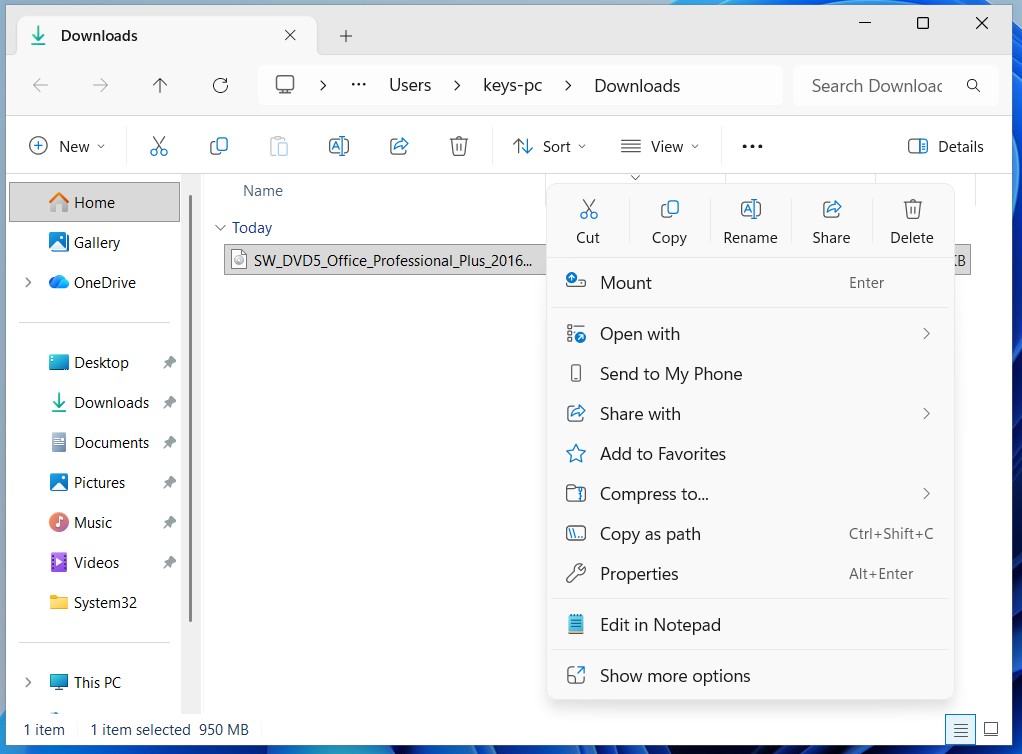
Mount downloaded Office 2016 ISO file

Mount the downloaded Office 2016 ISO file

After downloading the ISO file, right-click it and select Mount.


Step 2 – Open the Installation Files

After mounting the ISO file, a new virtual DVD drive will appear. Open it and locate the file setup.exe.
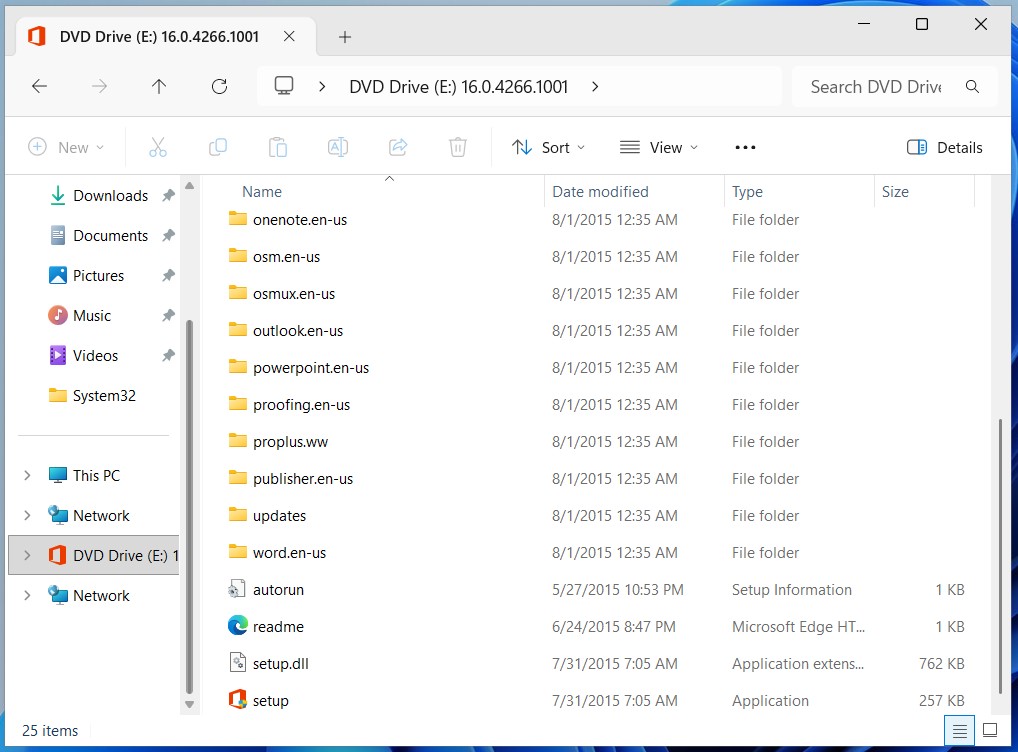
Open Office 2016 setup file

Open the Office 2016 setup file

Step 3 – Start the Installation

Double-click the setup application to begin installing Microsoft Office 2016 Professional Plus.
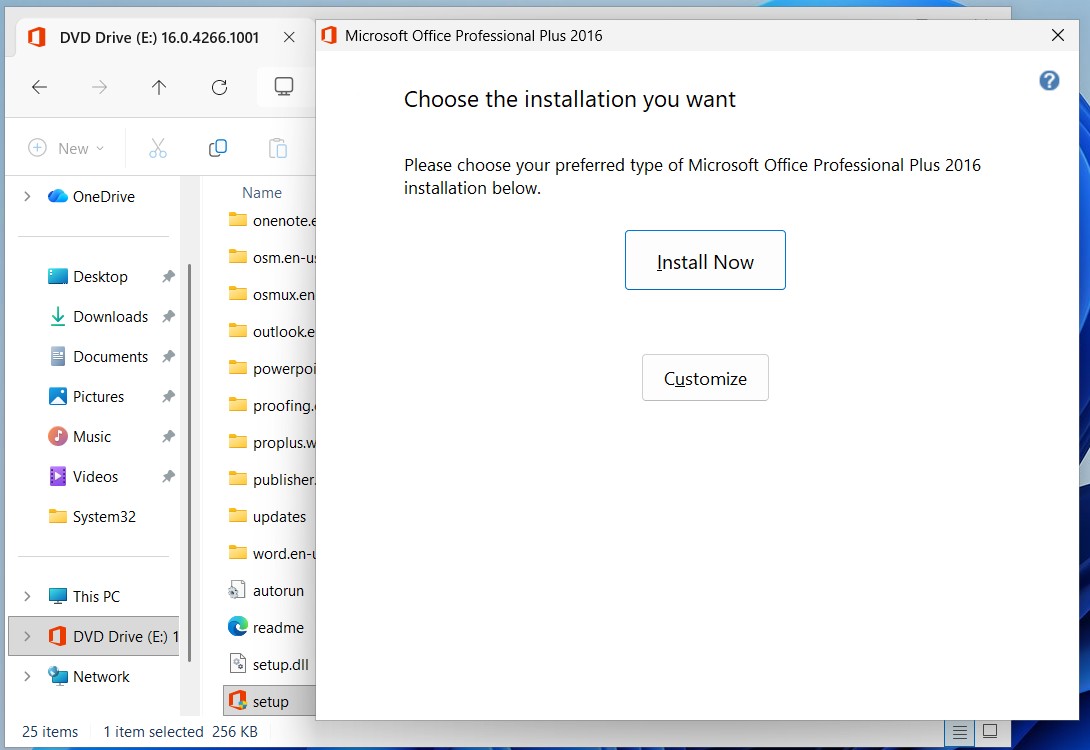
Office 2016 installation window

Choose Install Now

Step 4 – Office Installation Progress

The installer will now copy and install all Office components. This process may take several minutes depending on your system speed.
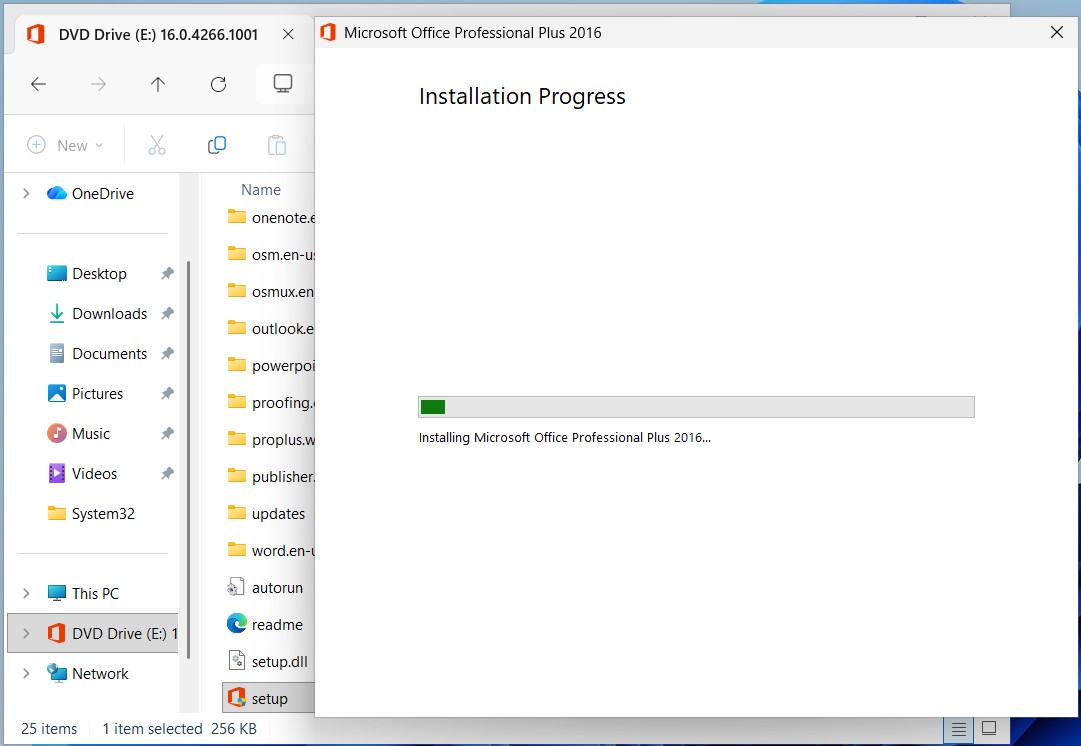
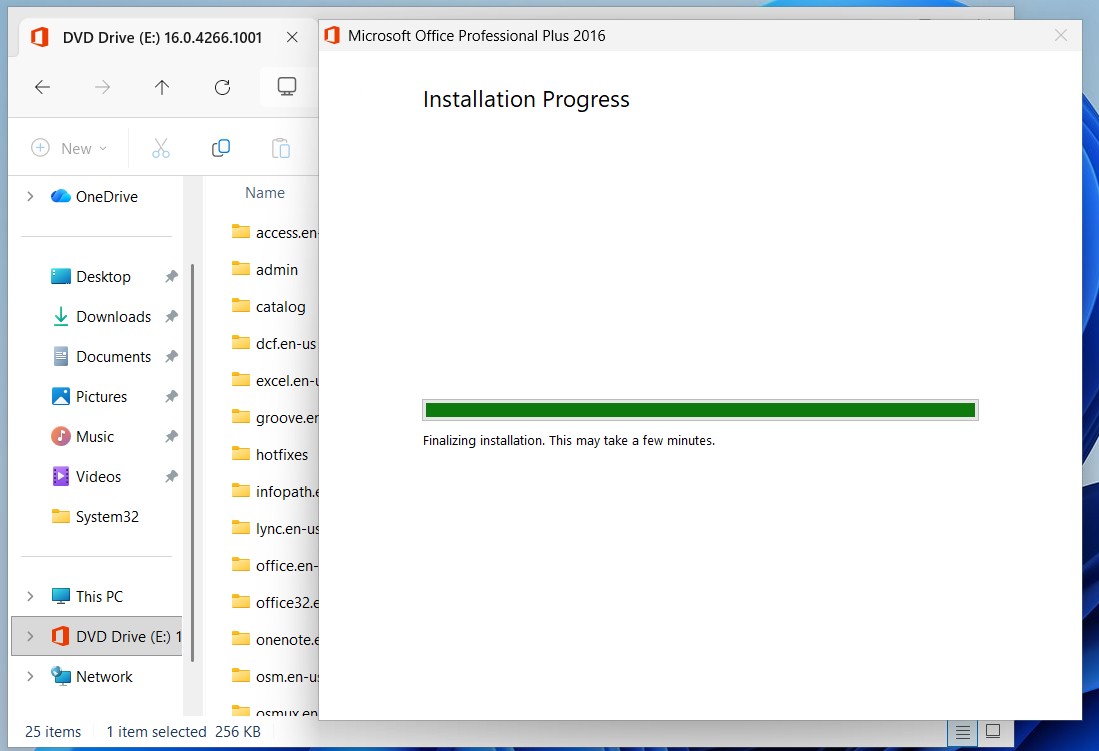
Office 2016 installation progress

Office installation progress
Office installation finishing process

Finalizing installation

Step 5 – Installation Complete

Once installation is complete, you will see a confirmation message indicating that Office has been successfully installed.
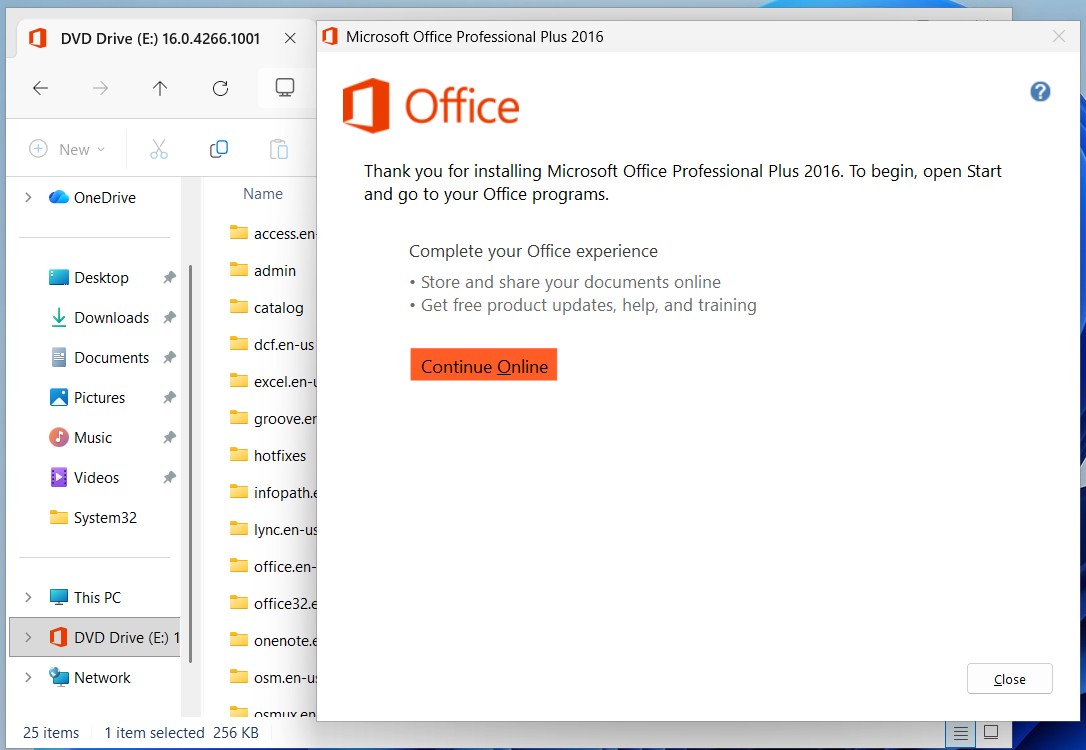
Office installation completed successfully

Office installation completed

Step 6 – Open an Office Application

Open the Start menu and search for Word 2016 or any Office application.
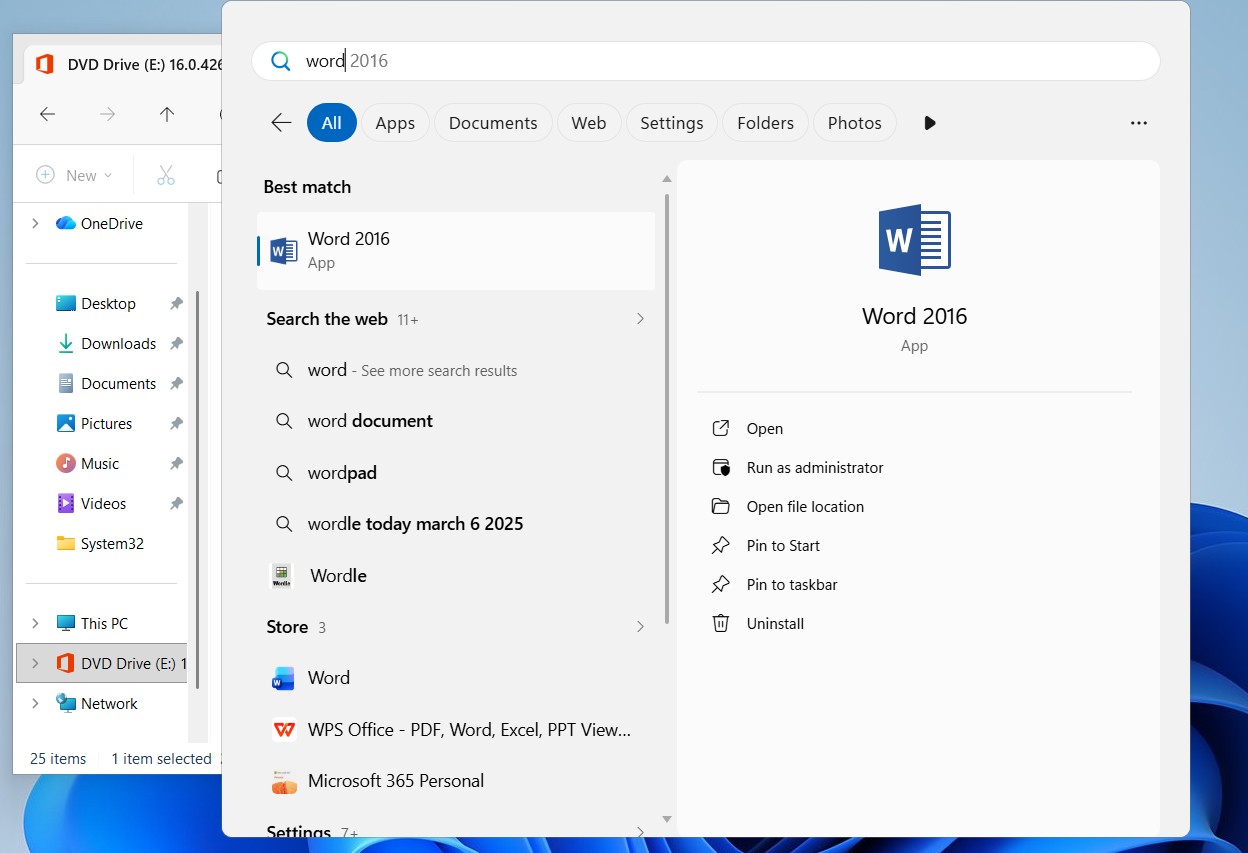
Open Microsoft Word 2016 from start menu

Open Microsoft Word 2016

Step 7 – Open the Account Settings

Click the File menu and go to Account to enter your product key.
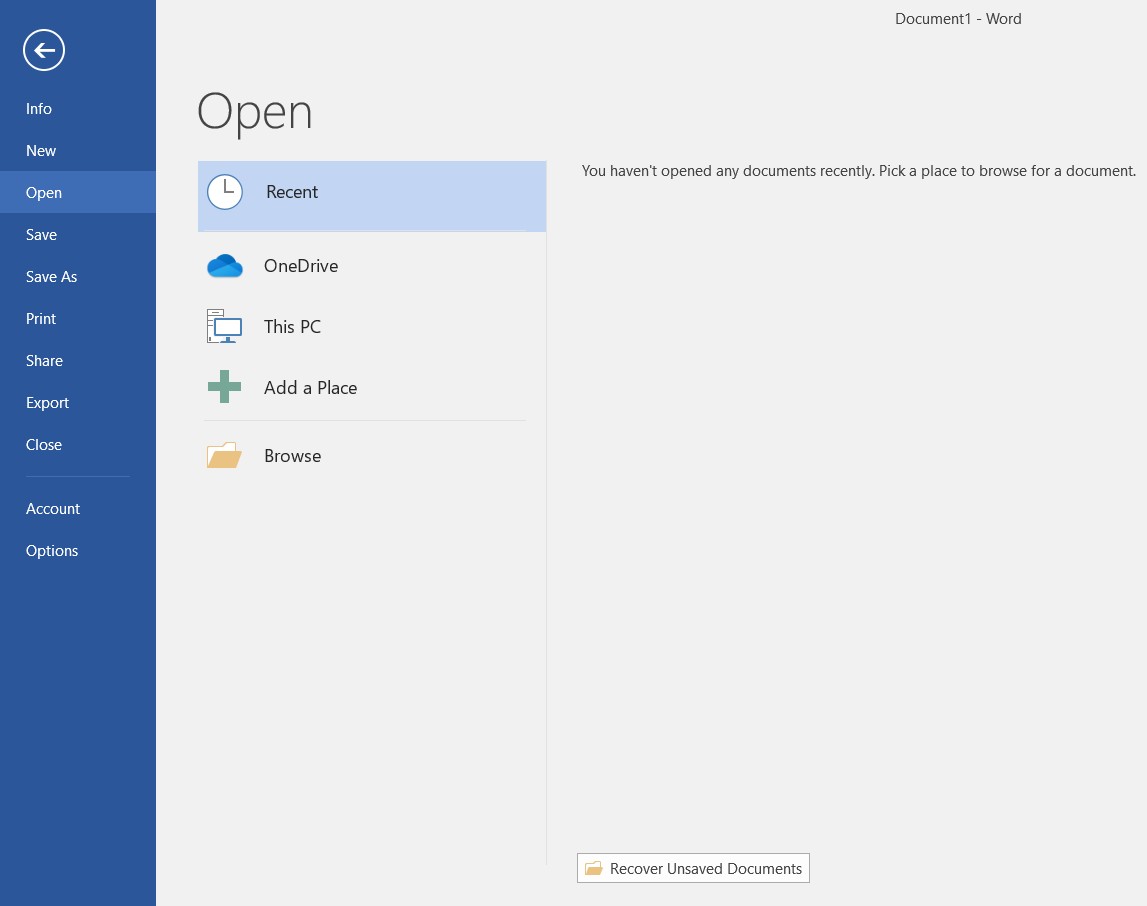
Open file menu in Word 2016

Open the File menu
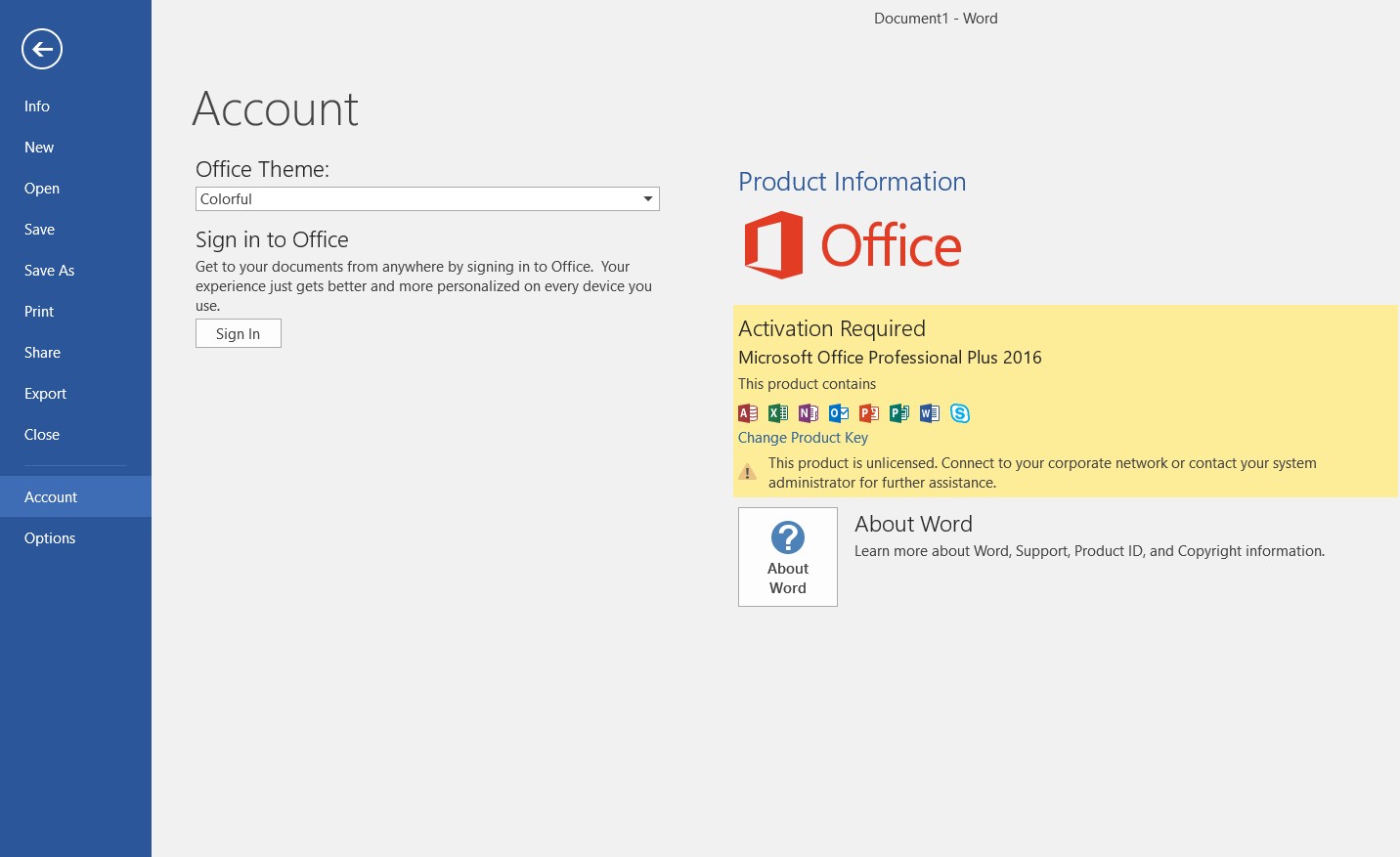
Go to account section in Word

Open the Account section

Step 8 – Enter Your Product Key

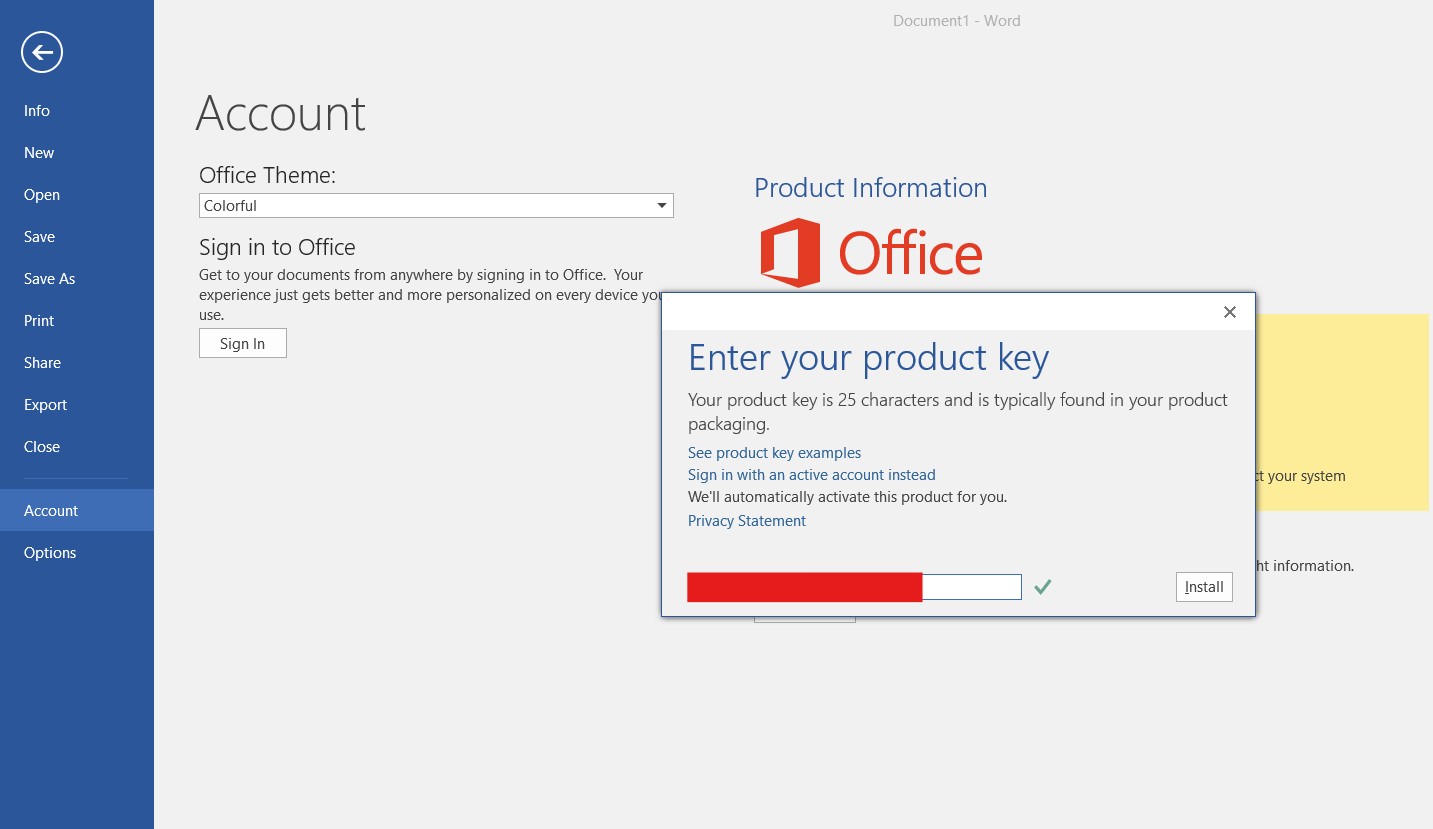
Click Change Product Key and enter your valid 25-character Office product key.
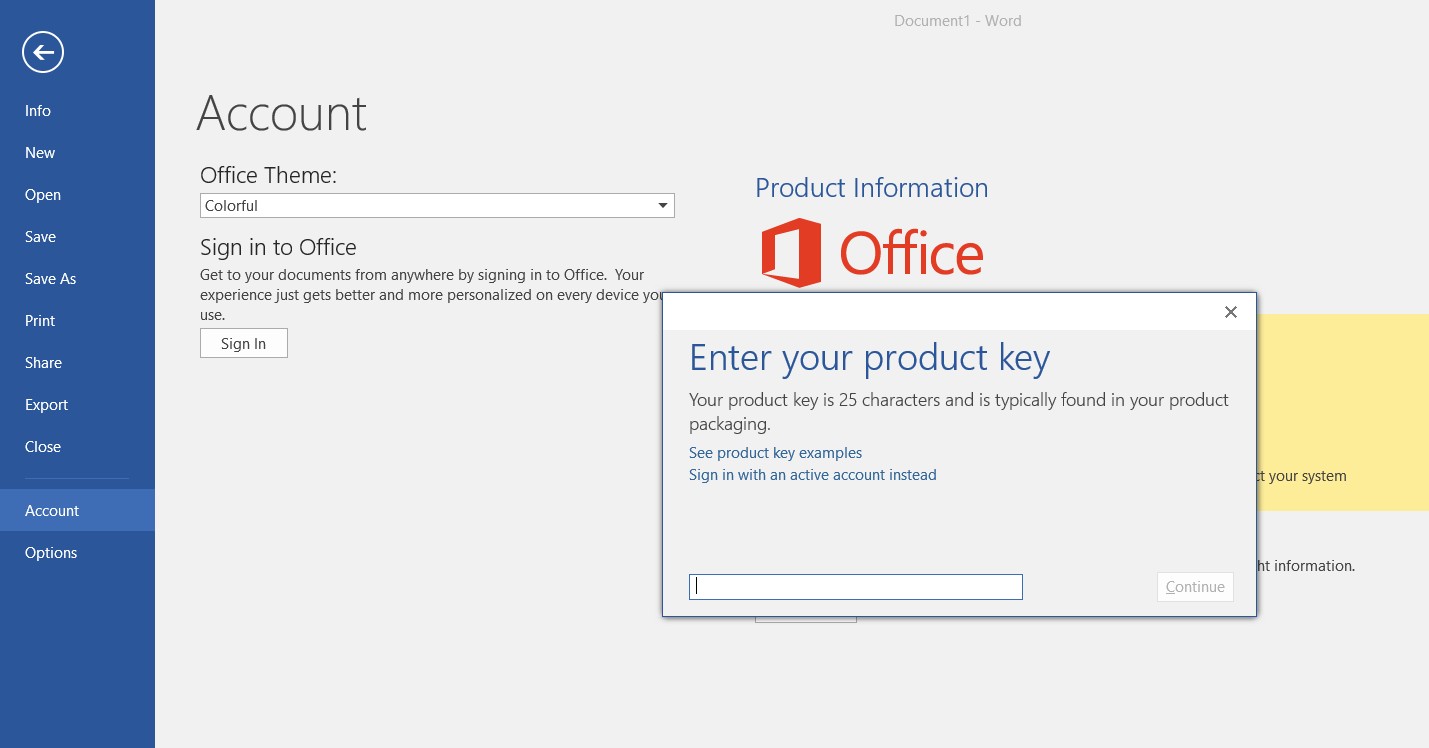
Enter Office 2016 product key

Enter the Office product key
Validate Office product key

Product key validation

Step 9 – Confirm User Account Control

Windows may ask for permission to allow Office to make changes to your device. Click Yes.
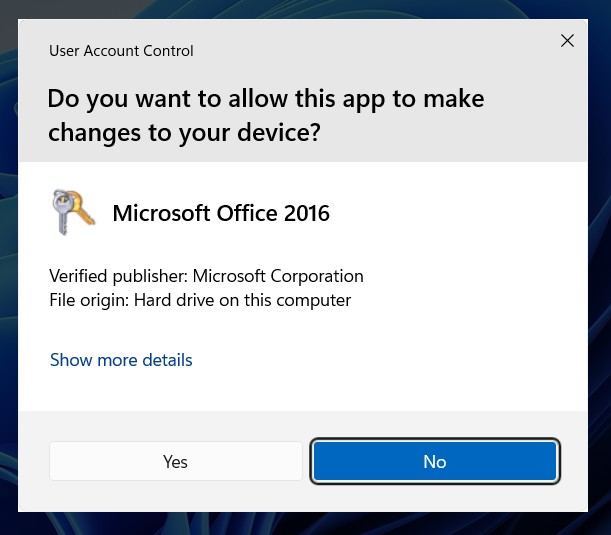
User account control Office 2016

Allow Office to make changes

Step 10 – Restart Microsoft Word

After entering your product key, Microsoft Word may need to restart to apply the activation changes.

Close the Word application completely and then open it again from the Start Menu.

  • Click Close on the current Word window
  • Open the Start Menu
  • Search for Word 2016
  • Click to launch Microsoft Word again

When Word opens again, the activation process will continue automatically.


Step 11 – Activate Office

The Microsoft Office Activation Wizard will appear. Select Activate over the Internet and click Next.
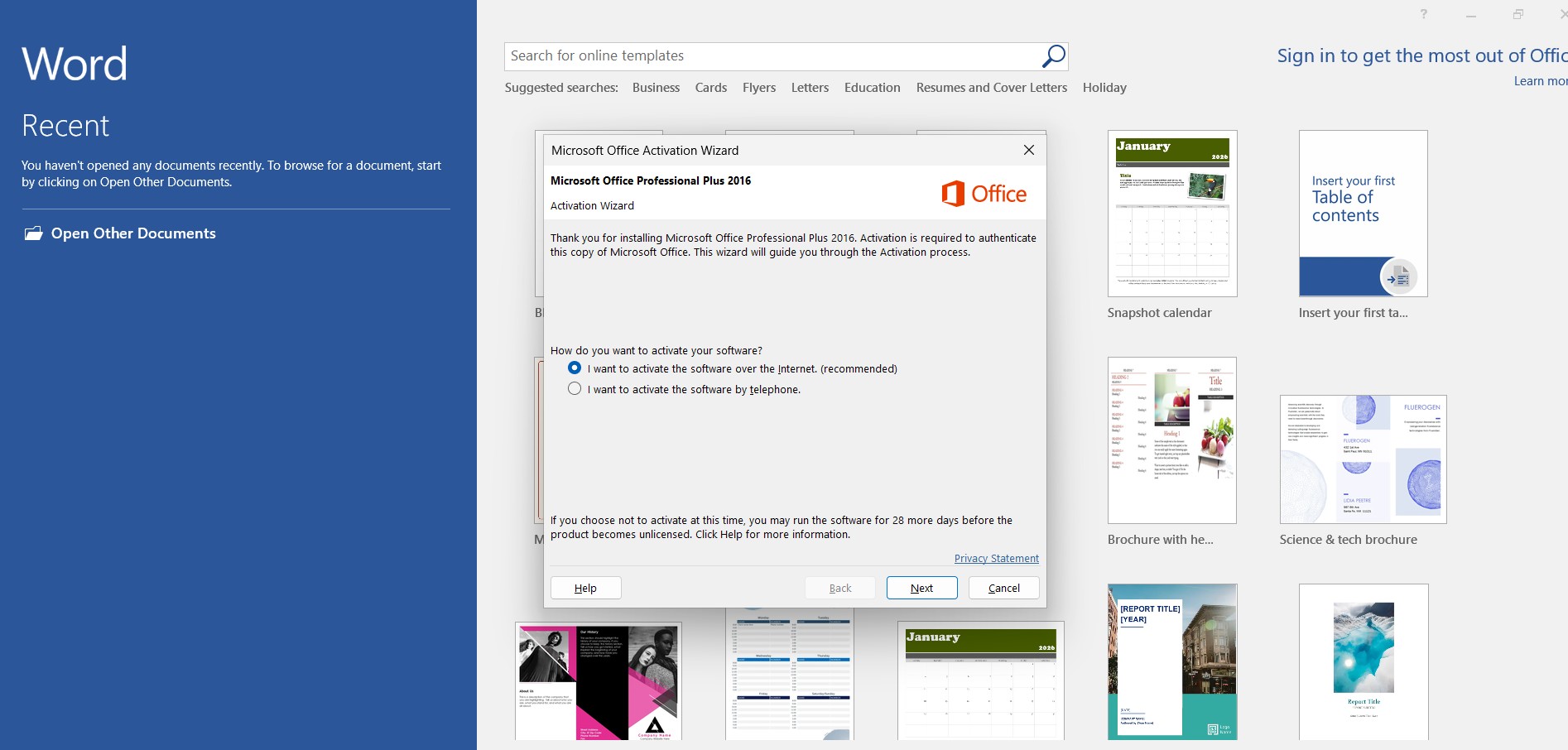
Office 2016 activation wizard

Office activation wizard

Step 12 – Activation Successful

After activation is complete, you will see a confirmation message that your copy of Microsoft Office Professional Plus 2016 is activated.
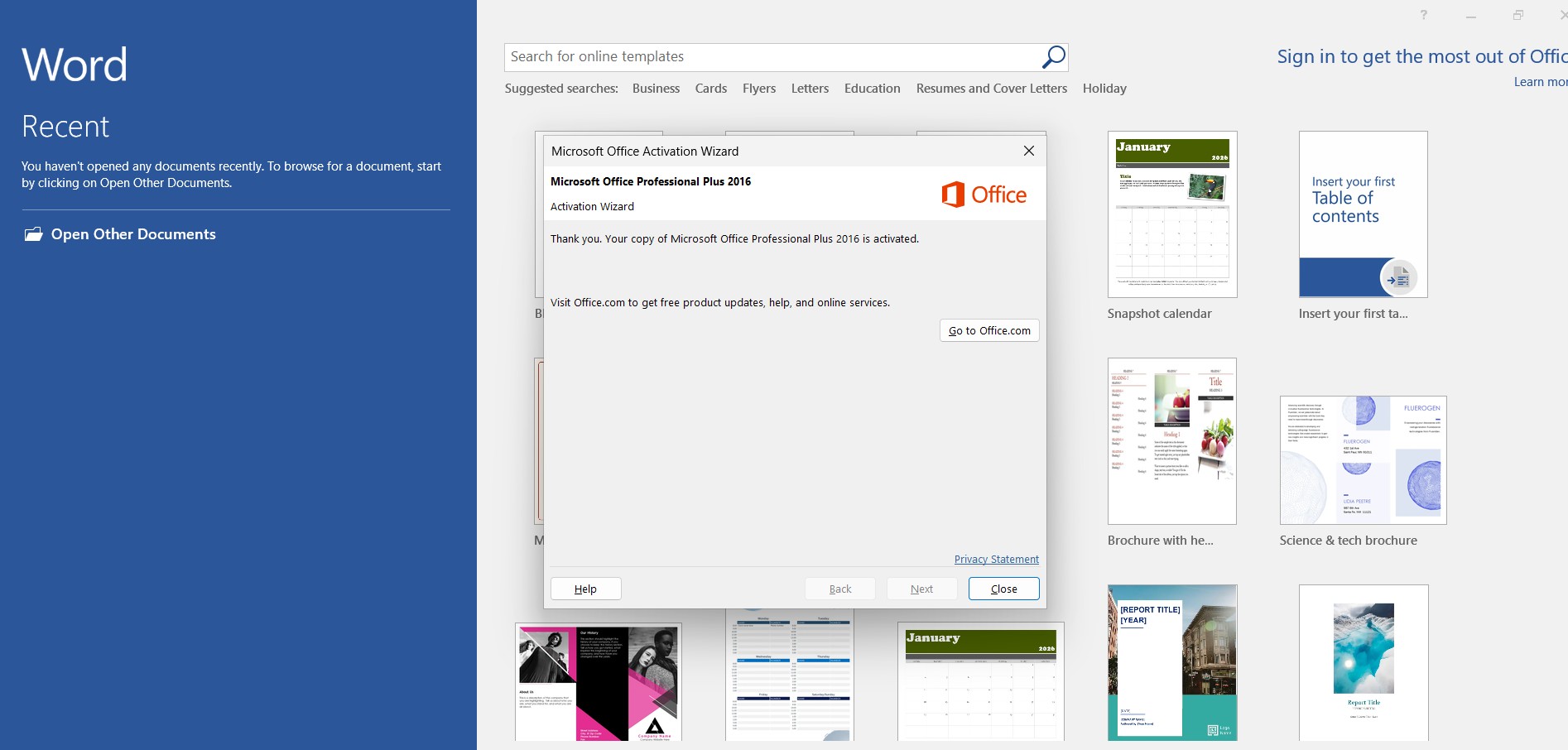
Office activation successful message

Office activation successful

Office 2016 Professional Plus is Now Ready to Use

You can now use all Office applications including:

  • Microsoft Word 2016
  • Microsoft Excel 2016
  • Microsoft PowerPoint 2016
  • Microsoft Outlook 2016
  • Microsoft Access 2016
  • Microsoft Publisher 2016
  • Microsoft OneNote 2016

Frequently Asked Questions

Can Microsoft Office 2016 run on Windows 11?

Yes. Office 2016 works on both Windows 10 and Windows 11 without compatibility issues.

How do I activate Office 2016 Professional Plus?

Open Word, go to File → Account → Change Product Key and enter your 25-character Office key.

Do I need internet for activation?

Internet activation is recommended. However, telephone activation is also available.

What applications are included in Office 2016 Professional Plus?

Word, Excel, PowerPoint, Outlook, Access, Publisher, and OneNote.

Why does Office say activation required?

This means the software is installed but not yet licensed. Enter your product key from the Account section to activate.


Related Microsoft Office Guides


Need a Genuine Microsoft Office 2016 Key?

If you need a genuine Microsoft Office license key, you can purchase one from our store:
Buy Microsoft Office License Keys – KeysExperts

Language »