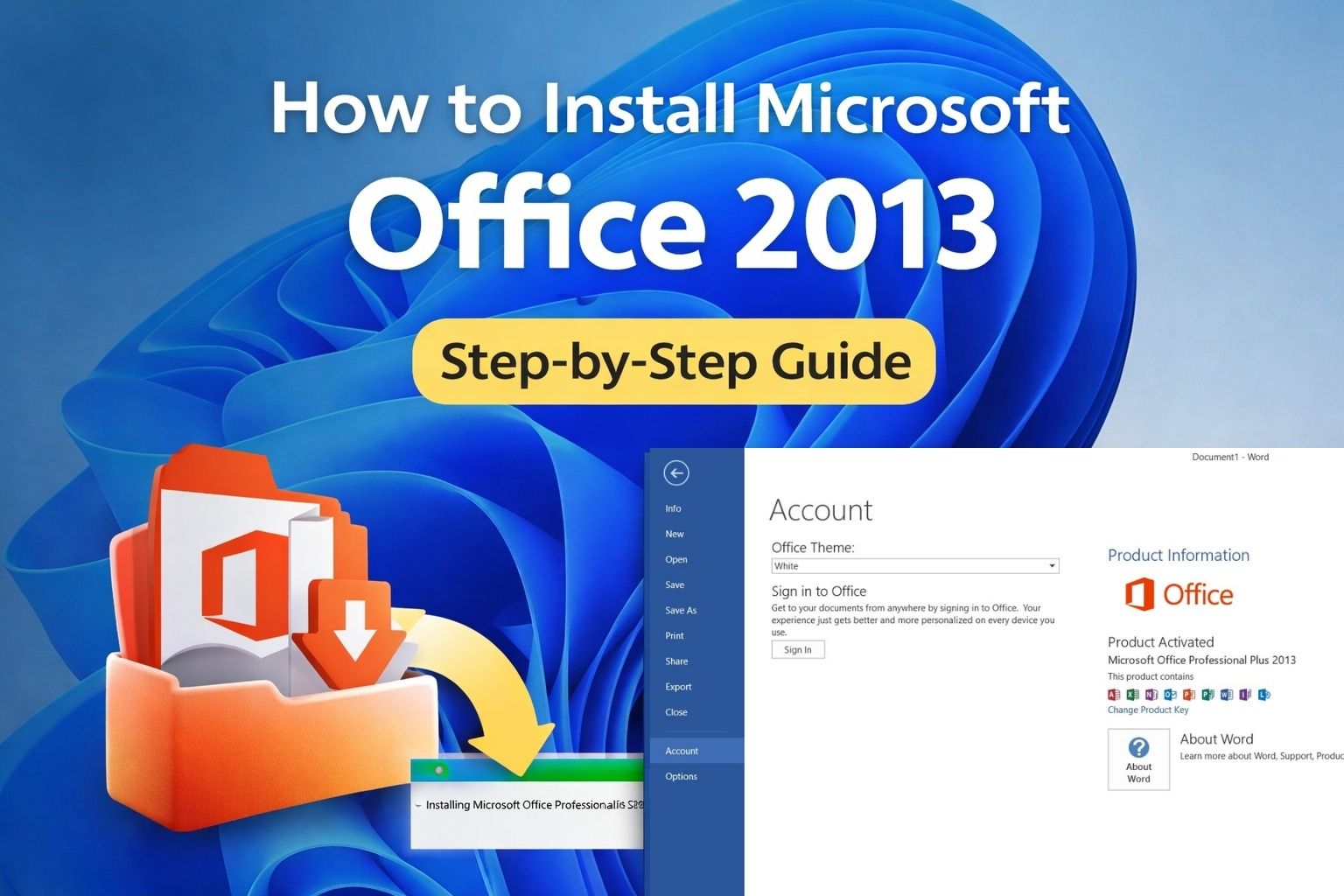
How to Install Microsoft Office 2021 LTSC with ODT & OCT (Step-by-Step Guide)
This guide shows you exactly how to download, install, and customize Microsoft Office 2021 LTSC using the Office Deployment Tool (ODT) and the Office Customization Tool (OCT). Copy the XML template, run the commands, and deploy with confidence.
Important: If you already have
Microsoft 365 installed on your PC, uninstall it before installing
Office 2021 LTSC.
These versions cannot run together. Follow Microsoft’s official guide:
Uninstall Microsoft 365 from a PC
Table of Contents
Why Use ODT & OCT for Office 2021 LTSC?
Office 2021 LTSC provides long-term stability with a fixed feature set.
ODT handles downloading and installing via XML configuration.
OCT simplifies XML generation through a web interface.
Together, they allow controlled, repeatable deployments for individuals and businesses.
Prerequisites
- Windows 10 or Windows 11 (64-bit)
- Administrator rights
- Internet connection for initial download and activation
- Valid Office 2021 LTSC license
Official resources:
Download Office Deployment Tool (ODT) ·
Open Office Customization Tool (OCT) ·
Office LTSC Overview
Step 1 — Download & Extract Office Deployment Tool
- Download ODT from Microsoft.
- Run the executable and extract to a folder (e.g.,
C:\ODT).
Tip: Use a short folder path like C:\ODT to avoid long-path issues.
Step 2 — Create Configuration File
You can either manually create the XML or generate it using OCT.
Option 1: Manual XML
Create a file named configuration.xml inside C:\ODT:
<Configuration>
  <Add OfficeClientEdition="64">
    <Product ID="ProPlus2021Volume">
      <Language ID="en-us" />
    </Product>
  </Add>

  <Display Level="Full" AcceptEULA="TRUE" />
  <Updates Enabled="TRUE" />
  <RemoveMSI />
</Configuration>
Option 2: Use Office Customization Tool
- Go to config.office.com.
- Select Office LTSC Professional Plus 2021.
- Choose language and application preferences.
- Export the XML file and save it in
C:\ODT.
Tip: OCT reduces XML configuration errors.
Step 3 — Run ODT Commands
- Open Command Prompt as Administrator.
- Navigate to ODT folder:
cd /d C:\ODT
- Download Office files:
setup.exe /download configuration.xml
- Install Office:
setup.exe /configure configuration.xml
The download runs silently. Monitor folder size or network usage.
Step 4 — Verify Installation
- Launch Word or Excel.
- Confirm installed apps match your configuration.
- Check updates are enabled.
Activate Office 2021 Professional Plus LTSC
After installation:
Activate via Office Application
- Open Word or Excel.
- Go to File → Account.
- Select Change Product Key.
- Enter your 25-character Office 2021 LTSC key.
- Click Activate.
Office will confirm activation once successful.
Troubleshooting
Installation appears stuck
Large downloads may take time. Run as Administrator and ensure firewall/proxy does not block Microsoft servers.
Incorrect language or missing apps
Verify Language ID and product ID in XML. Re-run configure command.
Older Office conflict
Ensure <RemoveMSI /> is included to remove MSI-based versions.
Best Practices
- Always use latest ODT version.
- Store configuration XML for future deployments.
- Test configuration before wide rollout.
- Standardize OCT profile for team consistency.
FAQs
Can I install offline?
Yes. After downloading files with ODT, installation can run offline.
Can I exclude apps like Access or Publisher?
Yes. Add <ExcludeApp ID="Access"/> in XML.
Is OCT mandatory?
No, but it simplifies XML creation and reduces errors.
External References
Office Deployment Tool (ODT) ·
Office Customization Tool (OCT) ·
Office LTSC Overview
Related Products