Windows 11 Home Activation Key: How to Activate Safely and Fix Common Errors
If you’re trying to activate Windows with a
Windows 11 home activation key and it isn’t working or you’re seeing an activation error code this guide walks through Microsoft-supported steps to activate Windows 11 Home and troubleshoot common issues. The focus is compliance-first: using a legitimate license key, confirming the installed edition matches the key, and using built-in Windows activation tools (no bypass methods).
Before you start: what activation is checking
Windows activation verifies that your device has a valid license for the edition installed. When activation fails, it’s usually due to one of these reasons:
- Edition mismatch (for example, a Pro key on a Home installation).
- Key entry issues (mistyped characters or using the wrong key type for that installation).
- Connectivity/time problems (device can’t reach activation services or system time is incorrect).
- Activation service/volume licensing scenarios (common with error 0xC004F074).
Tip: Most Windows 11 activation problems are caused by edition mismatch or incorrect key entry. Always verify the installed edition before troubleshooting further.
Step 1: Confirm you’re running Windows 11 Home (edition match)
A key is edition-specific. If your PC is installed as Windows 11 Pro, a Home key typically won’t activate it (and vice versa). To check the installed edition:
- Open Settings.
- Go to System → About.
- Look for Windows specifications → Edition (it should say Windows 11 Home).
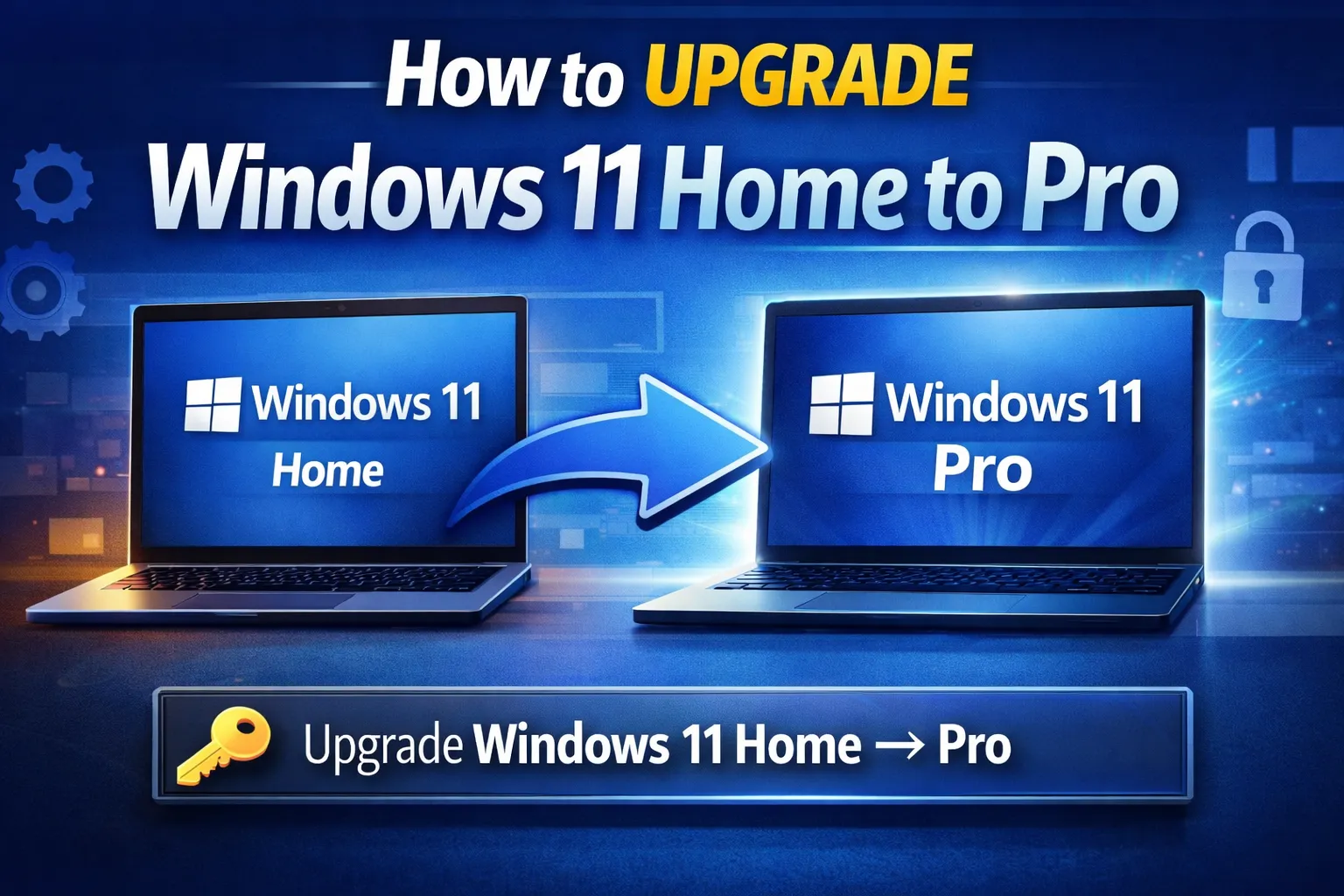
Why a Pro key won’t activate Home (and what to do)
Windows product keys are tied to a specific edition. If you enter a
Windows 11 Pro key while running
Windows 11 Home, you will typically see a “key not valid for this edition” type message or an activation error (often
0xC004F050).
Step 2: Where to enter or change your Windows 11 Home activation key
- Open Settings.
- Select System → Activation.
- Select Change product key.
- Enter your 25-character product key and follow the prompts.
Double-check common character lookalikes before confirming the key (B vs 8, O vs 0).
Step 3: Check activation status and license channel
Go to
Settings → System → Activation and review:
- Activation state (Activated / Not activated).
- Account association (linked to Microsoft account if applicable).
Use the Windows 11 activation troubleshooter
- Open Settings → System → Activation.
- Select Troubleshoot if available.
- Follow the prompts and sign in if required.
Quick checks that often fix activation issues
- Internet connection: Ensure stable access.
- Date/time settings: Enable automatic time & time zone.
- Restart: Reboot and retry activation.
- Windows updates: Install pending updates.
Fixing “Windows 11 product key not working 0xC004F050”
Error
0xC004F050 typically indicates an invalid key for the installed edition.
- Confirm the PC is installed as Windows 11 Home.
- Re-enter the key carefully.
- Ensure the key is meant specifically for Windows 11 Home.
- If reinstalled, confirm the correct edition was installed.
Fixing “Windows 11 activation error code 0xC004F074”
Error
0xC004F074 is commonly associated with activation service or KMS scenarios.
- Run the activation troubleshooter.
- Confirm you are using a retail Windows 11 Home key.
- Check network and time settings.
- Retry on a different network if needed.
When to use a digital license vs. a product key
- Digital license: Activation tied to device and Microsoft account.
- 25-character product key: Manual activation method.
Safe next steps if activation still fails
- Note the exact error code shown.
- Re-check installed edition.
- Verify order details with the seller.
- Contact Microsoft Support if necessary.
Where to Buy a Genuine Windows 11 Home License
If you need a legitimate key to activate the correct edition, Keys Experts offers genuine digital license keys for Windows 11 Home. Always ensure the purchased key matches the installed edition.
Summary: activating Windows 11 Home safely
- Confirm you’re running Windows 11 Home.
- Enter the key via Settings → System → Activation.
- Use the activation troubleshooter if needed.
- 0xC004F050 usually indicates edition mismatch.
- 0xC004F074 relates to activation service/channel issues.
Compliance Notice: This guide explains Microsoft-supported activation methods only. Always use legitimate Windows licenses and ensure edition compatibility before purchase.